

XHAND 1 Dexterous Hand Product Manual
1. Product and specifications
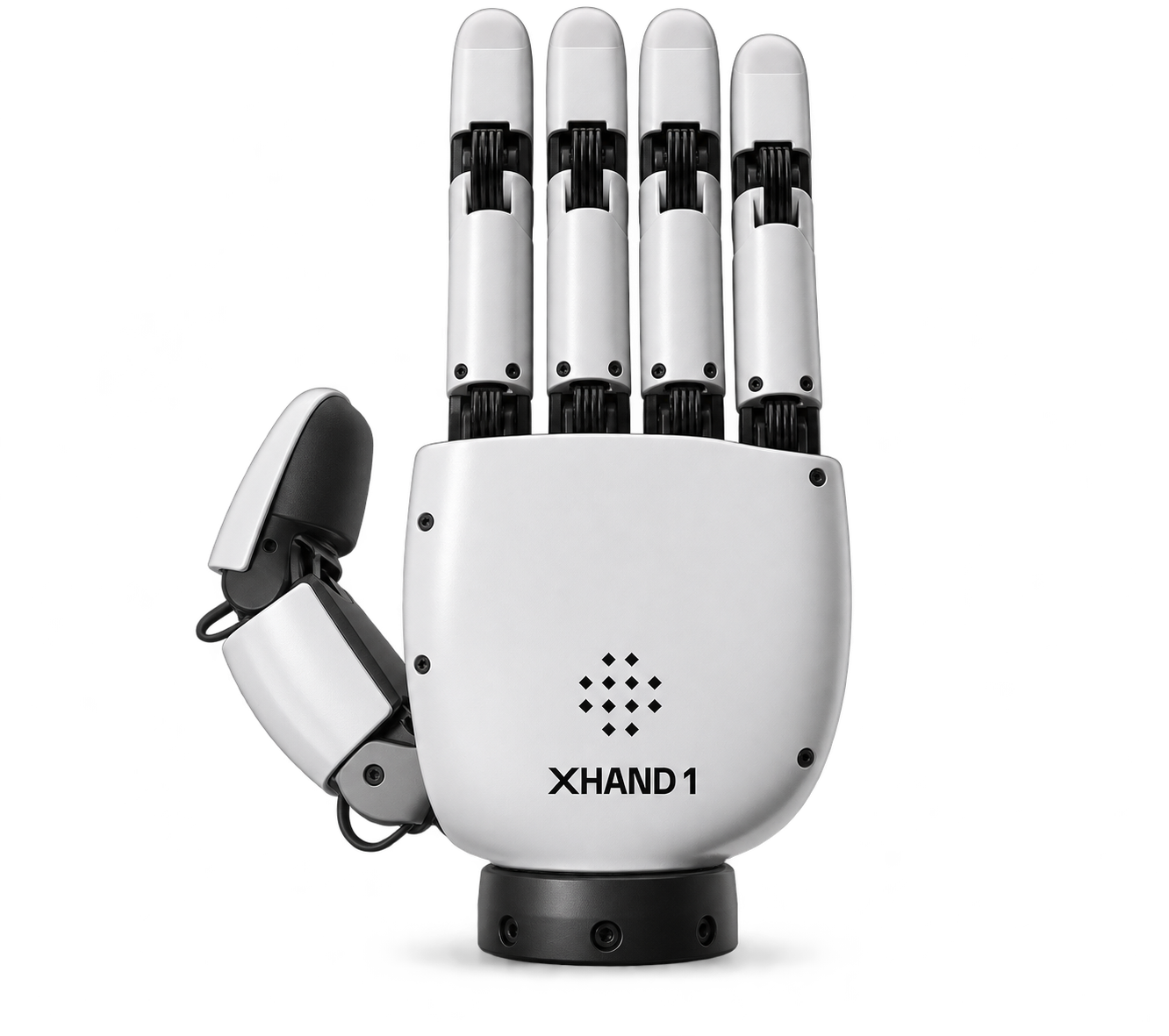
XHAND 1 has five direct-drive fingers and 12 active degrees of freedom. The thumb and index finger have three degrees of freedom each. The other three fingers have two each.
Optional tactile sensors measure three-axis force and temperature at all five fingertips.
| Item | Specification |
|---|---|
| Applicable models (left / right hand) | 2L32 / 2R32 |
| Active degrees of freedom | 12 |
| Weight | 1.1 kg |
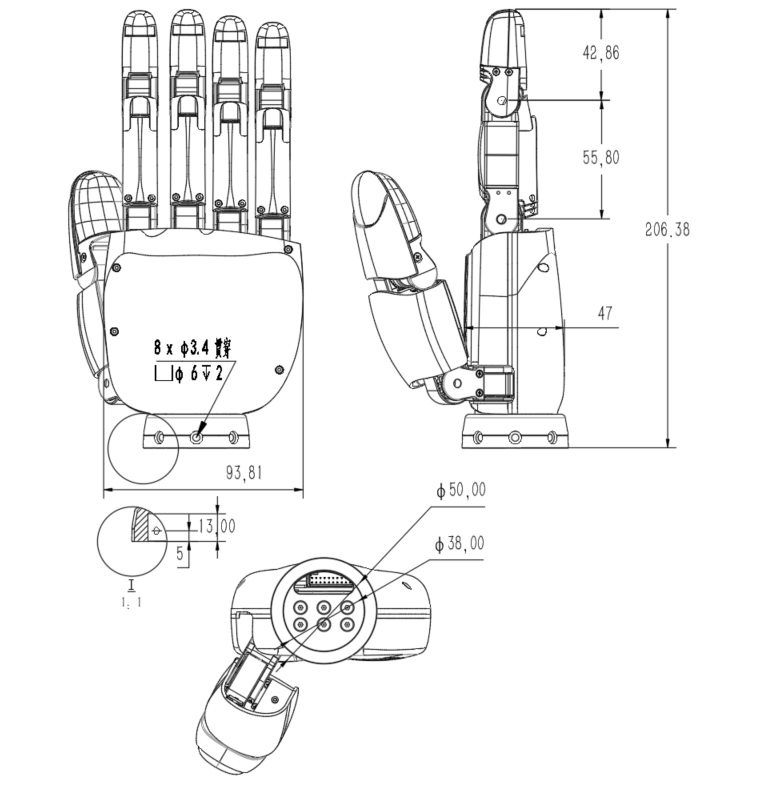
| External dimensions | 190.36 × 94 × 47 mm |
| Minimum grip diameter | 16 mm |
| Fingertip positioning repeatability | ±0.2 mm |
| Fingertip force / maximum grip force | 15 N / 80 N |
| Maximum load, palm up | 25 kg |
| Maximum weight when gripping a 5 cm diameter bottle vertically with the palm facing left | 8 kg |
| Operating voltage | 24–72 V DC |
| Idle current / power at 48 V | 0.15 A / 7 W |
| Maximum current / power at 48 V | 2.5 A / 120 W |
| Repeated opening and closing rate | ≥2 Hz |
| Communication interfaces | RS485 (USB) and EtherCAT. CAN FD requires a matching cable and firmware |
Use the mechanical drawing for your hardware revision to check the hole pattern, wrist dimensions, and cable clearance before mounting the hand.
2. Installation and wiring
2.1 Mounting and placement
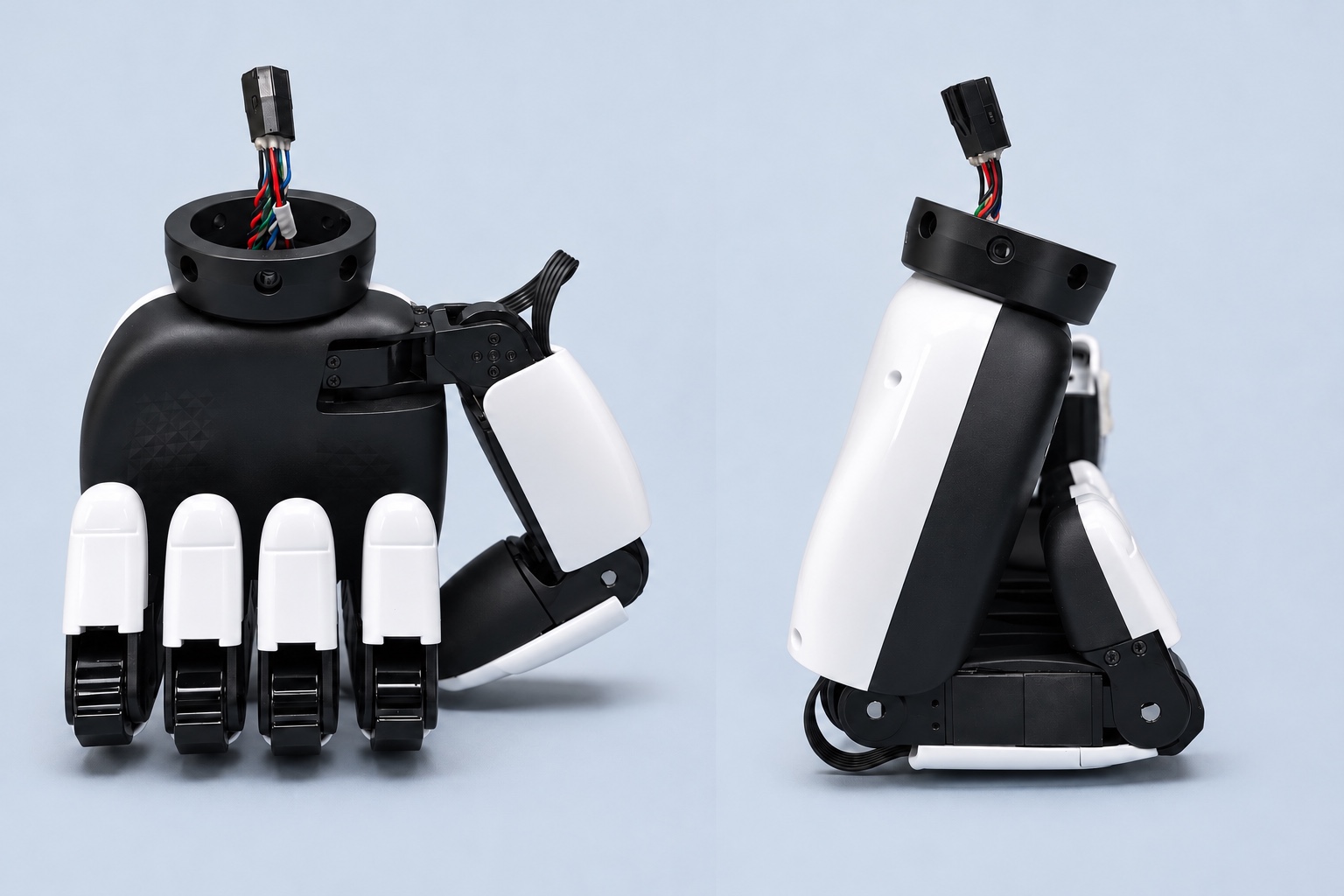
Fasten the wrist with eight M3 screws around its circumference, then route the harness out the side of the mount. Set the hand down with its back facing up to avoid pinching the harness.
2.2 Electrical connector
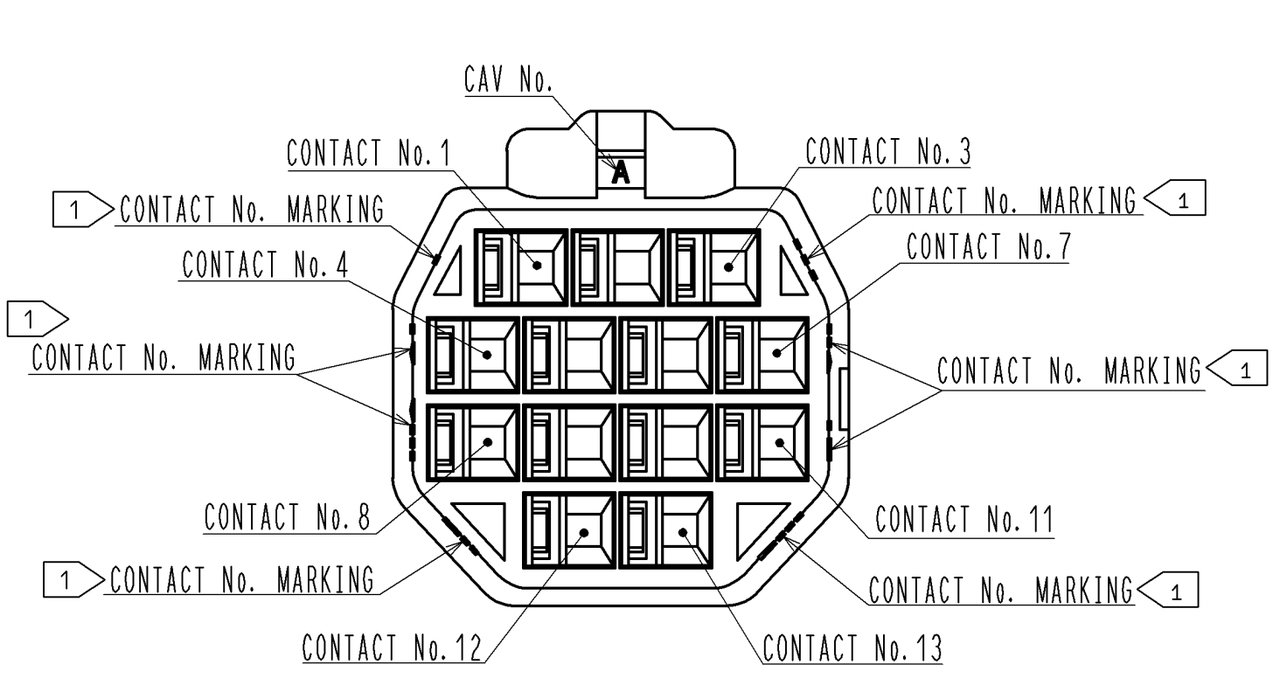
The hand uses a DF62B-13EP-2.2C connector. The diagram shows the pin numbers as viewed from the terminal face. With the power off, wire the connector and check the pin assignments against the device and the drawing before powering on. CAN FD requires a matching cable and firmware.
| Pin | Signal | Interface |
|---|---|---|
| 1 | SHELL1 | Shell |
| 2 | TA_N | EtherCAT |
| 3 | TA_P | EtherCAT |
| 4 | RA_N | EtherCAT |
| 5 | RA_P | EtherCAT |
| 6 | POWER | Power |
| 7 | GND | Power |
| 8 | 485_SD_P | RS485 |
| 9 | 485_SD_N | RS485 |
| 10 | GND | RS485 |
| 11 | FDCAN_L | CAN FD |
| 12 | FDCAN_H | CAN FD |
| 13 | FDCAN_T | CAN FD |
2.3 Initial connection
- Secure the hand and leave clearance for the joints and harness. The joints automatically return to zero about 10 seconds after power-on.
- For RS485, use
dmesg -wto identify the serial device that appears when you connect the cable, such as/dev/ttyUSB0. Check that your account can read and write it. For EtherCAT, useip linkto identify the connected network interface. - Connect to the hand in the XHAND desktop application and check its status. If you use the SDK, connect to the hand, list the hand IDs, and read the serial number and version. Confirm that the hand is communicating before reading live data or testing motion. Assign each hand on the same system a unique ID.
- Check the joint limits and control modes before sending commands. Use the calibration fixture and parameters for your model.
3. XHAND desktop application
Use the XHAND desktop application to connect to XHAND 1, monitor its joints and fingertips, test motion, calibrate the hand, and update its firmware.
3.1 Install the application
Use Ubuntu 20.04, 22.04, or 24.04 LTS. The recommended setup includes 64-bit Chrome 130.0.6723.69 or later, an Intel i5-12400 or faster processor, 8 GB of RAM, and a 128 GB SSD.
Download the appropriate .deb package from the installer folder. Sign in with a regular account that has sudo privileges and follow any system authentication prompts. Starting with v1.1.10.6, you can install the application and its dependencies while connected to the internet. Run the following command from the installer directory, replacing the filename with the name of the downloaded package.
sudo apt install ./xhand-package.debFor older packages, connect to the internet and install a JDK (version 8–17 recommended), python3-pip, and libboost-filesystem-dev first. Versions before v1.1.7 also require pybind11. Starting with v1.1.10, nlohmann-json3-dev is also required. Run java -version, python3 --version, and pip3 --version to check the installed versions, then run sudo dpkg -i ./xhand-package.deb. If the terminal reports missing dependencies, follow its instructions and run sudo apt --fix-broken install.
3.2 Connect the hand
- With the power off, plug the XH04 harness into the hand and connect the power adapter to the harness. On the computer side, connect either USB for RS485 or RJ45 for EtherCAT. Before powering on, make sure the joints have enough clearance to return to zero.
- Open XHAND from the Ubuntu applications menu. If an authentication dialog appears, follow the system prompt.
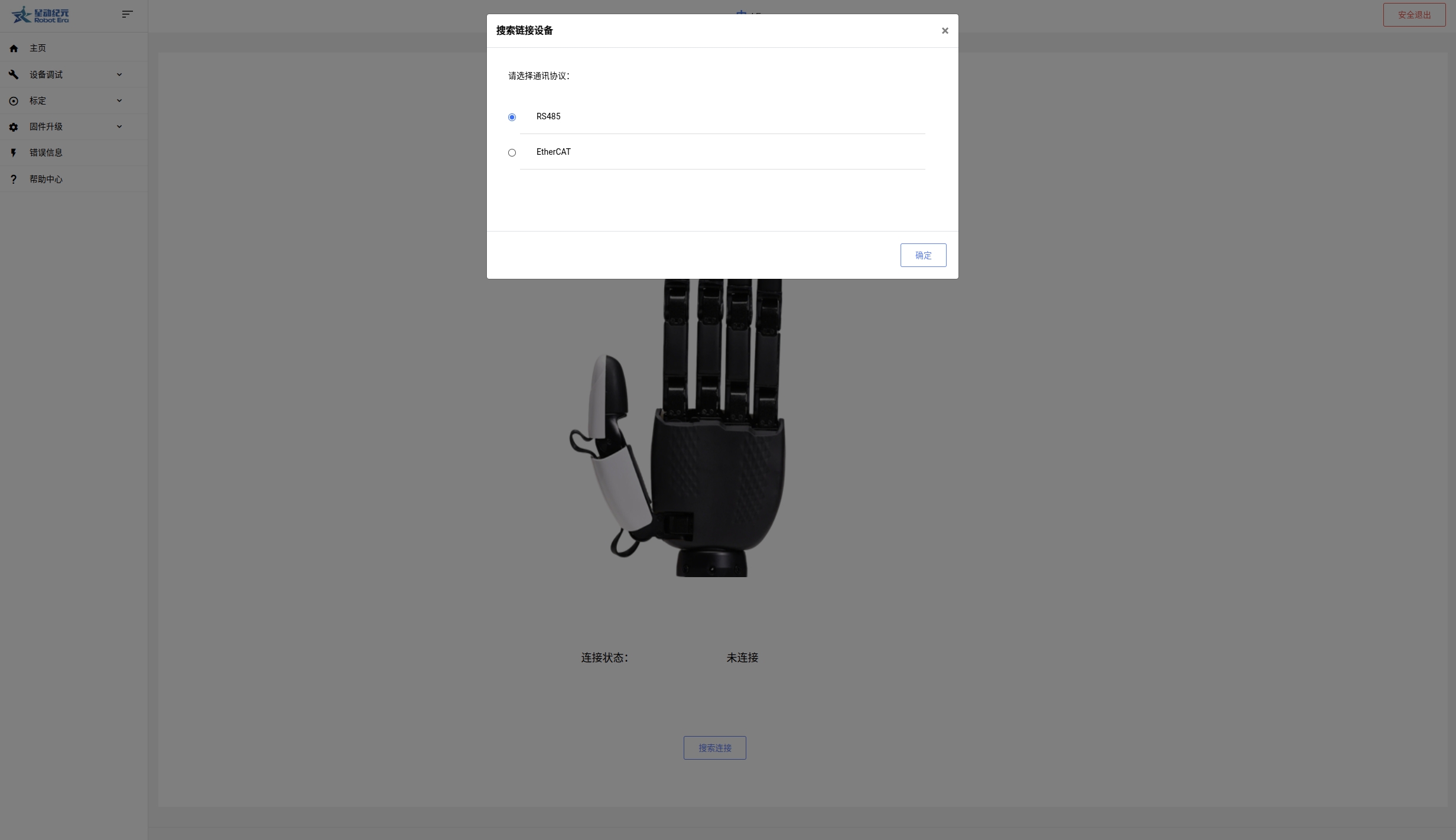
- Choose Connect Device or Search and Connect, select XHand1, and choose the protocol that matches the cable. For RS485, select the actual serial port. The example uses
USB0, baud rate3000000, and device ID0. For EtherCAT, select the connected network interface when prompted. - Once connected, check the device model, ID, and status on the home page.
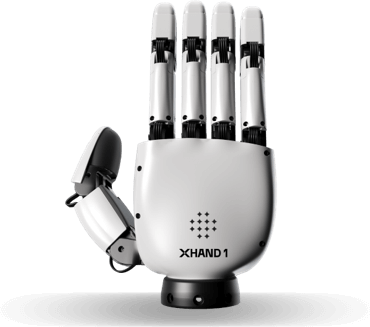 XHAND 1XHAND 1
3.3 Monitor status and control motion
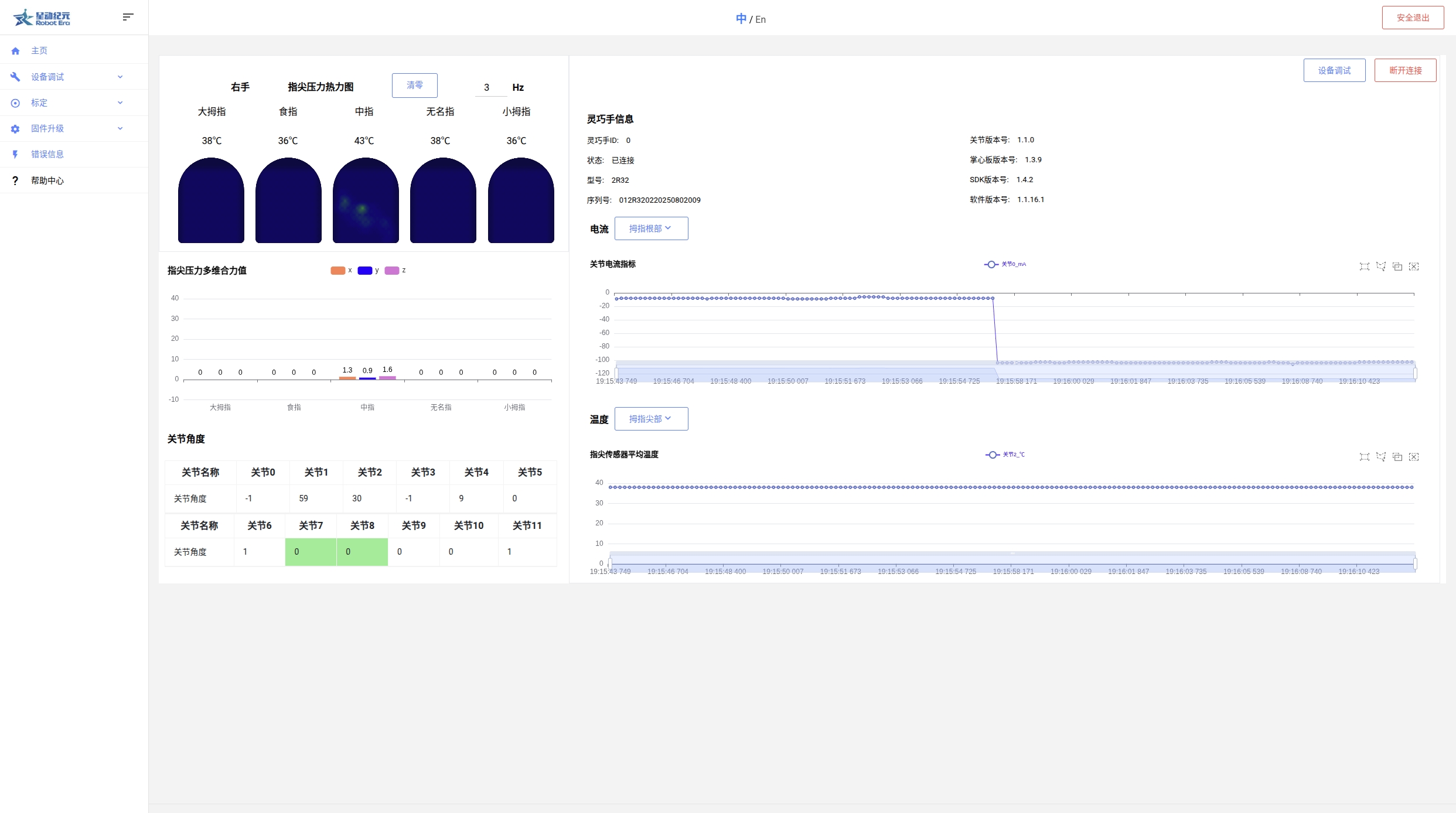
- Home shows device information, joint angle, current, torque, and resultant fingertip force. If the hand has tactile sensors, release the object and make sure the fingertips are unloaded before selecting Zero Sensors.
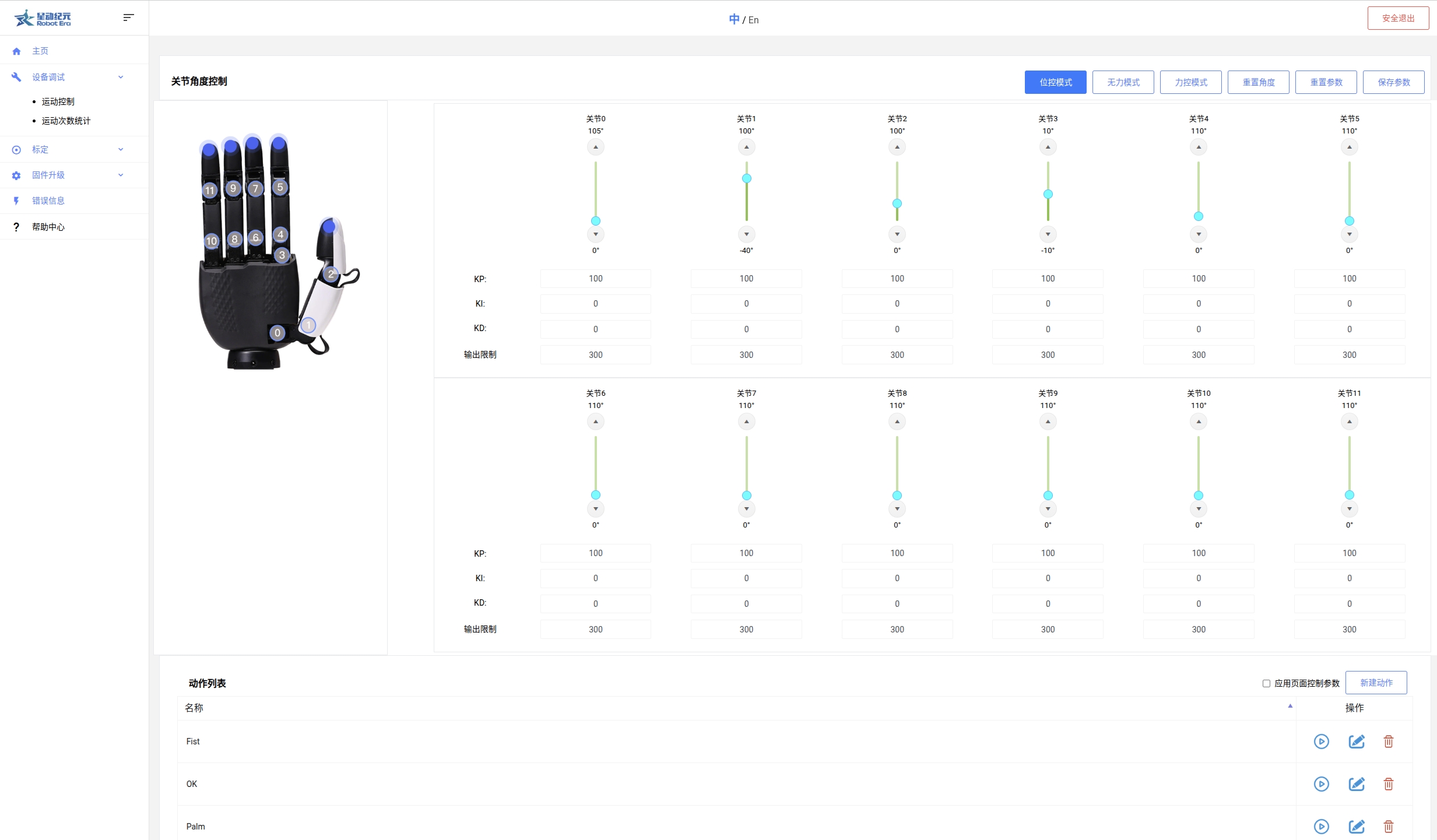
- In Motion Control, you can set target angles, KP, KI, KD, and output limits. You can also switch between position, zero-torque, and force control or play, edit, and delete saved motions. See Control modes for force-control compatibility.
- Motion Counts shows per-joint counts. The column labels identify what each count measures.
3.4 Calibrate the hand
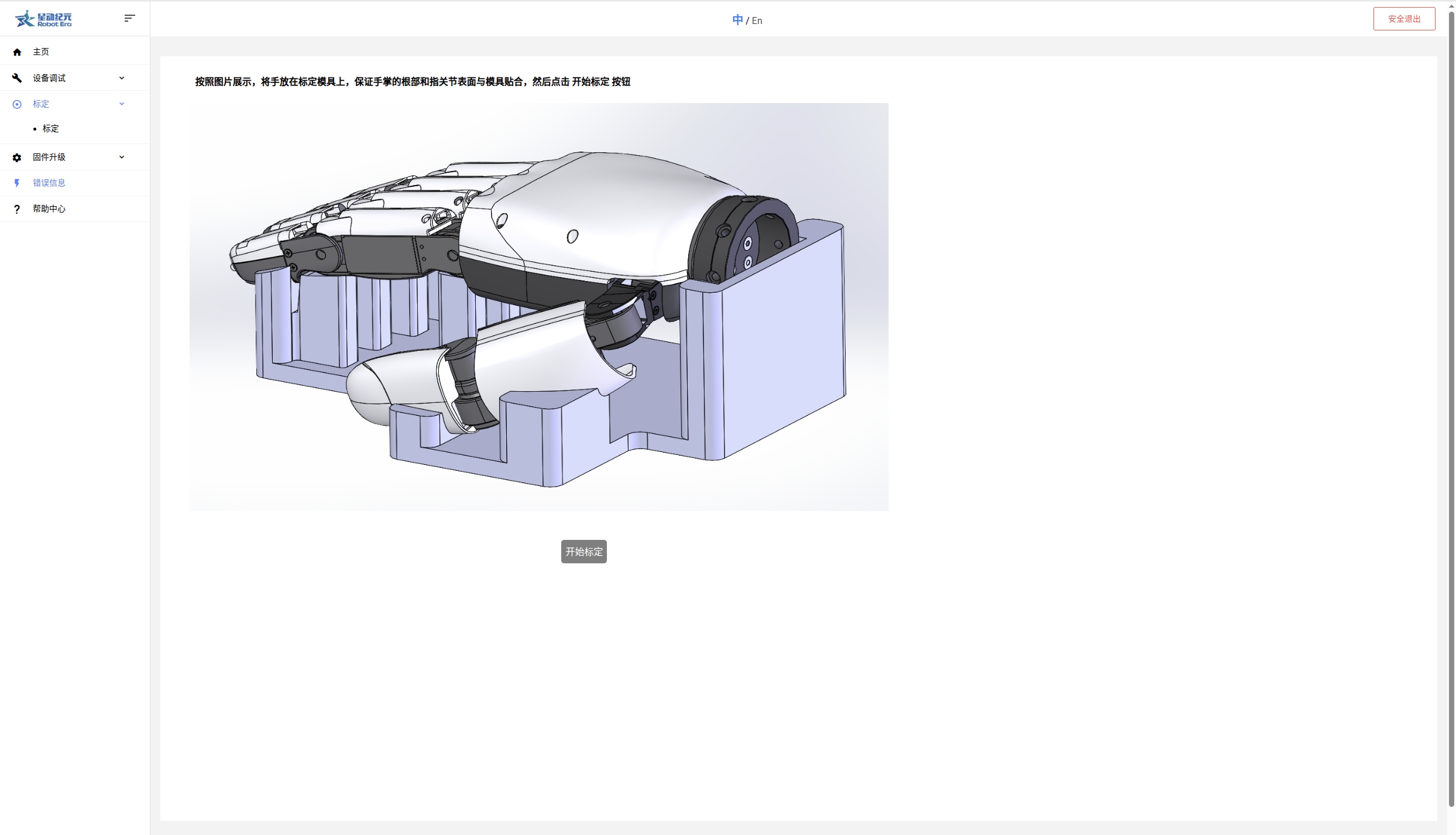
If the initial pose is offset from the default zero position after connecting, place the hand in the calibration fixture for its model. Open Device Calibration, choose Start Calibration, and follow the on-screen steps until the application reports success.
3.5 Update firmware and find errors
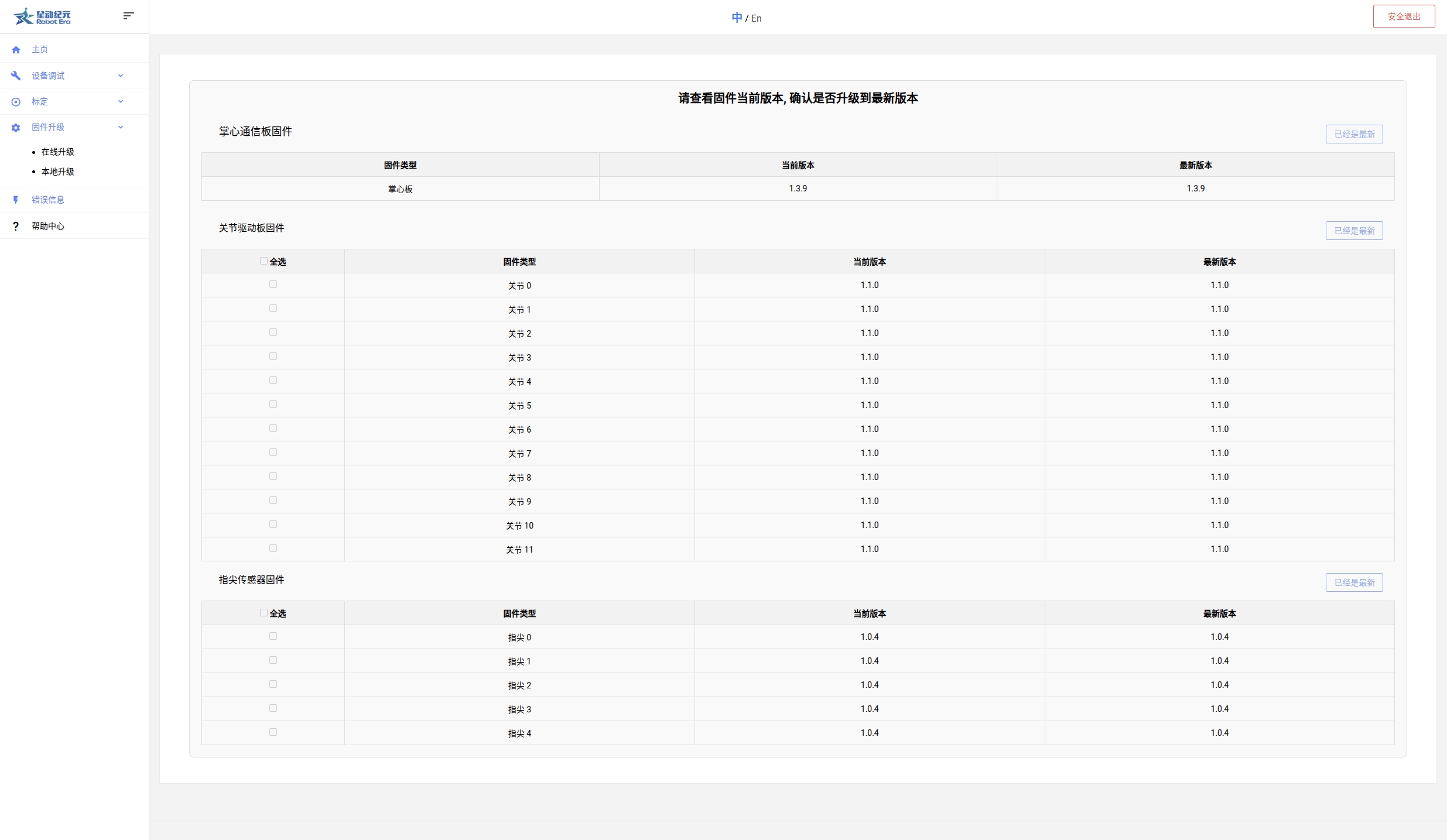
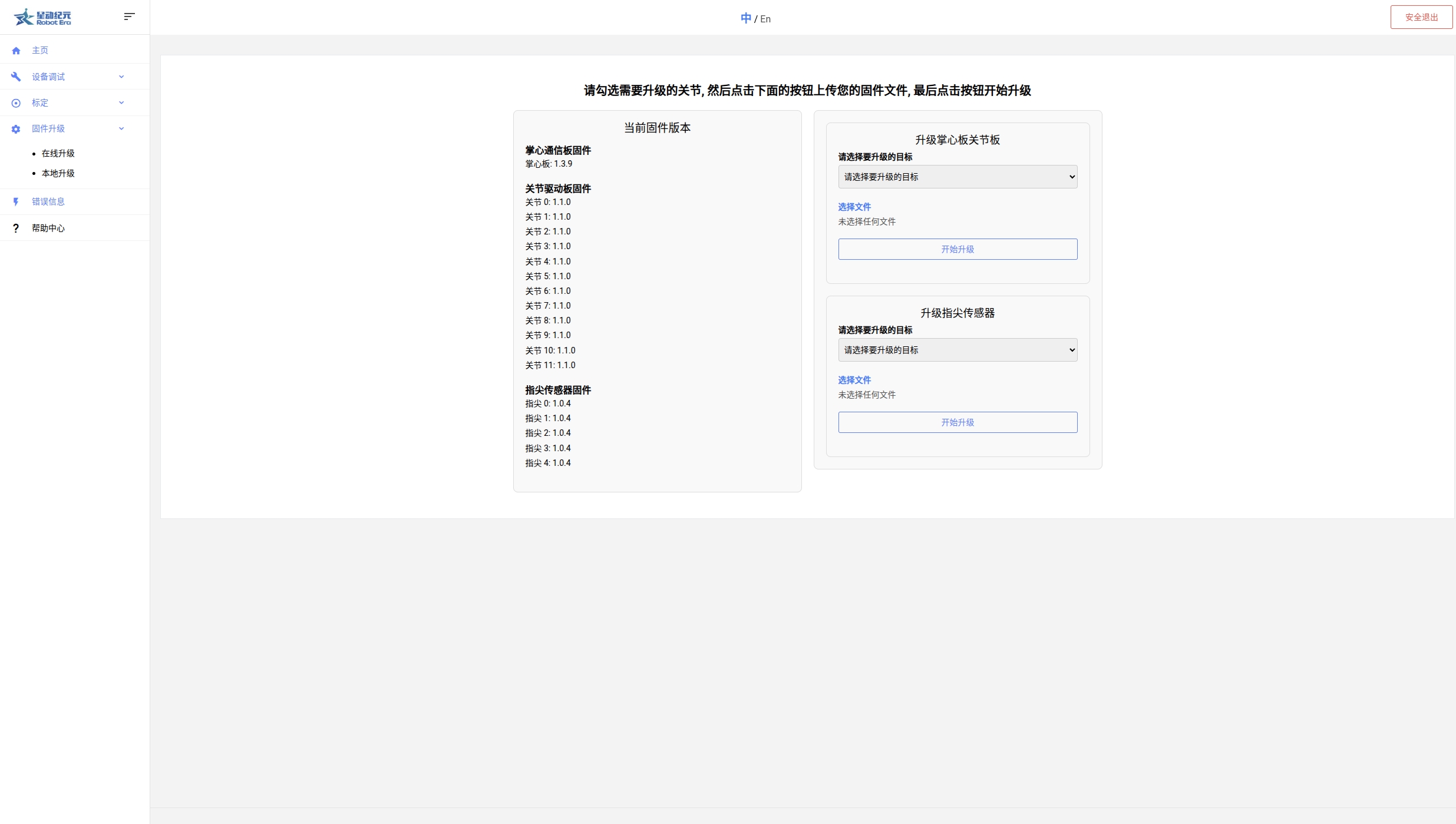
The update page lists firmware versions for the palm communication board, joint driver boards (joints 0–11), and fingertip sensors (numbered 0–4 in the application).
- In Online Update, compare the installed and available versions. If an update is available, follow the on-screen instructions.
- In Local Update, check the installed version and select the palm communication board, joint driver board, or fingertip sensor to update. Select the matching firmware file, then start the update. Keep the hand powered and connected throughout the update.
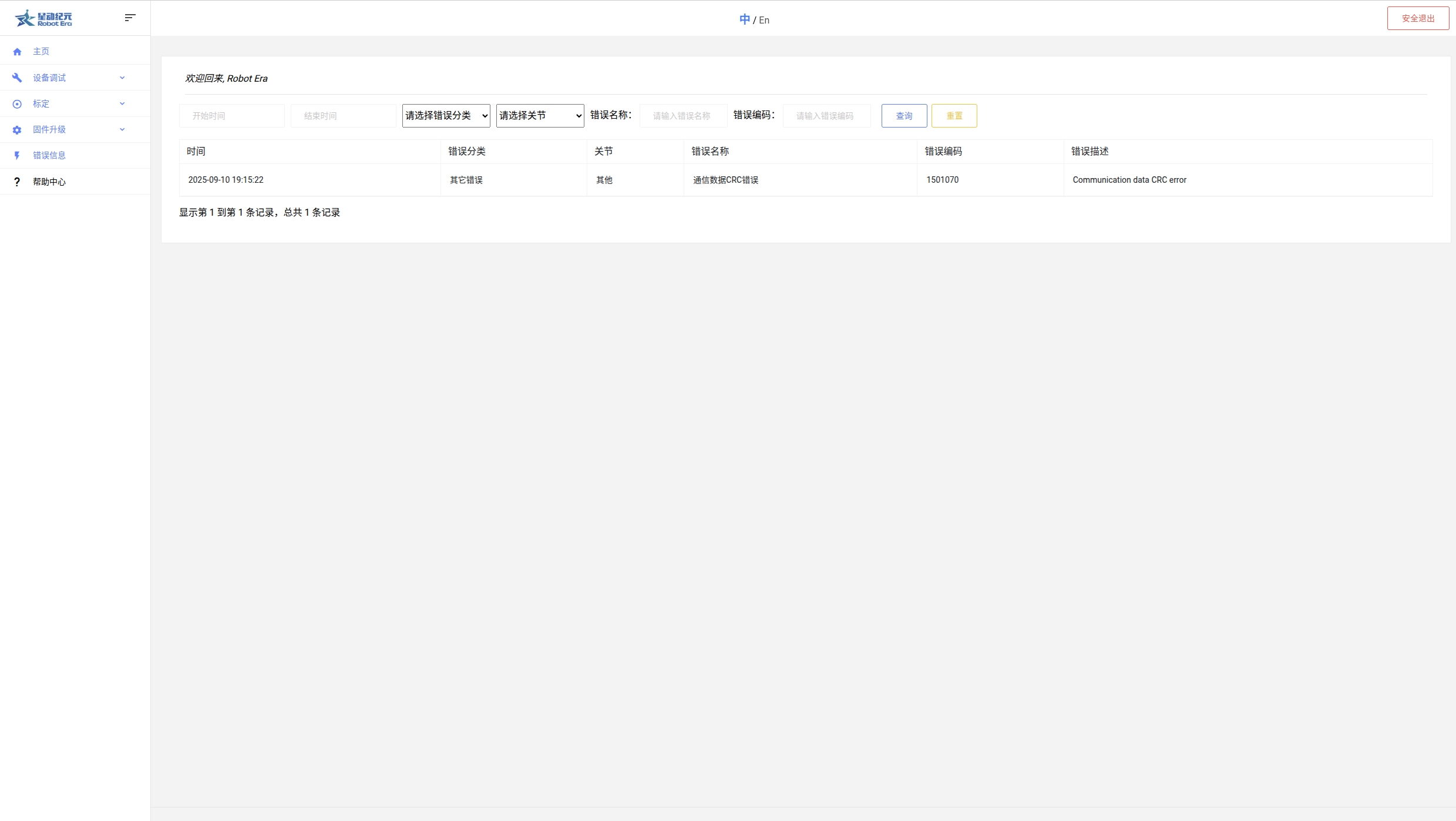
- In Error Records, filter records by time, category, joint, error name, or code. Select Search to see each record's time, category, joint, name, code, and description. Select Reset to clear the filters. See the error code reference for code definitions.
3.6 Help and support
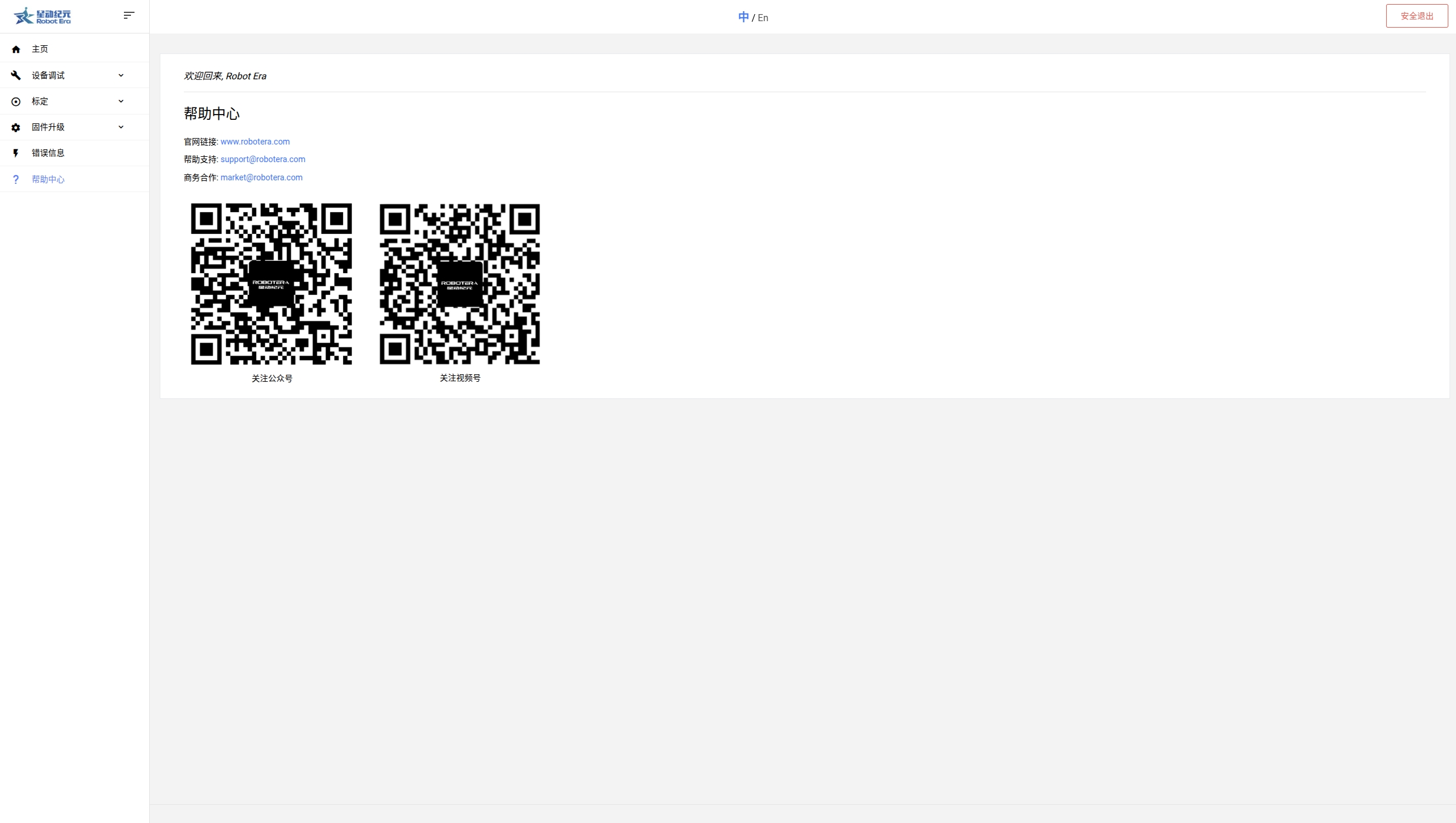
The application's Help Center contains product manuals, FAQs, and contact details. For technical support, email support@robotera.com.
4. Joints, sensors, and control modes
4.1 Joint IDs and motion limits
ROS and ROS 2 configurations may round the lower and upper limits of the index finger's lateral joint to −0.09 rad and 0.3 rad, respectively. Use the joint limits for your firmware or control package when sending commands.
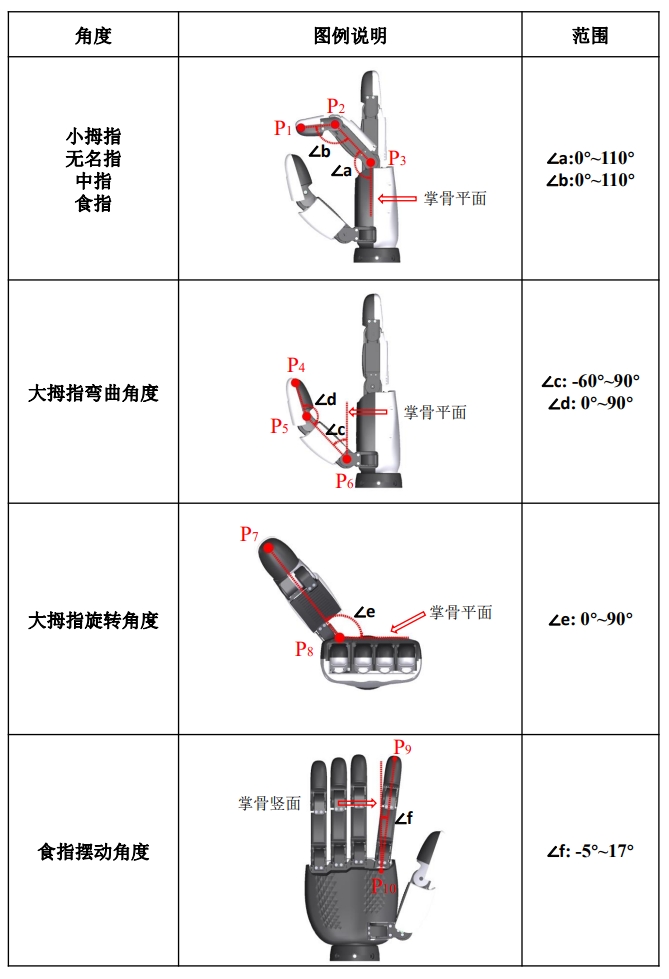
| ID | ROS joint name | Min / max (°) | Min / max (rad) |
|---|---|---|---|
| 0 | thumb_bend_joint | 0 / 90 | 0 / 1.57 |
| 1 | thumb_rota_joint1 | -60 / 90 | -1.05 / 1.57 |
| 2 | thumb_rota_joint2 | 0 / 90 | 0 / 1.57 |
| 3 | index_bend_joint | -5 / 17 | -0.087 / 0.297 |
| 4 | index_joint1 | 0 / 110 | 0 / 1.92 |
| 5 | index_joint2 | 0 / 110 | 0 / 1.92 |
| 6 | mid_joint1 | 0 / 110 | 0 / 1.92 |
| 7 | mid_joint2 | 0 / 110 | 0 / 1.92 |
| 8 | ring_joint1 | 0 / 110 | 0 / 1.92 |
| 9 | ring_joint2 | 0 / 110 | 0 / 1.92 |
| 10 | pinky_joint1 | 0 / 110 | 0 / 1.92 |
| 11 | pinky_joint2 | 0 / 110 | 0 / 1.92 |
4.2 Hand and fingertip sensor IDs
The default hand ID is 0. Valid IDs range from 0 to 125. The palm communication board address is hand ID | 0x80. For example, hand ID 0x03 uses board address 0x83. The host address is 0xFE and the broadcast address is 0xFF. Joint and fingertip sensor IDs are fixed.
| Finger | Sensor ID (hex / decimal) | finger_state index | senser_data index |
|---|---|---|---|
| Thumb | 0x11 / 17 | 2 | 0 |
| Index | 0x12 / 18 | 5 | 1 |
| Middle | 0x13 / 19 | 7 | 2 |
| Ring | 0x14 / 20 | 9 | 3 |
| Little | 0x15 / 21 | 11 | 4 |
To convert the resultant force in PXSR_ForceData to newtons (N), divide each component by 10. For example, [59, 74, 255] represents [5.9, 7.4, 25.5] N.
4.3 SDK and ROS control modes
mode | Mode | Usage |
|---|---|---|
| 0 | Zero torque | Select zero-torque mode |
| 3 | Position control | Set the target position in radians |
| 5 | Force control | Unavailable on units with serial number prefix 2L3201. In this mode, tor_max specifies current in mA |
ROS accepts effort_limit values from 0 to 400. Values above 400 are capped at 400. For the low-level mode field, see Low-level communication and the definition for your firmware.
5. C++ SDK
5.1 Environment and examples
Select the SDK release that matches your device model, serial number, and firmware version.
Use Ubuntu 20.04 or later, CMake 3.1.0 or later, and GCC 9.4.0. Extract xhand_control_sdk_*.tar.gz and open the extracted xhand_control_sdk/tests/ directory. These commands install the system dependencies shared by C++, Python, and ROS.
sudo apt update
sudo apt install -y cmake g++ libcurl4-openssl-dev libssl-dev nlohmann-json3-devmkdir -p build
cd build
cmake ..
cmake --build .Run ./test_serial with serial read and write permissions, or run sudo ./test_ethercat for EtherCAT. The example prompts for a joint ID (0–11) and a target position in radians, then moves that joint. To close the serial example, press Ctrl+C, then Ctrl+D.
5.2 XHandControl API
Enumerate devices, open the connection, and list the IDs of connected hands before reading or writing device data. Call close_device() before exiting. An ErrorStruct.error_code of 0 means the call succeeded. If an API returns an error code and data, check the code before using the data.
| Method | Purpose |
|---|---|
enumerate_devices(comm_type) | List serial devices or network interfaces. Pass RS485 or EtherCAT. |
open_serial(port, baudrate) | Open a serial port at 3000000 baud. |
open_ethercat(ifname) | Open an EtherCAT connection on the specified network interface. |
list_hands_id() | List all hand IDs after opening the connection. |
close_device() | Close the active connection. |
read_device_info() | Read device information. Data is zero-filled when unavailable. |
read_version(device_id, component_id) | Read the version of the specified component. Check the error code if the returned string is empty. |
send_command(device_id, command) | Send a HandCommand_t at up to 83 Hz. |
read_state(device_id, force_update = false) | Read the hand state. Sending a control command over RS485 refreshes the cache. A forced refresh may block the call. |
calibrate_joint(device_id, step, angles_limit = {}) | Run steps 1–5 in sequence to calibrate with the legacy method. |
calibrate_joint_by_mold(device_id, tools, step, calibrated_angles = {}, angles_limit = {}) | Calibrate with a fixture. S1 takes one step and D1 takes two. Pass the angles specified for the hand model and calibration fixture. |
reset_sensor(device_id, sensor_id) | Reset a fingertip sensor with ID 17–21. |
get_hand_type(device_id) | Identify whether the device is a left or right hand. |
get_serial_number(device_id) | Read the serial number. |
set_hand_id(old_id, new_id) | Change the hand ID. |
get_hand_name(device_id) | Read the hand name. |
set_hand_name(device_id, name) | Set a hand name of up to 30 characters. Chinese characters are unsupported. |
action_group_set(device_id, action_num, actions) | Set an action group. Supply delay_time and 12 action angles per frame in JSON. |
action_group_run(device_id, on_off, global_delay_time, action_count) | Start (1) or stop (0) playback. Set the interval between action groups and the repeat count. |
read_firmware_state(device_id, joint_id) | Read the joint firmware state. |
set_firmware_state(device_id, joint_id, state, timeout_ms) | Set a joint firmware state with a timeout in milliseconds. |
C++ API declarations
std::vector<std::string> enumerate_devices(const std::string& comm_type);
ErrorStruct open_serial(const std::string& port, uint32_t baudrate);
ErrorStruct open_ethercat(const std::string& ifname);
std::vector<uint8_t> list_hands_id();
void close_device();
std::pair<ErrorStruct, DeviceInfo_t> read_device_info();
std::pair<ErrorStruct, std::string> read_version(const uint8_t device_id, const uint8_t component_id);
ErrorStruct send_command(const uint8_t device_id,const HandCommand_t& command);
std::pair<ErrorStruct, HandState_t> read_state( uint8_t device_id, bool force_update = false);
ErrorStruct calibrate_joint(const uint8_t device_id, const uint8_t step,const std::vector<int8_t> angles_limit = {});
ErrorStruct calibrate_joint_by_mold(const uint8_t device_id, const std::string&  tools, const uint8_t step,
                  const std::vector<int8_t> calibrated_angles = {}, const std::vector<int8_t> angles_limit= {});
ErrorStruct reset_sensor(const uint8_t device_id,const uint8_t sensor_id);
std::pair<ErrorStruct, std::string> get_hand_type(uint8_t device_id);
std::pair<ErrorStruct, std::string> get_serial_number(uint8_t device_id);
ErrorStruct set_hand_id(uint8_t old_id, uint8_t new_id);
std::pair<ErrorStruct, std::string> get_hand_name(uint8_t device_id);
ErrorStruct set_hand_name(const uint8_t device_id,const std::string& name);
ErrorStruct action_group_set(const uint8_t device_id, uint16_t action_num, std::string actions);
ErrorStruct action_group_run(const uint8_t device_id, uint16_t on_off, uint16_t global_delay_time, uint16_t action_count);
std::pair<ErrorStruct, uint16_t> read_firmware_state(const uint8_t device_id,  const uint8_t joint_id);
std::pair<ErrorStruct, uint16_t> set_firmware_state(const uint8_t device_id, const uint8_t joint_id, const uint16_t state, const uint32_t timeout_ms);
5.3 Data structures and firmware states
HandCommand_tholds 12FingerCommand_tentries. Each entry contains the joint ID, PID gains, target position,tor_max, mode, and reserved fields.HandState_tcontains joint and sensor states. See Hardware IDs for the array indexes.DeviceInfo_tcontains the extended, closed, zero, and initial joint positions and the angle settings.CalibrationErrorInfogives the calibration status and the affected joint. A value of0xFFFFmeans the error does not point to a specific joint.- Action groups use degrees for angles and milliseconds for interpolation times. The array holds up to 24 frames.
count=0repeats the action group continuously. In action feedback,frame_idstarts at 1, and0means no frame reported an error.
Command and feedback structs
typedef struct {
  uint16_t id;
  int16_t kp;
  int16_t ki;
  int16_t kd;
  float position;
  uint16_t tor_max;
  uint16_t mode;
  uint16_t res0;
  uint16_t res1;
  uint16_t res2;
  uint16_t res3;
} __attribute__((packed)) FingerCommand_t;

typedef struct {
  std::array<FingerCommand_t, 12> finger_command;
} __attribute__((packed)) HandCommand_t;

typedef struct {
  int8_t fx;
  int8_t fy;
  uint8_t fz;
} __attribute__((packed)) PXSR_ForceData;

typedef struct {
  PXSR_ForceData calc_force;
  std::array<PXSR_ForceData, 120> raw_force;
  std::array<uint8_t, 20> temperature;
  uint8_t calc_temperature;
} __attribute__((packed)) SenserData_t;

typedef struct {
  uint64_t id;
  float position;
  uint64_t torque;
  uint64_t default0;
  uint64_t default1;
  uint64_t default2;
  uint64_t default3;
  uint64_t default4;
  uint64_t default5;
  uint64_t default6;
  uint64_t default7;
} __attribute__((packed)) FingerState_t;

typedef struct {
  std::array<FingerState_t, 12> finger_state;
  std::array<SenserData_t, 5> senser_data;
} __attribute__((packed)) HandState_t;
Device, calibration, and error structs
typedef struct {
  std::array<int16_t, 12> position_stretching{};
  std::array<int16_t, 12> position_closing{};
  std::array<int16_t, 12> position_zero{};
  std::array<int16_t, 12> position_init{};
  std::array<int8_t, 12> angle_stretching{};
  std::array<int8_t, 12> angle_closing{};
} __attribute__((packed)) HandParam_t;

typedef struct {
  std::array<char, 11> tools;
  uint8_t step;
  std::array<int8_t, 12> calibrated_angles;
  std::array<int8_t, 12> lower_angles;
  std::array<int8_t, 12> upper_angles;
} __attribute__((packed)) CalibrationParams;
typedef union {
  HandParam_t handparam;
  CalibrationParams calibr_params;
} CalibrationUnion;

typedef struct {
  uint16_t resverse;
  char ev_hand;
  uint8_t hand_id;
  std::array<char, 32> serial_number;
  std::array<char, 32> name;
  HandParam_t hand_param;
  uint8_t iap_flag;
  uint8_t is_calibrated;
} __attribute__((packed)) DeviceInfo_t;

typedef struct {
  CalibrationStatus calib_status;
  uint16_t joint_number;

  uint16_t calibrated_angle;
  uint16_t calibrated_adc_value;
  uint16_t intercept;
} __attribute__((packed)) CalibrationErrorInfo;

struct ErrorStruct {
  ErrorStruct(){};
  ErrorStruct(int code, std::string message) {
    error_code = code;
    error_message = message;
  }
  int error_code{0};
  std::string error_message;
  void reset() {
    error_code = 0;
    error_message = "";
  }

  explicit operator bool() const { return error_code == 0; }
};
Action group structs
typedef struct {
  std::array<int8_t, EV_HAND_JOINT_NUM> poses;
  uint16_t msec;
} __attribute__((packed)) HandAnglePose_t;

typedef struct {
  uint16_t action_num;
  std::array<HandAnglePose_t, 24> actions;
} __attribute__((packed)) HandActionGroup_t;

typedef struct {
  uint16_t on_off;
  uint16_t time;
  uint16_t count;
} __attribute__((packed)) HandActioCtrl_t;

typedef struct {
  uint8_t frame_id;
  uint8_t joint_id;
  uint8_t time;
  uint8_t flash_err;
} __attribute__((packed)) HandActionErrorInfo_t;

typedef struct {
  uint16_t status;
  HandActionErrorInfo_t params;
} __attribute__((packed)) HandActionFeedback_t;
Joint, calibration, and firmware enums
enum FingerIndex{
    THUMB_BEND=0,
    THUMB_ROTA_1=1,
    THUMB_ROTA_2=2,
    INDEX_BEND=3,
    INDEX_JOINT_1=4,
    INDEX_JOINT_2=5,
    MIDDLE_JOINT_1=6,
    MIDDLE_JOINT_2=7,
    RING_JOINT_1=8,
    RING_JOINT_2=9,
    PINKY_JOINT_1=10,
    PINKY_JOINT_2=11,
};

typedef enum : uint8_t {
  CALIBRATION_SUCCESS = 0,
  CALIBRATION_ERROR_ANGLE_OUT_OF_RANGE,
  CALIBRATION_ERROR_ADC_OUT_OF_RANGE,
  CALIBRATION_ERROR_ADC_PRE_UPPER_ERROR,
  CALIBRATION_ERROR_ADC_PRE_LOWER_ERROR,
  CALIBRATION_SAVE_PARAM_ERROR,
  CALIBRATION_INPUT_PARAM_ERROR,
} CalibrationStatus;

typedef enum : uint16_t {
  power_LESS = 0,
  POWERFUL = 3,
  LOW_DOMPING = 19,
} FingerMode;

typedef enum : uint16_t {
    FS_INVALID = 0xFFFF,
    FS_STATE_ERROR = 0x0000,
    FS_IDEL = 0x0001,
    FS_INIT = 0x0002,
    FS_RUNNING = 0x0003,
    FS_CONFIG = 0x0004,
} FirmwareState;
6. Python SDK
6.1 Installation
Use Ubuntu 20.04 or later, CMake 3.16.3 or later, and GCC 9.4.0. The installation commands use Python 3.10.12.
Install the system dependencies and open the extracted xhand_control_sdk_py directory. Run python3 --version, then select a wheel from the release that matches your Python version. Python 3.10 uses cp310 and Python 3.12 uses cp312.
conda create -n xhand python=3.10.12 -y
conda activate xhand
python3 -m pip install -r requirements.txt
python3 -m pip install xhand_controller-*-cp310-cp310-*.whl
If you use an existing Python environment, skip the first two Conda commands and select the wheel that matches your Python version. Serial connections require read and write access to the device. EtherCAT requires raw socket access. Before running the following command in Conda, verify that the resolved path points to a Python interpreter dedicated to that environment. This permission applies to every Python program run with that interpreter.
sudo setcap cap_net_raw+ep "$(readlink -f "$(command -v python3)")"6.2 Running the example and using the API
Before running python3 xhand_control_example.py from the SDK directory, check joint clearance, confirm the serial device or network interface, and verify the hand ID. The C++ and Python SDKs use the same control modes. See the Python SDK API reference for Python binding types, arguments, and return values. If the system cannot find a shared library, check where xhand_controller is installed in the current Python environment and verify the library files in the release. Follow the release instructions to configure the shared library search path.
7. ROS and ROS 2
The ROS and ROS 2 packages connect to XHAND 1 over EtherCAT. They use the same joint names and limits, control modes, and topic names for states and commands. Message and service types depend on the installed package.
7.1 ROS Noetic
Install the system dependencies and ROS Noetic. Place the release's xhand_control_ros package in ~/catkin_ws/src. Make sure the account running the node can access the EtherCAT interface.
source /opt/ros/noetic/setup.bash
cd ~/catkin_ws
catkin_make
source devel/setup.bash
roslaunch xhand_control_ros xhand_control_normal.launch
7.2 ROS 2 Foxy
Install the system dependencies and libcrypto++-dev. Place xhand_control_ros2 and its accompanying message package from the release in ~/ros2_ws/src. Make sure the account running the node can access the EtherCAT interface.
source /opt/ros/foxy/setup.bash
cd ~/ros2_ws
colcon build
source install/setup.bash
ros2 launch xhand_control_ros2 xhand_control.launch.py
7.3 Topics and state
| Topic | Control node |
|---|---|
/xhand_control/xhand_state | Publishes state |
/xhand_control/xhand_command | Subscribes to commands |
- ROS uses
xhand_control_ros/XHandStateArrayfor state andxhand_control_ros/XHandCommandfor commands. - Example ROS 2 types are
xhand_control_msgs/msg/XHandStateArrayfor state andxhand_control_msgs/msg/XHandCommandfor commands.
The state message includes header, hand_id[], hand_name[], hand_states[], and sensor_states[]. Joint states include name, position, effort, temperature, and error code. Fingertip sensor records contain location, calc_force[], raw_force[], calc_temperature[], and raw_temperature[].
The command message contains hand_id, name[], position[], kp[], ki[], kd[], effort_limit[], and mode. The maximum command rate is 83 Hz. Use ros2 topic type and ros2 service type to check the message and service types used by the running node.
rostopic echo /xhand_control/xhand_state
ros2 topic echo /xhand_control/xhand_state
ros2 topic type /xhand_control/xhand_command
ros2 service type /xhand_control/read_hand_info
The following command sends position targets in ROS 2. Confirm the hand ID, joint clearance, and message type used by the node before running it.
command_type=$(ros2 topic type /xhand_control/xhand_command)
ros2 topic pub --once /xhand_control/xhand_command "$command_type" "hand_id: 0
name: ['thumb_bend_joint', 'index_bend_joint']
position: [0.5, 0.18]
kp: [100, 100]
ki: [0, 0]
kd: [0, 0]
effort_limit: [350, 350]
mode: 3"
7.4 Services
| Service | Request | Response |
|---|---|---|
/xhand_control/read_hand_info | hand_id, info_type | success, info |
/xhand_control/set_hand_id | current_id, new_id | success |
/xhand_control/set_hand_name | hand_id, hand_name | success |
/xhand_control/reset_hand_sensor | hand_id, sensor_id | success |
rosservice call /xhand_control/read_hand_info '{hand_id: 0, info_type: 0}'
info_service_type=$(ros2 service type /xhand_control/read_hand_info)
ros2 service call /xhand_control/read_hand_info "$info_service_type" '{hand_id: 0, info_type: 0}'
For read_hand_info, info_type values are 0 for hand type, 1 for serial number, 2 for version, and 3 for hand name. Restart the node after a successful change to the hand ID or name. Sensor reset applies to hands equipped with tactile sensors.
7.5 Troubleshooting
| Symptom | What to check |
|---|---|
| Hand is not discovered | Verify power, the EtherCAT cable, the network interface, hand ID, and account permissions |
| Node, topic, or service is unavailable | Verify that the node is running and the current terminal has sourced the correct workspace's setup.bash |
| An accepted command produces no motion | Check the hand ID, joint names, mode, target positions, and effort_limit |
8. Low-level communication
8.1 Transports and frame format
| Transport | Configuration |
|---|---|
| RS485 | 3 Mbps, one start bit, eight data bits, no parity, one stop bit, no flow control, least significant bit first |
| CAN FD | 11-bit standard identifier equal to the hand ID. Arbitration at 1 Mbps and data at 5 Mbps by default. Maximum 64 data bytes per frame. Reassemble long frames before checking CRC16 |
| EtherCAT | Cyclic exchange uses PDOs, and non-cyclic access uses SDOs. SDO object 0x8001, subindex 0x01 for 256-byte reads and 0x02 for 4096 + 128-byte writes |
RS485, CAN FD, and EtherCAT SDOs use the same frame format. The length and CRC fields are sent with the least significant byte first. Use the hand, board, and sensor IDs as the source and destination addresses.
| Field | Bytes | Description |
|---|---|---|
| Header | 2 | Wire order 0x55 0xAA |
| Source | 1 | Sender ID |
| Destination | 1 | Receiver ID |
| Command | 1 | See Commands |
| Length | 2 | Payload length only |
| Payload | N | Command-specific data |
| CRC16 | 2 | Covers header through the end of the payload, initialized to zero |
CRC16 reference code
static const uint16_t crc16tab[256]= {
    0x0000,0x1021,0x2042,0x3063,0x4084,0x50a5,0x60c6,0x70e7,
    0x8108,0x9129,0xa14a,0xb16b,0xc18c,0xd1ad,0xe1ce,0xf1ef,
    0x1231,0x0210,0x3273,0x2252,0x52b5,0x4294,0x72f7,0x62d6,
    0x9339,0x8318,0xb37b,0xa35a,0xd3bd,0xc39c,0xf3ff,0xe3de,
    0x2462,0x3443,0x0420,0x1401,0x64e6,0x74c7,0x44a4,0x5485,
    0xa56a,0xb54b,0x8528,0x9509,0xe5ee,0xf5cf,0xc5ac,0xd58d,
    0x3653,0x2672,0x1611,0x0630,0x76d7,0x66f6,0x5695,0x46b4,
    0xb75b,0xa77a,0x9719,0x8738,0xf7df,0xe7fe,0xd79d,0xc7bc,
    0x48c4,0x58e5,0x6886,0x78a7,0x0840,0x1861,0x2802,0x3823,
    0xc9cc,0xd9ed,0xe98e,0xf9af,0x8948,0x9969,0xa90a,0xb92b,
    0x5af5,0x4ad4,0x7ab7,0x6a96,0x1a71,0x0a50,0x3a33,0x2a12,
    0xdbfd,0xcbdc,0xfbbf,0xeb9e,0x9b79,0x8b58,0xbb3b,0xab1a,
    0x6ca6,0x7c87,0x4ce4,0x5cc5,0x2c22,0x3c03,0x0c60,0x1c41,
    0xedae,0xfd8f,0xcdec,0xddcd,0xad2a,0xbd0b,0x8d68,0x9d49,
    0x7e97,0x6eb6,0x5ed5,0x4ef4,0x3e13,0x2e32,0x1e51,0x0e70,
    0xff9f,0xefbe,0xdfdd,0xcffc,0xbf1b,0xaf3a,0x9f59,0x8f78,
    0x9188,0x81a9,0xb1ca,0xa1eb,0xd10c,0xc12d,0xf14e,0xe16f,
    0x1080,0x00a1,0x30c2,0x20e3,0x5004,0x4025,0x7046,0x6067,
    0x83b9,0x9398,0xa3fb,0xb3da,0xc33d,0xd31c,0xe37f,0xf35e,
    0x02b1,0x1290,0x22f3,0x32d2,0x4235,0x5214,0x6277,0x7256,
    0xb5ea,0xa5cb,0x95a8,0x8589,0xf56e,0xe54f,0xd52c,0xc50d,
    0x34e2,0x24c3,0x14a0,0x0481,0x7466,0x6447,0x5424,0x4405,
    0xa7db,0xb7fa,0x8799,0x97b8,0xe75f,0xf77e,0xc71d,0xd73c,
    0x26d3,0x36f2,0x0691,0x16b0,0x6657,0x7676,0x4615,0x5634,
    0xd94c,0xc96d,0xf90e,0xe92f,0x99c8,0x89e9,0xb98a,0xa9ab,
    0x5844,0x4865,0x7806,0x6827,0x18c0,0x08e1,0x3882,0x28a3,
    0xcb7d,0xdb5c,0xeb3f,0xfb1e,0x8bf9,0x9bd8,0xabbb,0xbb9a,
    0x4a75,0x5a54,0x6a37,0x7a16,0x0af1,0x1ad0,0x2ab3,0x3a92,
    0xfd2e,0xed0f,0xdd6c,0xcd4d,0xbdaa,0xad8b,0x9de8,0x8dc9,
    0x7c26,0x6c07,0x5c64,0x4c45,0x3ca2,0x2c83,0x1ce0,0x0cc1,
    0xef1f,0xff3e,0xcf5d,0xdf7c,0xaf9b,0xbfba,0x8fd9,0x9ff8,
    0x6e17,0x7e36,0x4e55,0x5e74,0x2e93,0x3eb2,0x0ed1,0x1ef0
};

uint16_t crc16(const char *buf, int len) {
    int counter;
    uint16_t crc = 0;
    for (counter = 0; counter < len; counter++)
            crc = (crc<<8) ^ crc16tab[((crc>>8) ^ *buf++)&0x00FF];
    return crc;
}
8.2 Real-time control and PDOs
RS485 and CAN FD use real-time command 0x02. Exchanging data with all 12 joints takes about 12 ms (about 83 Hz). The request contains 12 joint commands of 24 bytes each (288 bytes total). For a hand with five sensors, the response contains 12 joint states of 24 bytes each and five tactile reports of 384 bytes each (2208 bytes total).
EtherCAT PDOs exchange data for one joint every 1 ms. Polling all 12 joints takes about 12 ms. Fields use two-byte alignment. Match PDO objects by address and data direction, and verify the mapping against the firmware's ESI and the device object dictionary.
0x7001:0 carries commands from the host to the hand. 0x6001:0 returns state and tactile data from the hand.
Command PDO fields (0x7001:0)
| Field | Type | Description |
|---|---|---|
id / kp / ki / kd | uint16_t / int16_t × 3 | Joint ID and PID gains |
position | float | Target position, rad |
tor_max / mode / res0–res3 | uint16_t | Output limit, control mode, and reserved words |
Feedback PDO fields (0x6001:0)
| Field | Type | Description |
|---|---|---|
Cur_id / sensor_id | uint8_t | Joint ID / fingertip sensor ID |
Current_pos | float | Current position, rad |
Cur_torq | uint16_t | Real-time joint torque (current) |
raw_position | uint16_t | Upper 12 bits: raw position. Lower 4 bits: control mode |
temperature | uint16_t | High byte: palm communication board temperature. Low byte: joint board temperature |
commboard_err / jonitboard_err / tipboard_err | uint16_t | Communication, joint, and fingertip board errors |
default5 / default6 / default7 | uint16_t | Reserved words |
FX / FY / FZ | int8_t / int8_t / uint8_t | Resultant fingertip forces on three axes |
forces[3*120] / temp[20] / tempture | uint8_t arrays or byte | Three-axis force data from 120 array points, 20 temperature readings, and one aggregate temperature value |
The low-level command frame uses 1 for parallel control, 2 for cascade control, and 3 for position control (default). For the SDK and ROS interfaces, see Control modes.
8.3 Commands and registers
| Code | Command | Payload |
|---|---|---|
0x00 | Error report | Unsolicited report with a 2-byte error code |
0x02 | Real-time control | Sends joint commands and returns joint and sensor states |
0x05 | Save parameters | Empty request payload. The response returns 0x0010 on success or 0x0000 on failure |
0x12 | Zero sensor | Addressed to the fingertip sensor. Request and reply have empty payloads |
0x13 | Read version | Empty request payload. The response returns software then hardware version, 4 bytes each |
0x14 | Reset firmware | Empty request payload, no reply |
0x15 | Read registers | Request: 2-byte start address and 2-byte length. Response: address and register data |
0x16 | Write registers | The request contains a 2-byte start address and the data. The response returns 0x0010 on success or 0x0000 on failure |
After writing registers, use 0x05 to save changes to flash so they persist after a restart. When parsing read and write responses, validate the payload against the frame length field and the protocol definition for your firmware.
| Address (bytes) | Contents | Access |
|---|---|---|
| 0–19 | Reserved | — |
| 20 | Hand type (L/l or R/r) | Read only |
| 21–52 | Serial number | Read only |
| 53 | Hand ID | Read/write |
| 54–85 | Hand name | Read/write |
| 86–205 | Calibration parameters (HandParam_t) | Read/write |
| 206–255 | Reserved | — |
In each 32-bit version returned by 0x13, bits 31–24 hold the major version, 23–16 the minor version, and 15–0 the release number.
See HandParam_t under Data structures for the calibration parameter layout. For mold-based calibration, select the limits and calibration angles for your model.
8.4 Error codes
| Board | Code | Symbol | Meaning |
|---|---|---|---|
| Communication | 300 | ERROR_ID | Destination ID does not match |
| Communication | 301 | ERROR_CMD | Unknown command |
| Communication | 302 | ERROR_COMMUNICATION | Invalid frame or checksum |
| Communication | 303 | ERROR_DATA_LEN | Incorrect payload length |
| Communication | 306 | ERROR_BOOT_CMD | Unsupported command in boot mode |
| Communication | 307 | ERROR_CRC_ERROR | CRC check failed |
| Communication | 308 | ERROR_DEVICE_DISCONNECT | Joint or sensor board disconnected |
| Joint | 101 | ERROR_PARAM_INIT | Flash parameter initialization failed. Check the firmware |
| Joint | 103 | ERROR_TEMP_PROCTCED | Joint board overheated. Power down and allow it to cool |
| Joint | 104 | ERROR_MOTION_MODE | Invalid motion mode. Check the mode before restarting |
| Joint | 105 | ERROR_PARAM_OUTOF_RANGE | Control parameter out of range. Check the command |
| Joint | 106 | ERROR_NOFLASHPARAM | Flash parameters are missing or unreadable |
| Joint | 107 | ERROR_COMMUNICATION | The communication board detected a disconnected joint board. Check the harness |
| Joint | 108 | ERROR_CMD | Joint board received an unsupported command |
| Joint | 109 | ERROR_POSITION_RAW | Position sensor signal out of range |
| Joint | 110 | ERROR_CURRENT_PROCTED | Overcurrent persisted for over 500 ms. Check for a stalled joint |
| Fingertip | 200 | ERROR_READ_TOTAL_FORCE | Failed to read resultant force |
| Fingertip | 201 | ERROR_READ_FORCES | Failed to read distributed force |
| Fingertip | 202 | ERROR_READ_TEMP | Failed to read temperature |
| Fingertip | 203 | ERROR_CALIBRIATE | Sensor calibration failed |
| Fingertip | 205 | ERROR_CMD | Fingertip board received an unsupported command |
| Fingertip | 207 | ERROR_COMMUNICATION | The communication board detected a disconnected fingertip board. Check the harness |
© Beijing Xingdong Jiyuan Technology Co., Ltd.