

XHAND 1 Pro Dexterous Hand Product Manual
1. Product overview and specifications
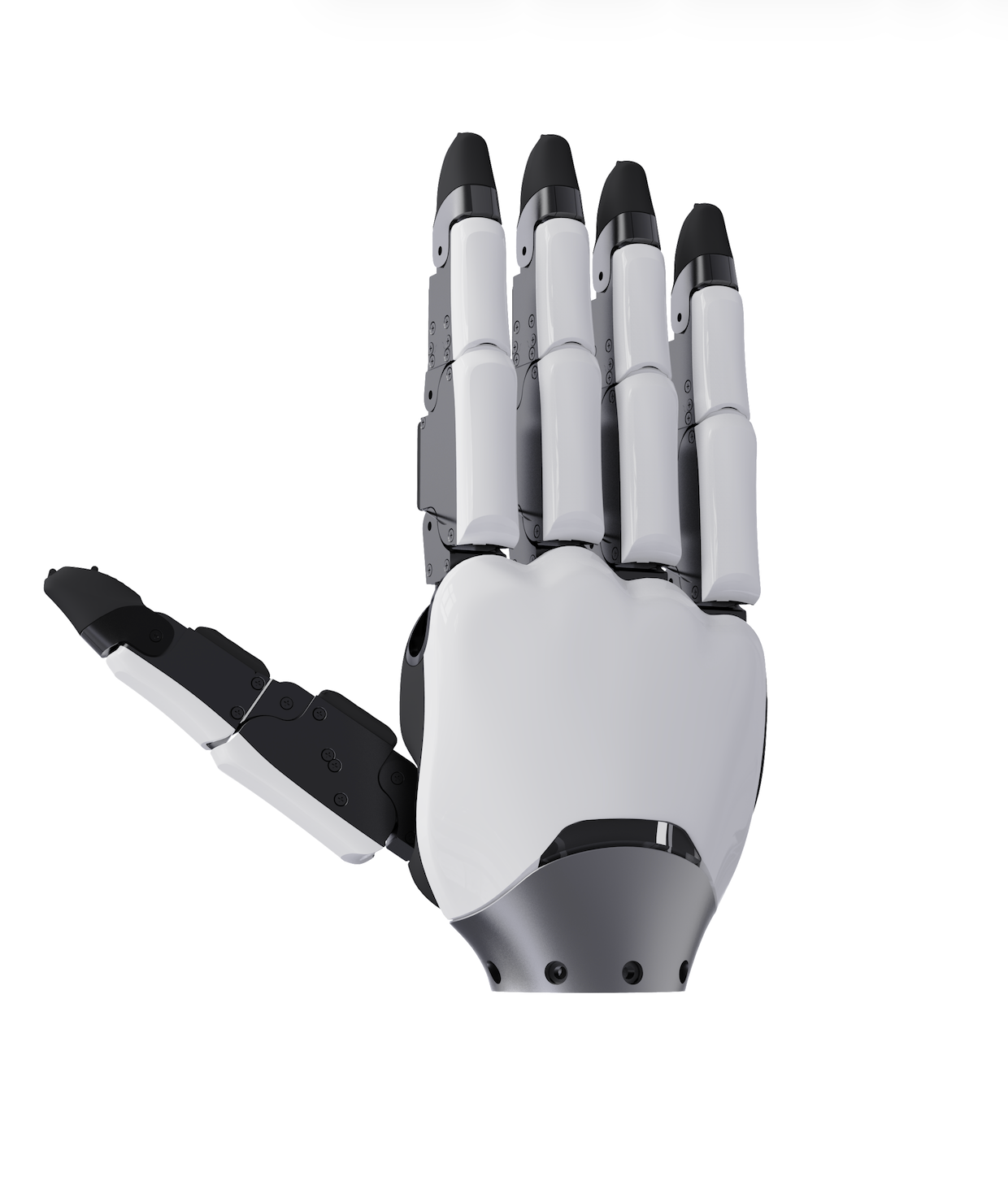
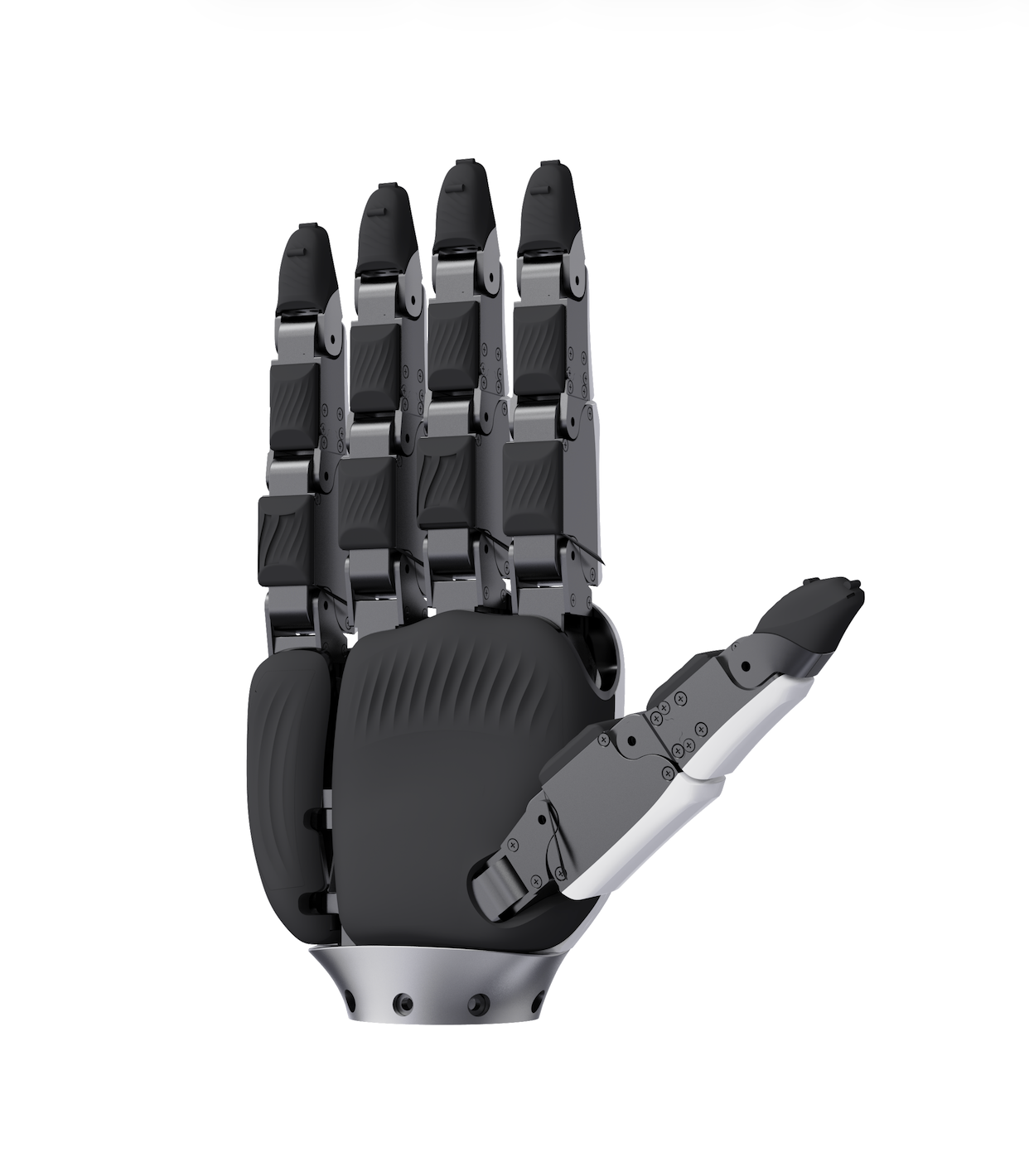
Robotera's XHAND 1 Pro is a gear-driven, backdrivable robotic hand with 21 active degrees of freedom. Each finger has one lateral joint at its base and three flexion joints. An additional axis lets the thumb oppose the little finger. Eighteen tactile sensors cover the fingertips, finger pads, and palm.
| Category | Item | Specification |
|---|---|---|
| Mechanical | External dimensions (L × W × H) | 210 × 102 × 44 mm |
| Mechanical | Weight | 0.884 kg |
| Motion | Total / active degrees of freedom | 21 / 21 |
| Motion | Transmission / backdrivability | Gear drive / yes |
| Motion | Sustained fingertip force / four-finger grip force | Up to 15 N (closed-fist test) / >50 N |
| Motion | Maximum joint speed | ≥400°/s |
| Sensing | Tactile coverage and data | 3-axis force at the fingertips, 1-axis force at the finger pads and palm, plus proximity sensing |
| Sensing | Fingertip / finger pad / palm sensitivity | 0.1 / 0.1 / 0.5 N |
| Sensing | Tactile sensor range / overload limit | 20–25 N / 100 N |
| Sensing | Tactile accuracy / press cycle life | 5% FS / 300,000 presses |
| Sensing | Joint position resolution | 0.005° |
| Electrical | Supply voltage / peak power | 24–72 V DC / 240 W (48 V, 5 A) |
| Electrical | Communications | RS485 and EtherCAT. CAN FD support is pending |
| Environment | Operating temperature / ingress protection | Normal room temperature / IP54 |
2. Dimensions, joints, and tactile sensors
2.1 Dimensions and range of motion
Mechanical dimensions
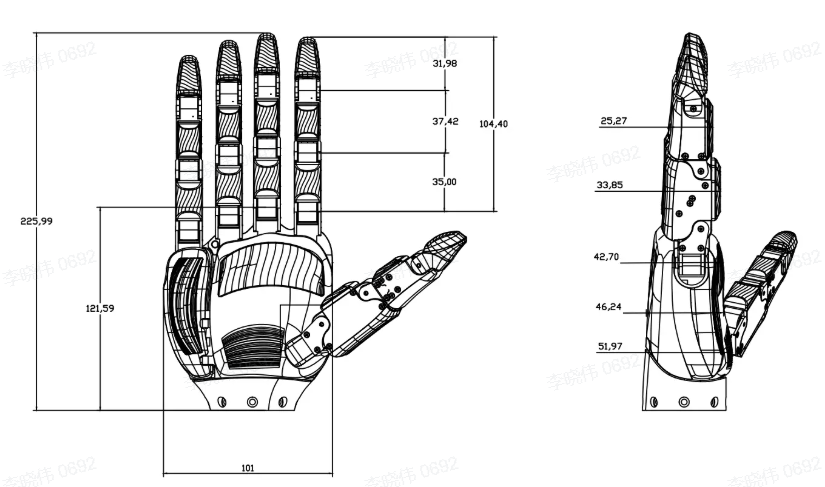
Use the mechanical drawing for your hardware revision to check installation clearances.
Degrees of freedom and range of motion
The diagrams show the directions and ranges of motion for thumb and finger flexion, lateral movement, and auxiliary palm folding.
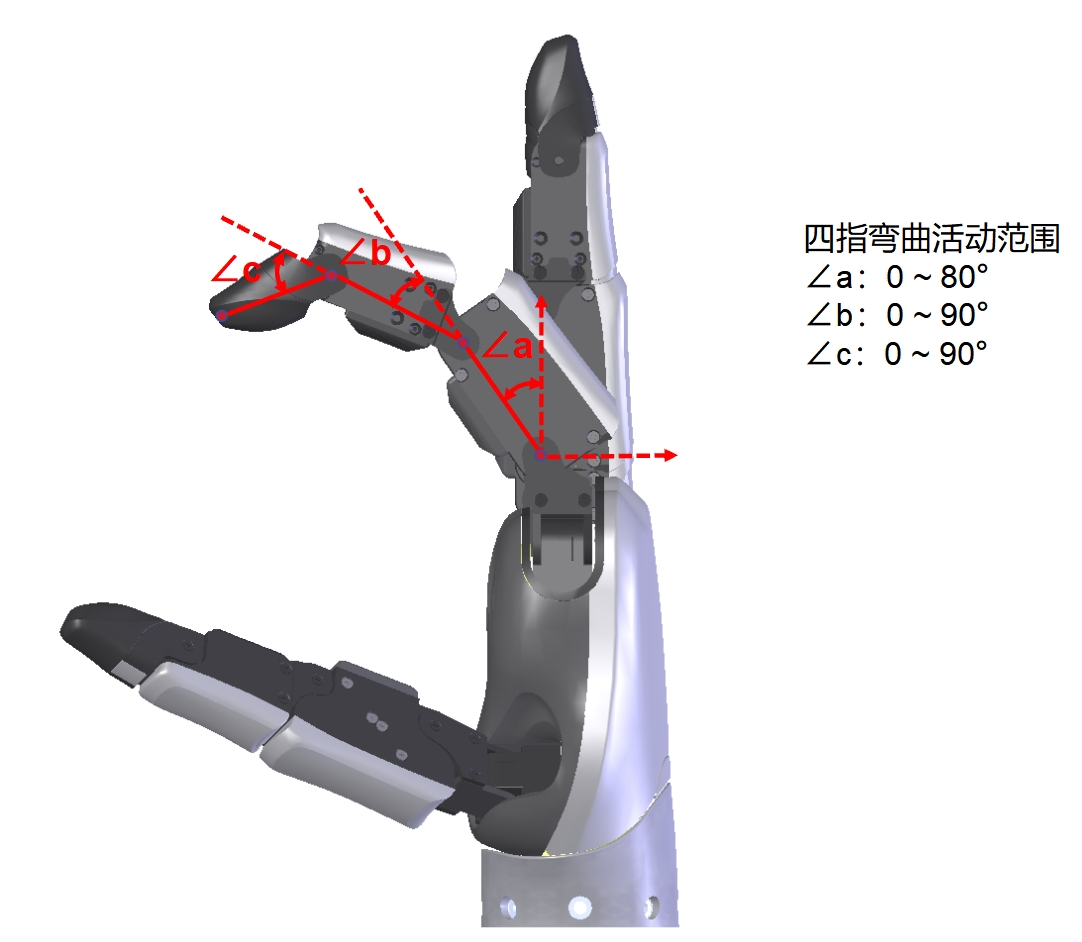
Four-finger flexion. ∠a ranges from 0° to 80°. ∠b and ∠c each range from 0° to 90°.
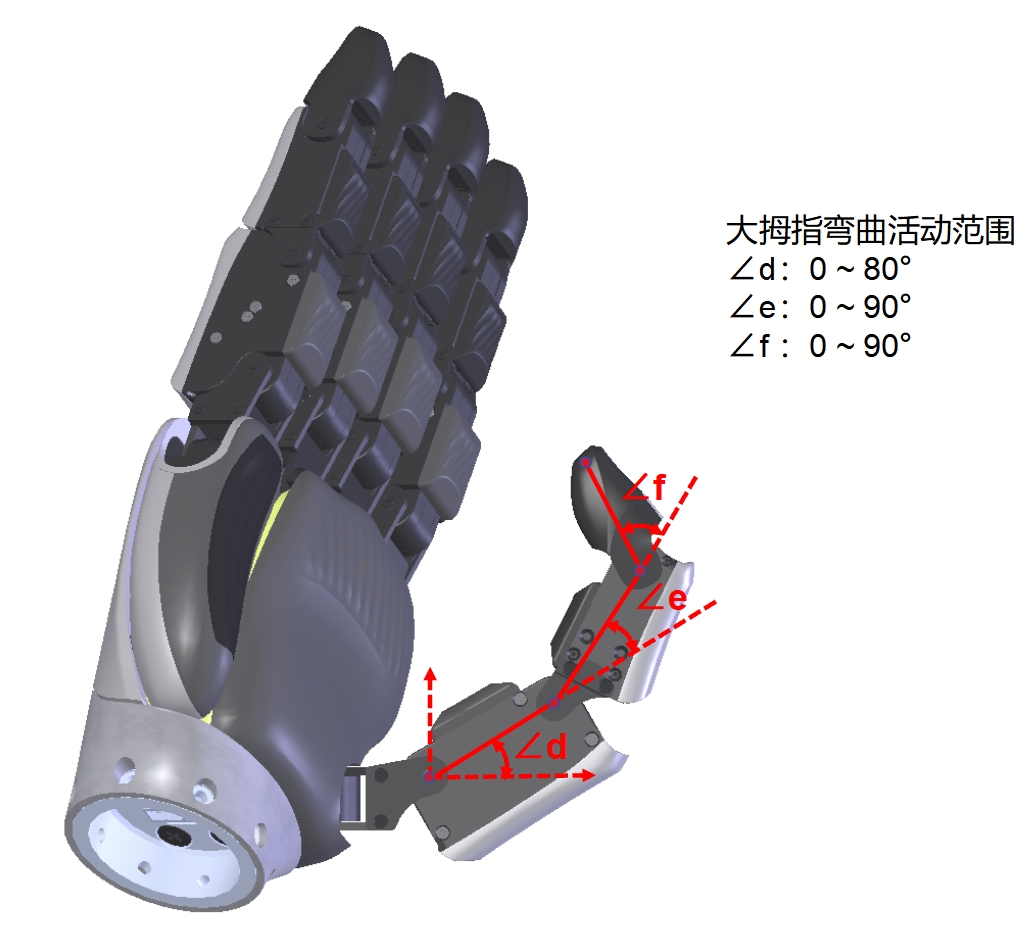
Thumb flexion. ∠d ranges from 0° to 80°. ∠e and ∠f each range from 0° to 90°.
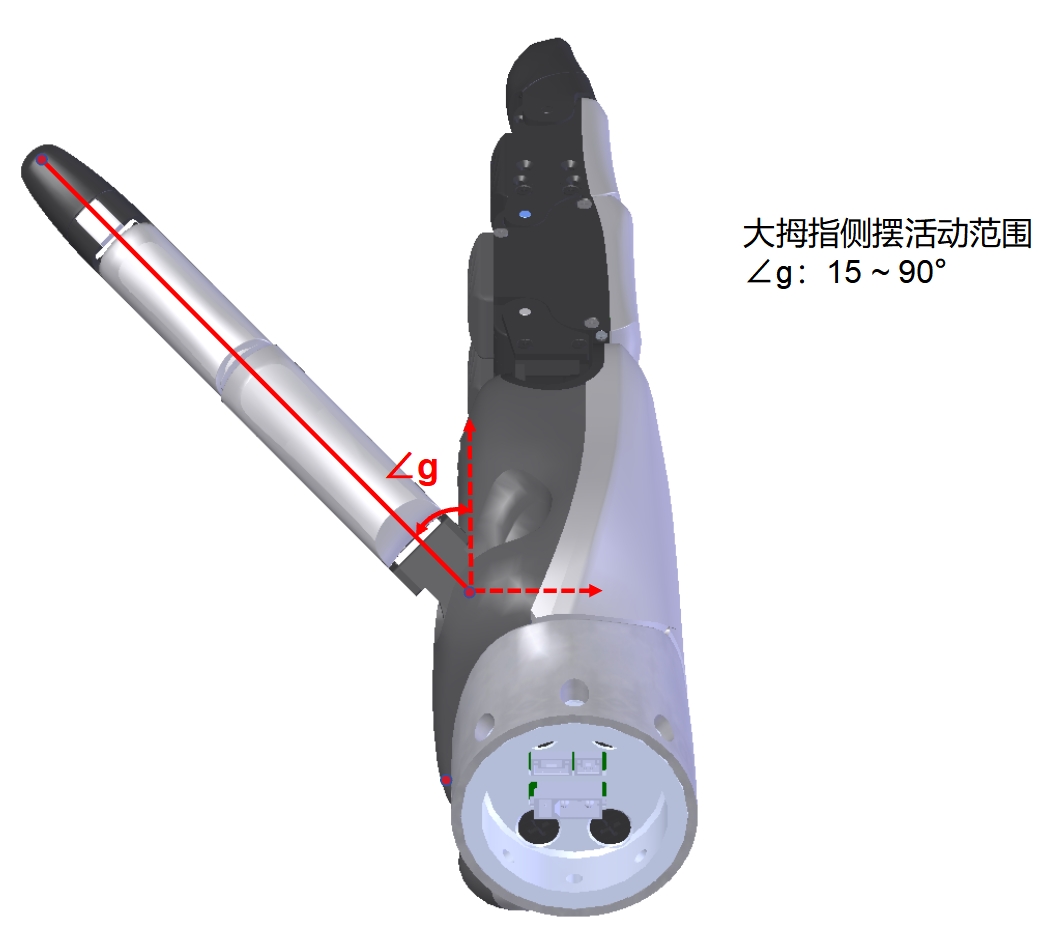
Thumb swing. ∠g ranges from 15° to 90°.
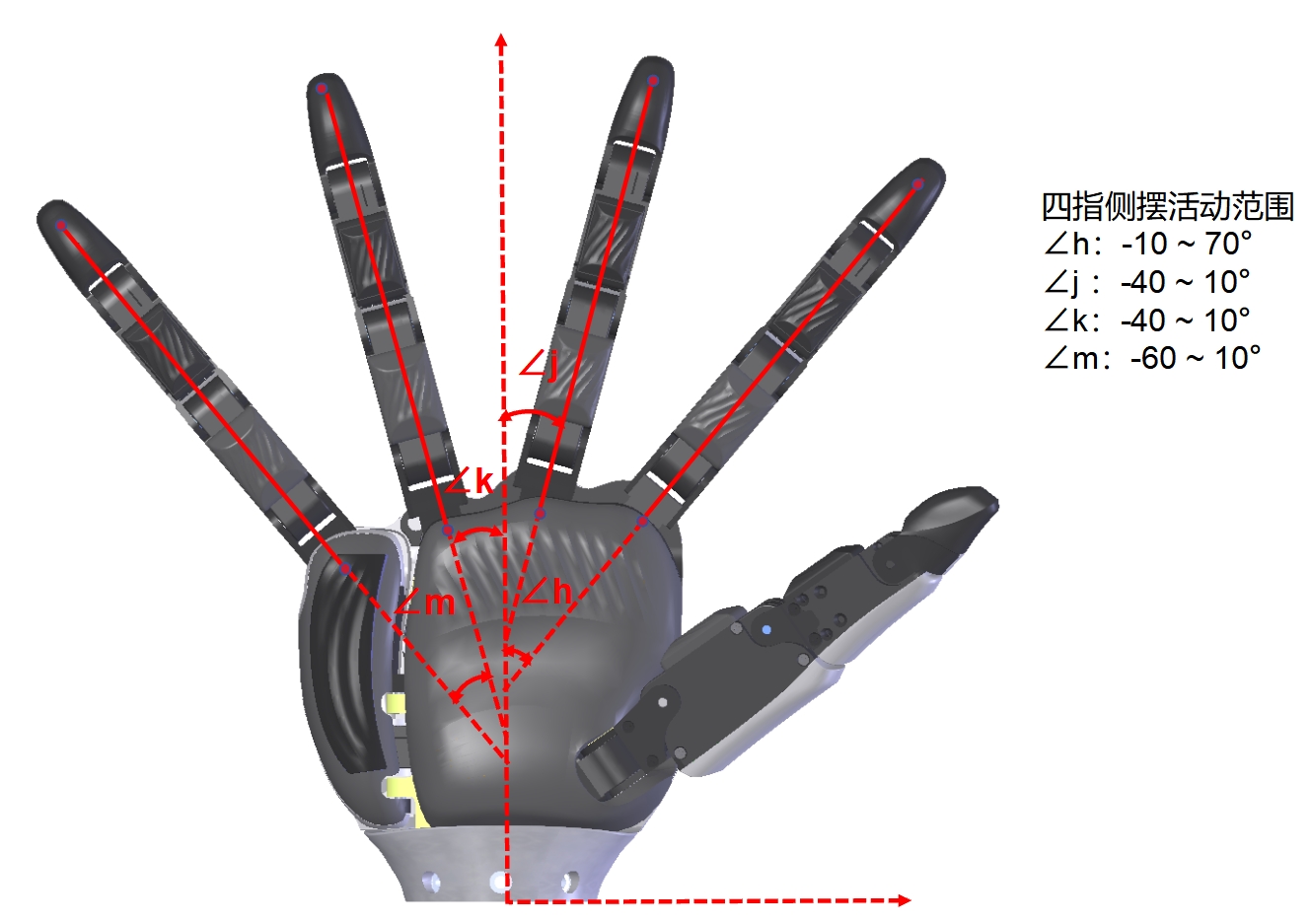
Four-finger lateral movement. ∠h ranges from −10° to 70°. ∠j and ∠k each range from −40° to 10°. ∠m ranges from −60° to 10°.
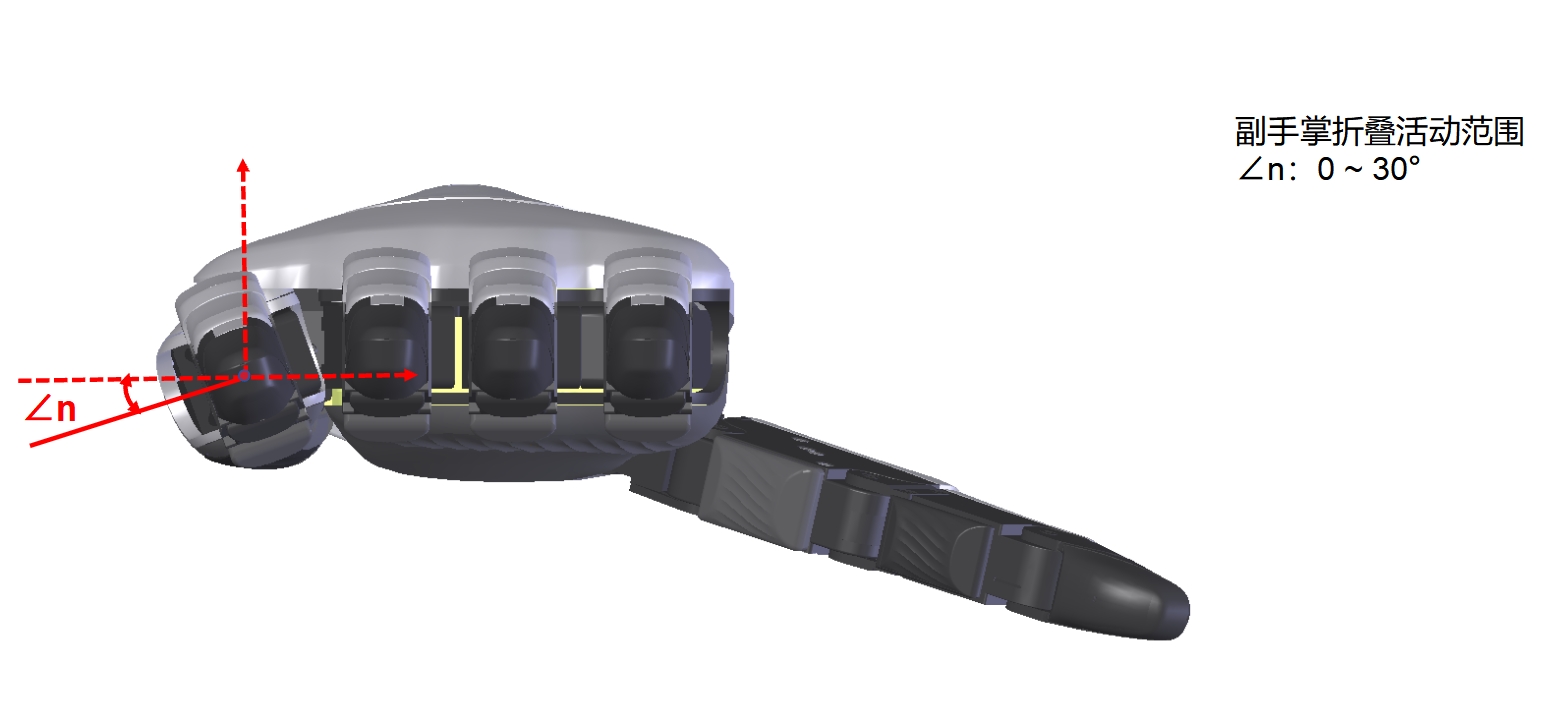
Auxiliary palm folding. ∠n ranges from 0° to 30°.
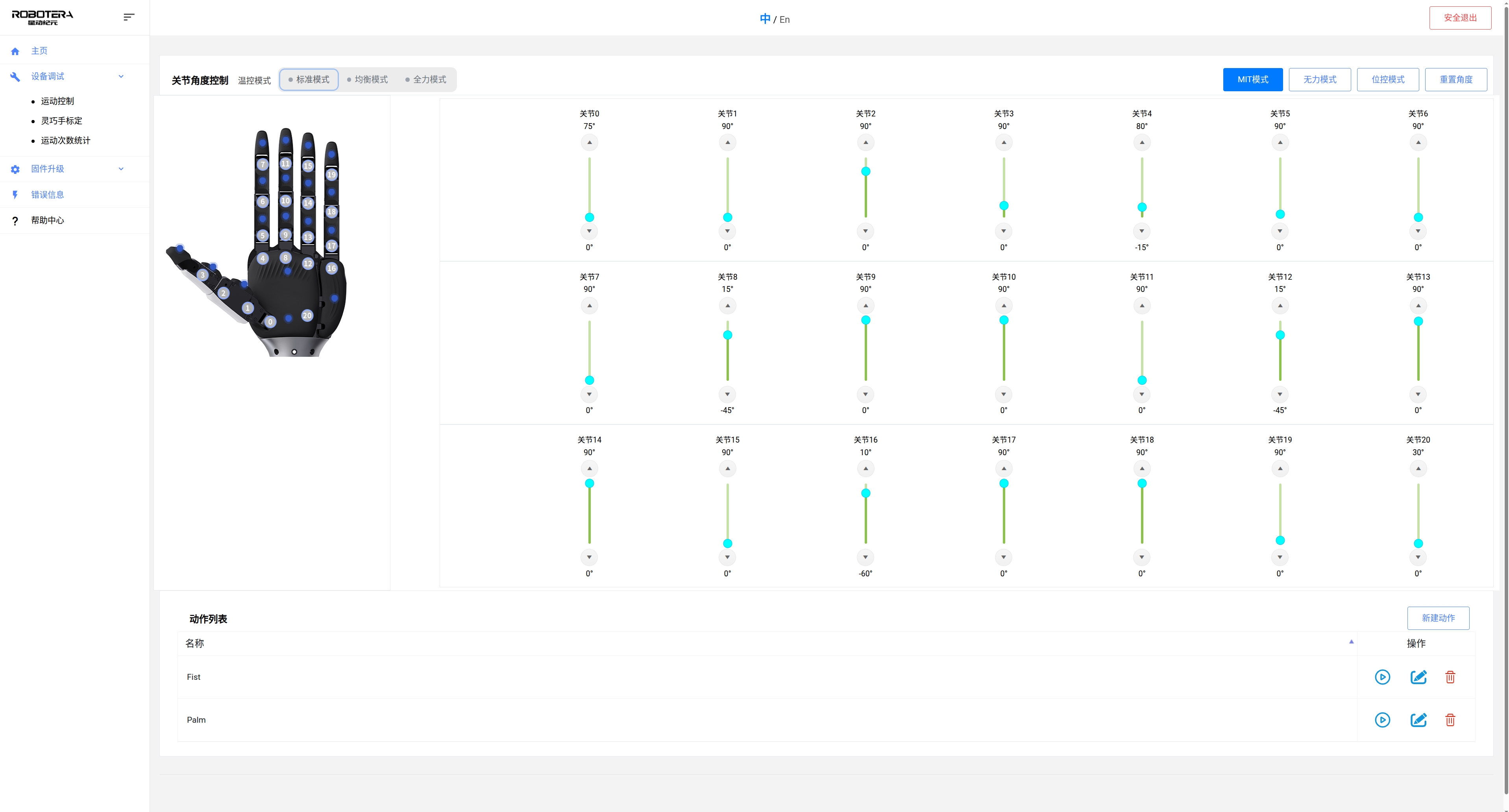
In the diagram, thumb swing angle ∠g ranges from 15° to 90°. Joint module 0 has a range of 0° to 75°. When setting control targets, use the joint limits configured on the device.
| Joint module ID | Part | Minimum angle (°) | Maximum angle (°) |
|---|---|---|---|
| 0 | Thumb | 0 | 75 |
| 1 | Thumb | 0 | 80 |
| 2 | Thumb | 0 | 90 |
| 3 | Thumb | 0 | 90 |
| 4 | Index finger | -10 | 70 |
| 5 | Index finger | 0 | 80 |
| 6 | Index finger | 0 | 90 |
| 7 | Index finger | 0 | 90 |
| 8 | Middle finger | -40 | 10 |
| 9 | Middle finger | 0 | 80 |
| 10 | Middle finger | 0 | 90 |
| 11 | Middle finger | 0 | 90 |
| 12 | Ring finger | -40 | 10 |
| 13 | Ring finger | 0 | 80 |
| 14 | Ring finger | 0 | 90 |
| 15 | Ring finger | 0 | 90 |
| 16 | Little finger | -60 | 10 |
| 17 | Little finger | 0 | 80 |
| 18 | Little finger | 0 | 90 |
| 19 | Little finger | 0 | 90 |
| 20 | Palm | 0 | 30 |
2.2 Joint IDs
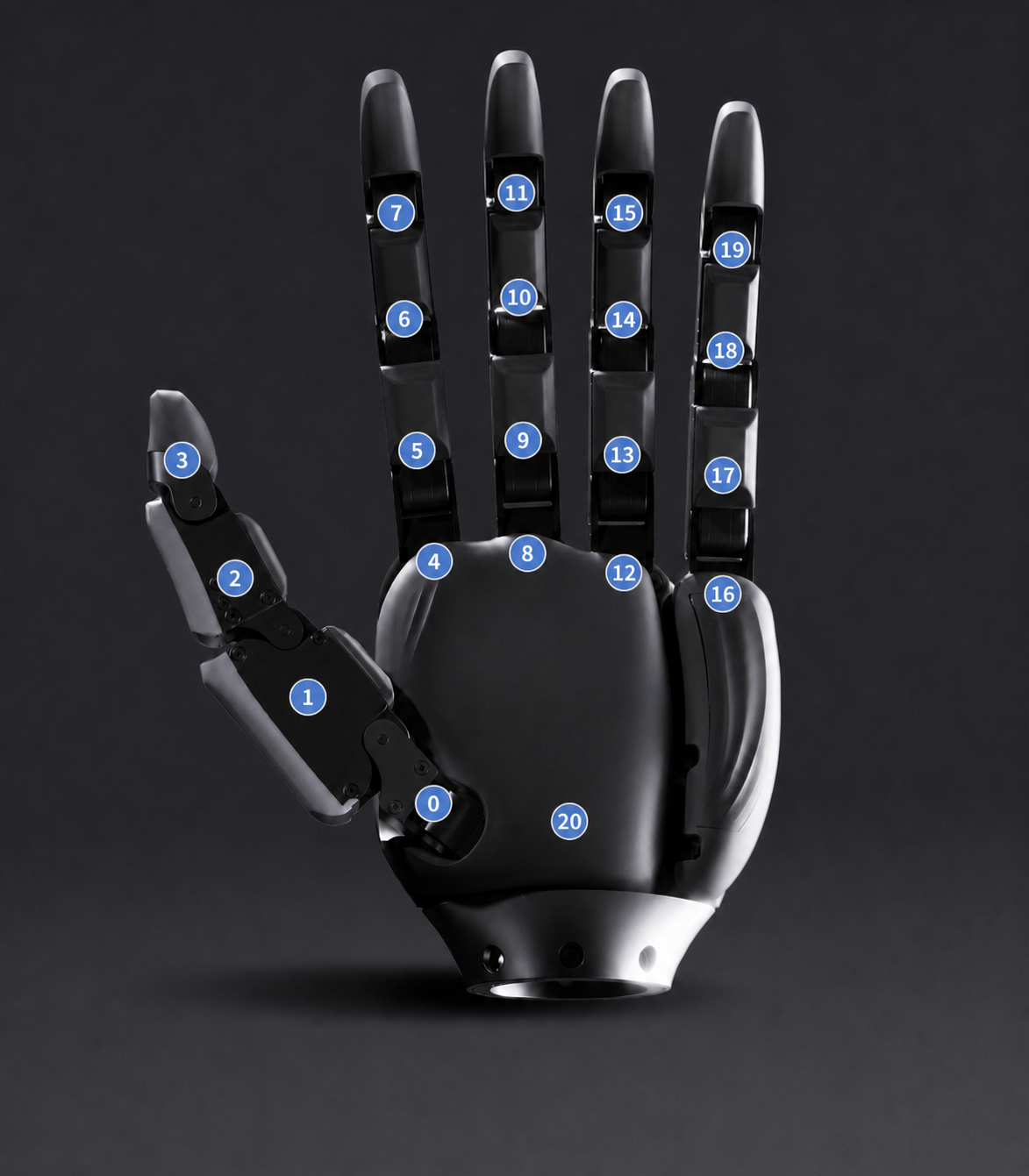
| Part | Joint IDs |
|---|---|
| Thumb | 0, 1, 2, 3 |
| Index finger | 4, 5, 6, 7 |
| Middle finger | 8, 9, 10, 11 |
| Ring finger | 12, 13, 14, 15 |
| Little finger | 16, 17, 18, 19 |
| Palm | 20 |
- Joint IDs range from 0 to 20.
- Use the joint ID to address a joint board when sending commands or reading joint state.
- Parameters such as
joint_idand-jnormally refer to a joint ID. - For OTA updates to the communication board, select that board with
-j 128.
2.3 Tactile sensor IDs
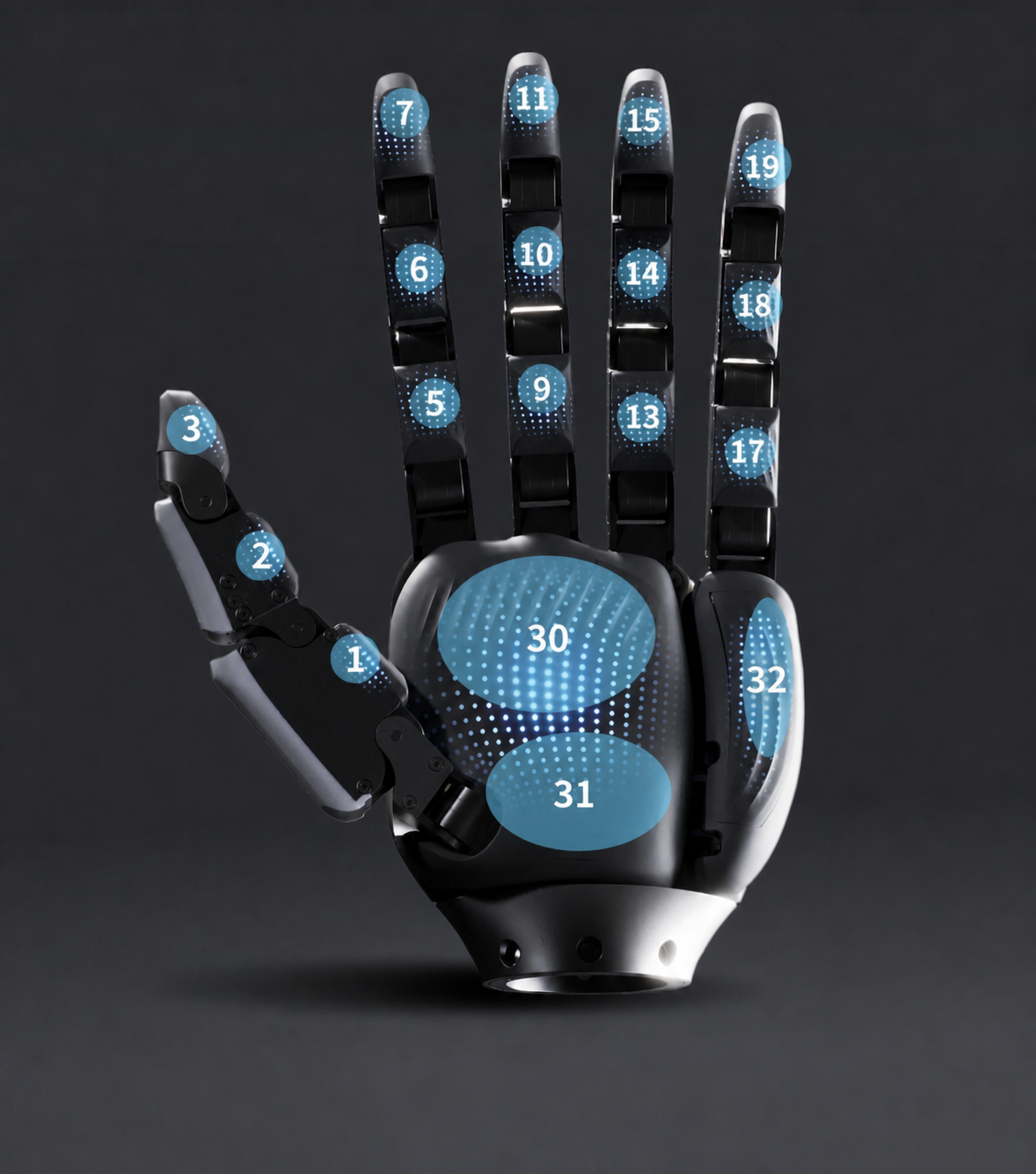
| Part | Sensor IDs |
|---|---|
| Thumb | 1, 2, 3 |
| Index finger | 5, 6, 7 |
| Middle finger | 9, 10, 11 |
| Ring finger | 13, 14, 15 |
| Little finger | 17, 18, 19 |
| Palm | 30, 31, 32 |
- Each tactile sensor on a finger uses the same ID as the joint at that position.
- Joint IDs 0, 4, 8, 12, 16, and 20 do not have corresponding finger tactile sensors.
- The palm sensors have their own IDs (30, 31, and 32).
- Parameters such as
sensor_idand-srefer to a sensor ID.
3. Electrical interfaces and harnesses
Check the hand's connector version and turn off the power before connecting the matching harness. The XH08-V3.0 harness is marked for use with XHAND 1 Pro only.
| Interface version | Harness | Power / communication cable lengths | Power adapter |
|---|---|---|---|
| Version 1 | XH08-V1.2 | 500 mm / 500 mm | GST280A48-C6P |
| Version 2 | XH08-V3.0 | 500 mm / 500 mm | GST280A48-C6P |
3.1 Version 1 · XH08-V1.2
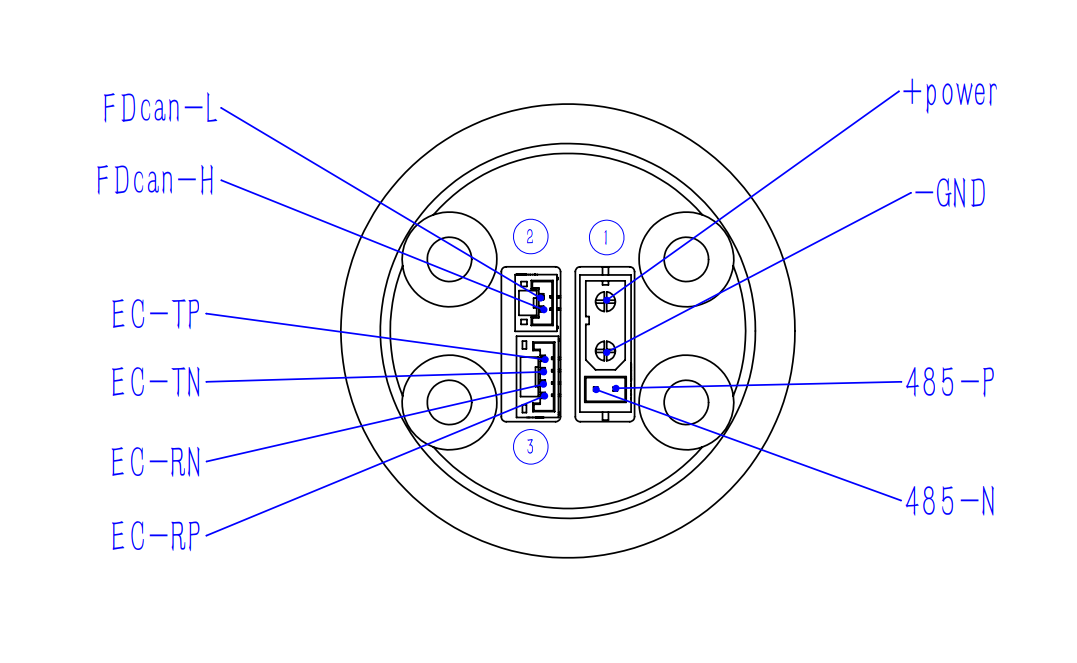
On the hand side, power and RS485 use connector 1. EtherCAT uses connector 3.
| Interface | Hand-side connector | Signals and wire colors | Host end |
|---|---|---|---|
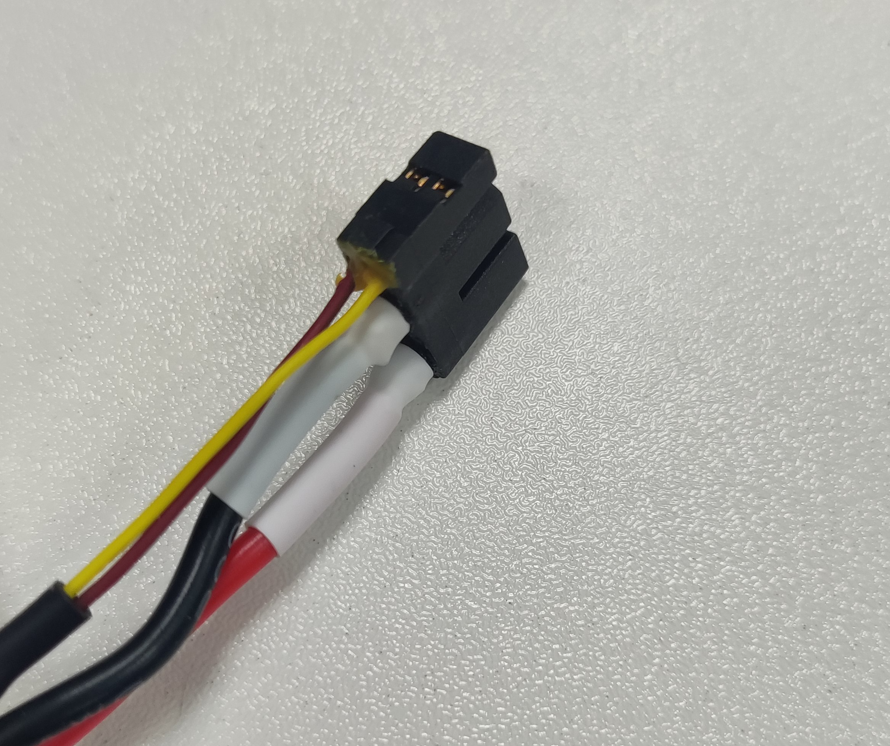
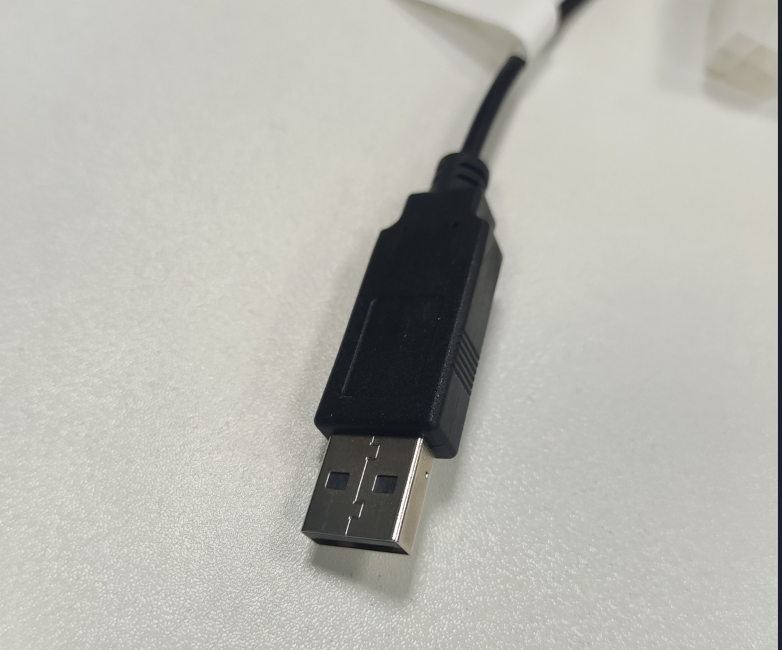
| RS485 | XT30U(2+2)-F | 485-P orange, 485-N yellow | USB 2.0 |
| Power | Connector 1 | POWER, GND | GST280A48-C6P |
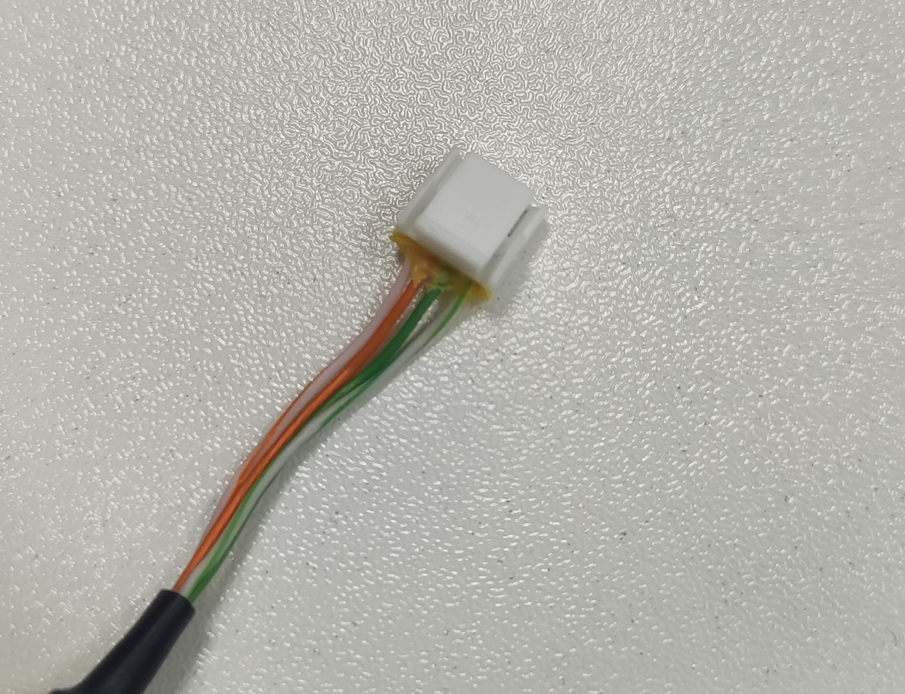
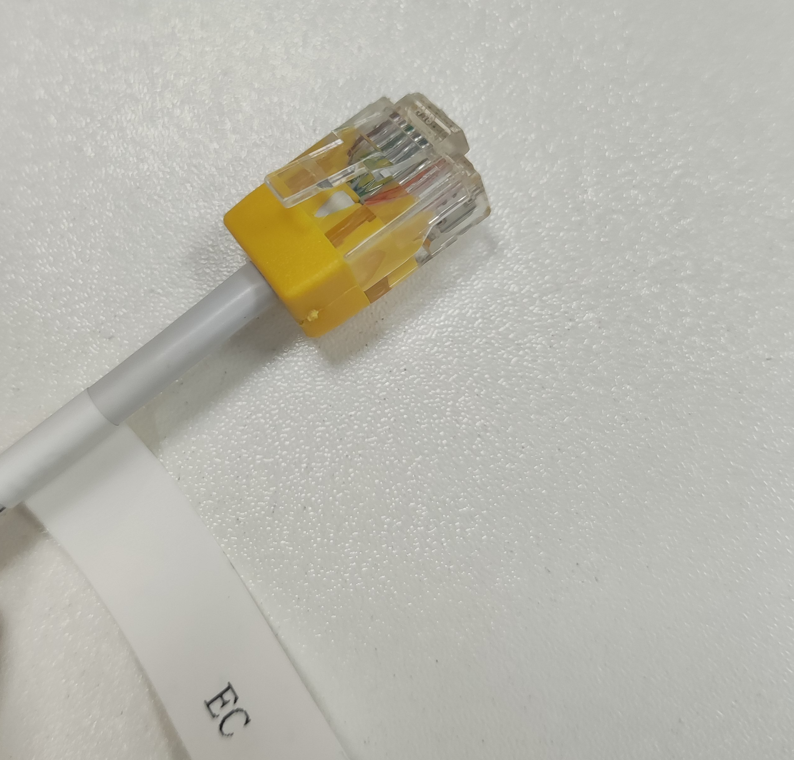
| EtherCAT | GHR-04V-S | EC-RP white/orange, EC-RN orange, EC-TN green, EC-TP white/green | RJ45 (T568B) |
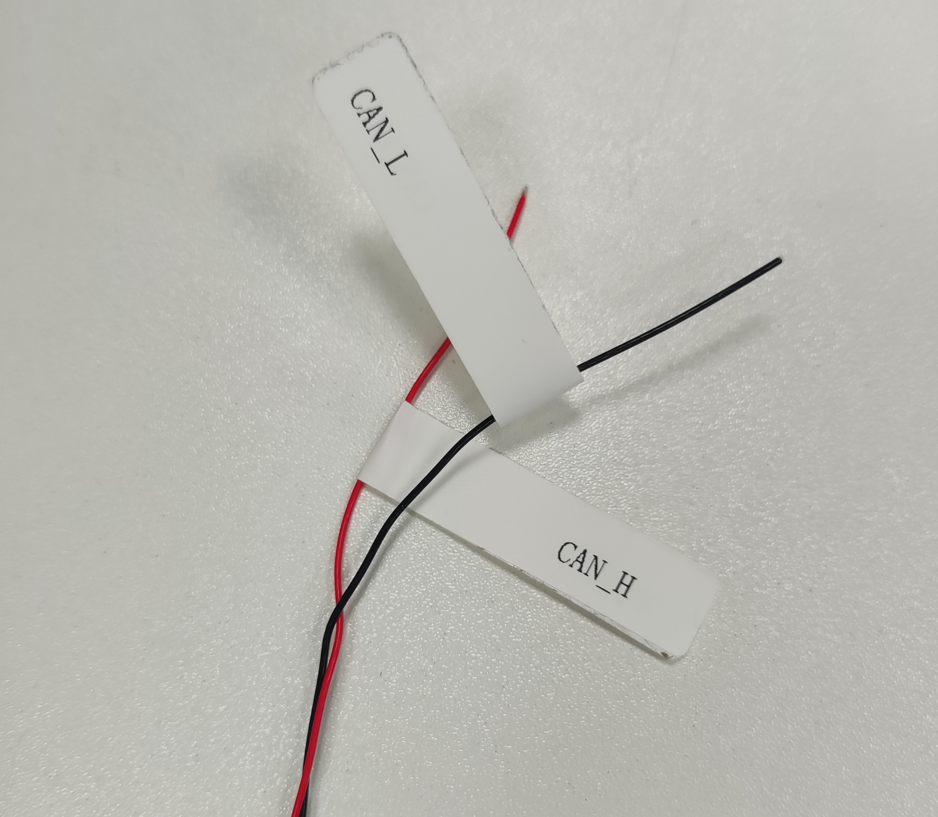
| CAN FD | GHR-02V-S | FDCAN_H red, FDCAN_L black | Flying leads, red H and black L |
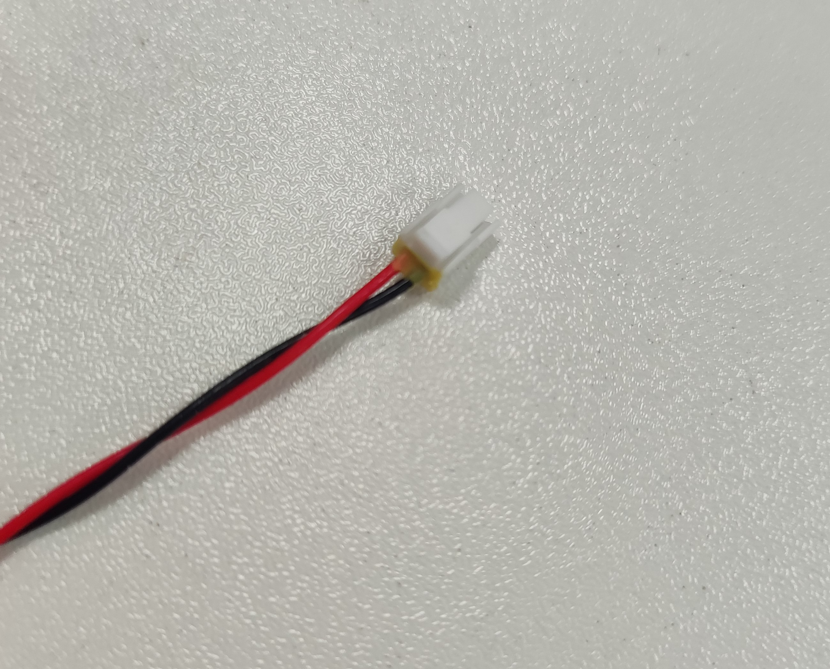
Version 1 harness photos
3.2 Version 2 · XH08-V3.0
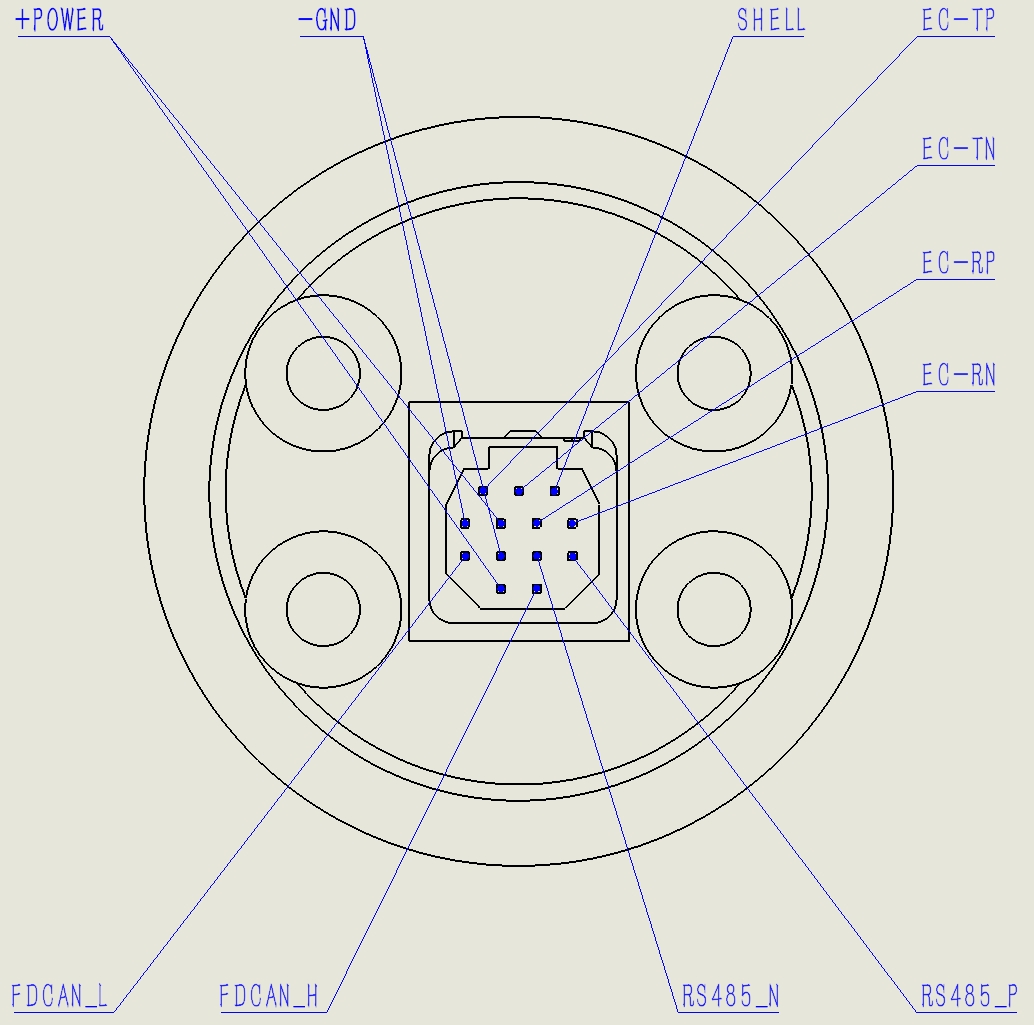
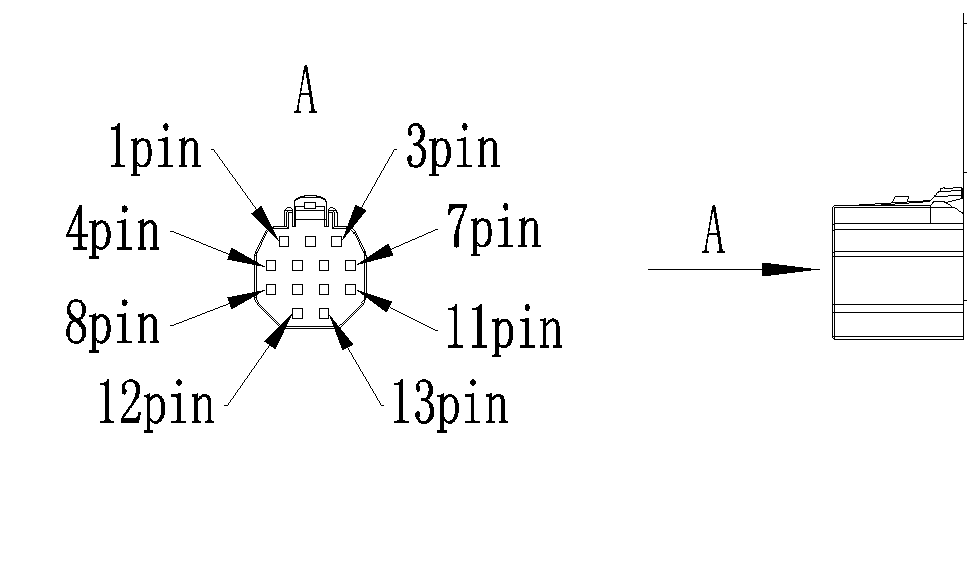
The harness uses a DF62C-13S-2.2C connector at the hand end. At the host end, the RS485 cable terminates in USB 2.0 and the EtherCAT cable terminates in an RJ45 connector wired to T568B. The two CAN FD leads are red for H and black for L.
| Pin | Signal | Wire color |
|---|---|---|
| 1 | SHELL | Black |
| 2 | EC-TN | Green |
| 3 | EC-TP | White/green |
| 4 | EC-RN | Orange |
| 5 | EC-RP | White/orange |
| 6 | POWER+ | Red |
| 7 | GND | Black |
| 8 | RS485-P | Orange |
| 9 | RS485-N | Yellow |
| 10 | GND | Black |
| 11 | FDCAN_L | Black |
| 12 | FDCAN_H | Red |
| 13 | POWER+ | Red |
3.3 Power adapter
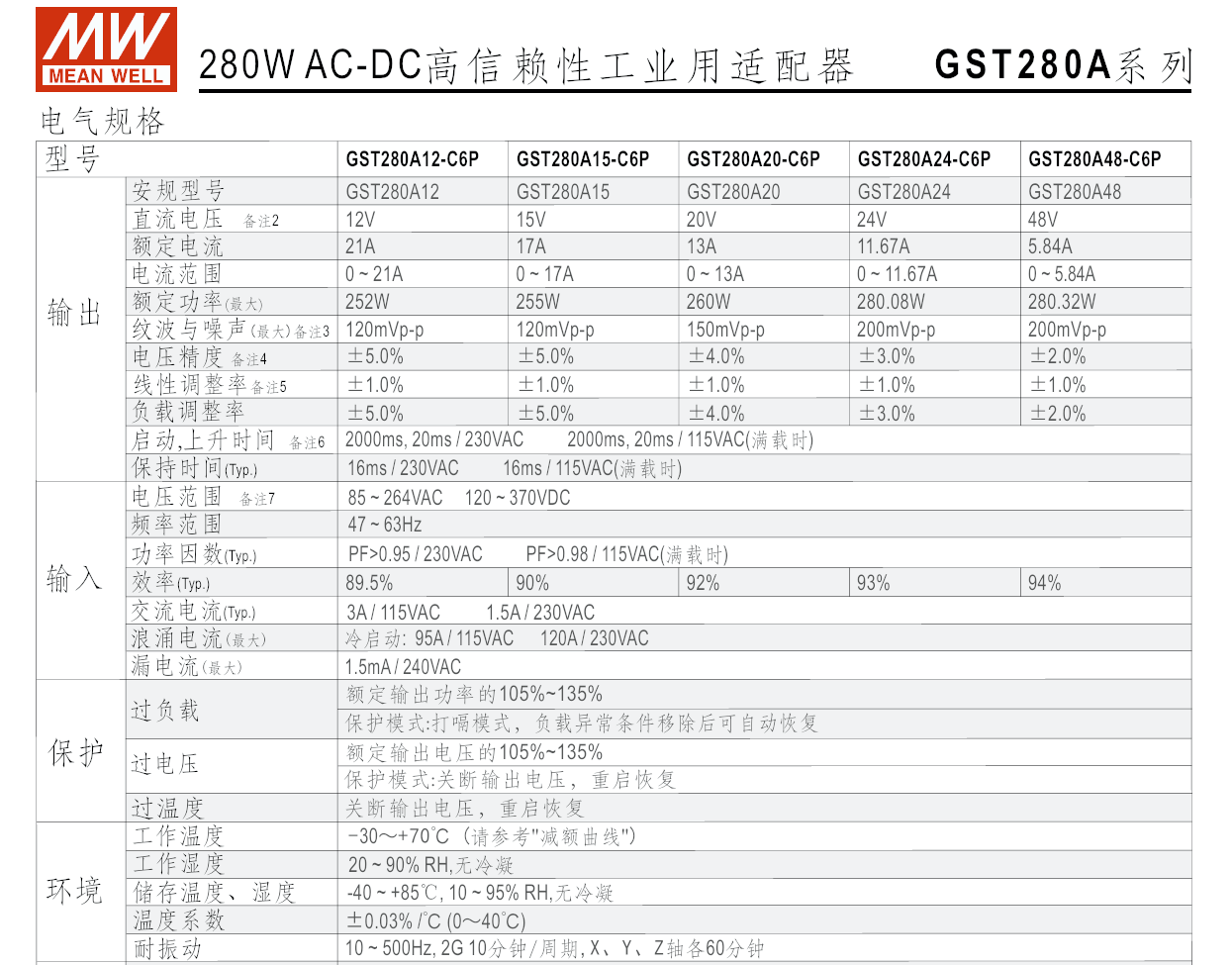
The supplied GST280A48-C6P adapter is rated for 48 V and approximately 280 W.
4. Quick start
- Check the connectors and power supply against Electrical interfaces and harnesses. Connect the RS485 harness or EtherCAT cable, then check that the connectors are secure and the hand has room to move before applying power.
- For RS485, check that the serial device appears on the host, for example as
/dev/ttyACM0or/dev/ttyUSB0. For EtherCAT, identify the network interface connected to the hand, such asenp3s0oreth0. - For the graphical interface, install XHAND Studio and connect the hand. For SDK development, install a package that matches your Ubuntu and Python versions.
- Confirm communication by reading the version, serial number, or device state before calibrating, homing, or testing motion. The SDK examples use hand ID
0. Replace it with your hand's ID.
If your release includes hand_test, you can run these read-only commands over serial. See the Python SDK for Python and EtherCAT commands.
hand_test -d /dev/ttyUSB0 -t green -f get_version
hand_test -d /dev/ttyUSB0 -t green -f get_sn
hand_test -d /dev/ttyUSB0 -t green -f get_sensor
5. XHAND Studio
Use XHAND Studio to connect to XHAND 1 Pro, view real-time 3D pose and tactile data, test motion, calibrate joints, and update firmware.
5.1 Install the application
Install on Ubuntu 22.04 LTS. For other Ubuntu versions, check the compatibility notes for the supplied installer. The recommended setup is 64-bit Chrome 130.0.6723.69 or later, an Intel i5-12400 or better, 8 GB of RAM, and a 128 GB SSD. The 3D view requires a discrete GPU and a working graphics driver. For NVIDIA GPUs, run nvidia-smi to check the driver.
Download the XHAND 1 Pro .deb package. Use a regular account with sudo privileges and follow any system authentication prompts. Connect to the internet for the first installation. In the directory containing the package, run the following command with your package filename.
sudo apt install ./xhand-pro-package.debTo install an older package, you can also run sudo dpkg -i ./xhand-pro-package.deb. If dependencies are missing, follow the terminal prompt and run sudo apt --fix-broken install. If the 3D view goes black or fails to open, check that the graphics driver is loaded.
5.2 Connect the hand
- Use Electrical interfaces and harnesses to select the matching XH08 harness. With power off, connect it to the hand and plug the adapter into the harness power connector. Grip the XT30 connector housing when plugging or unplugging it to avoid pulling on the power leads.
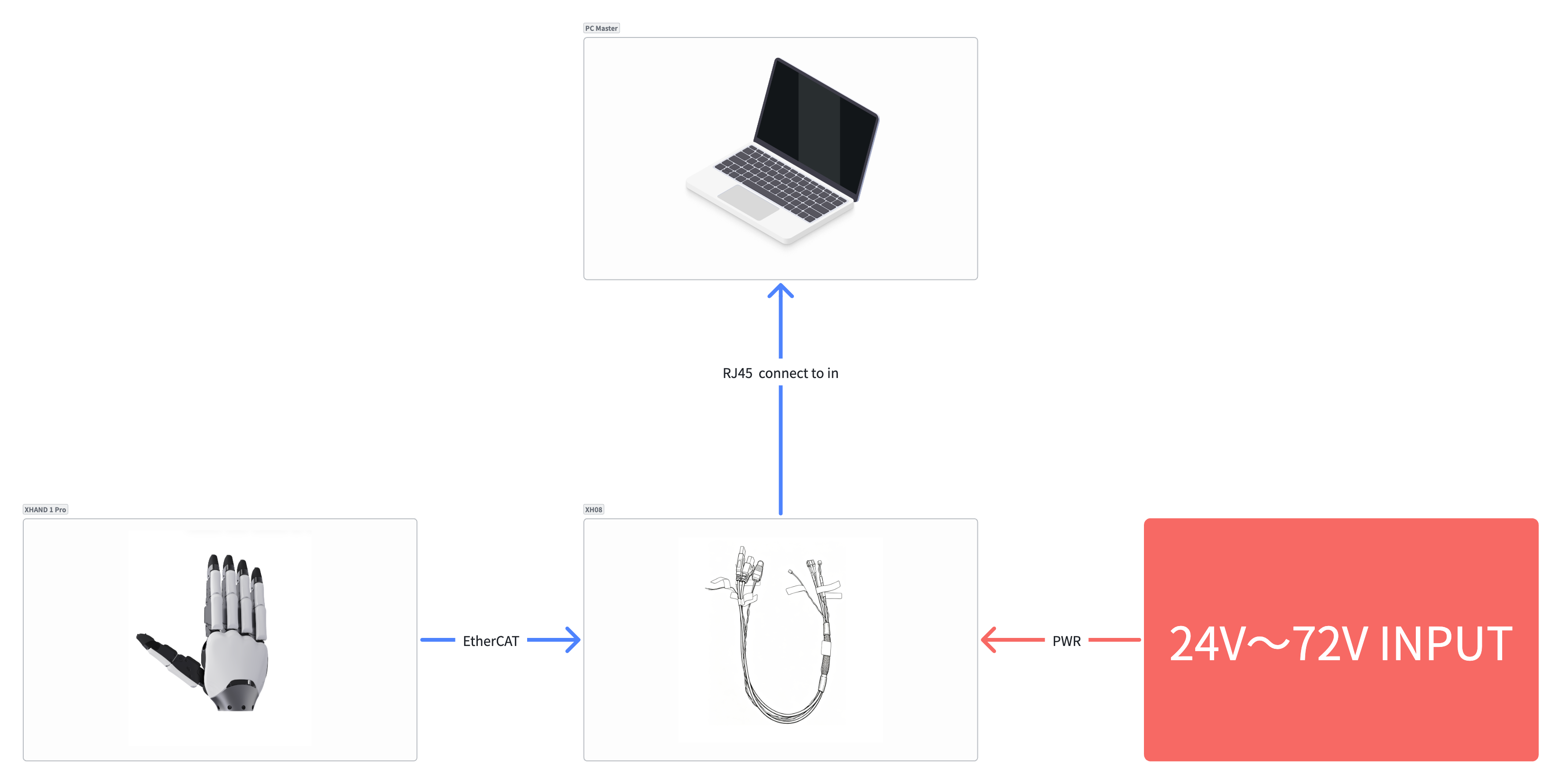
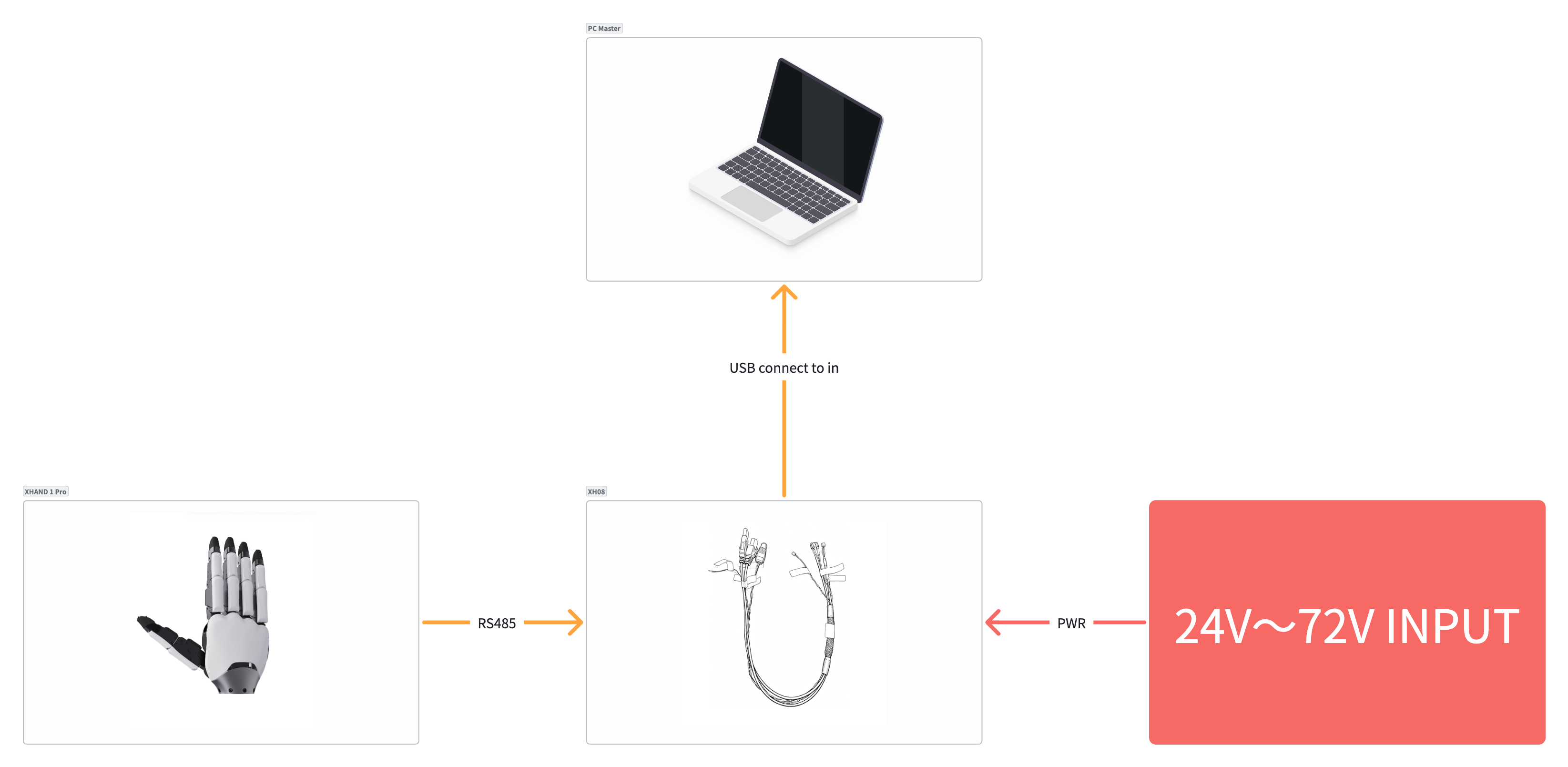
- Connect one interface at the host end. Use RJ45 for EtherCAT or USB for RS485. Check the connections before powering on.
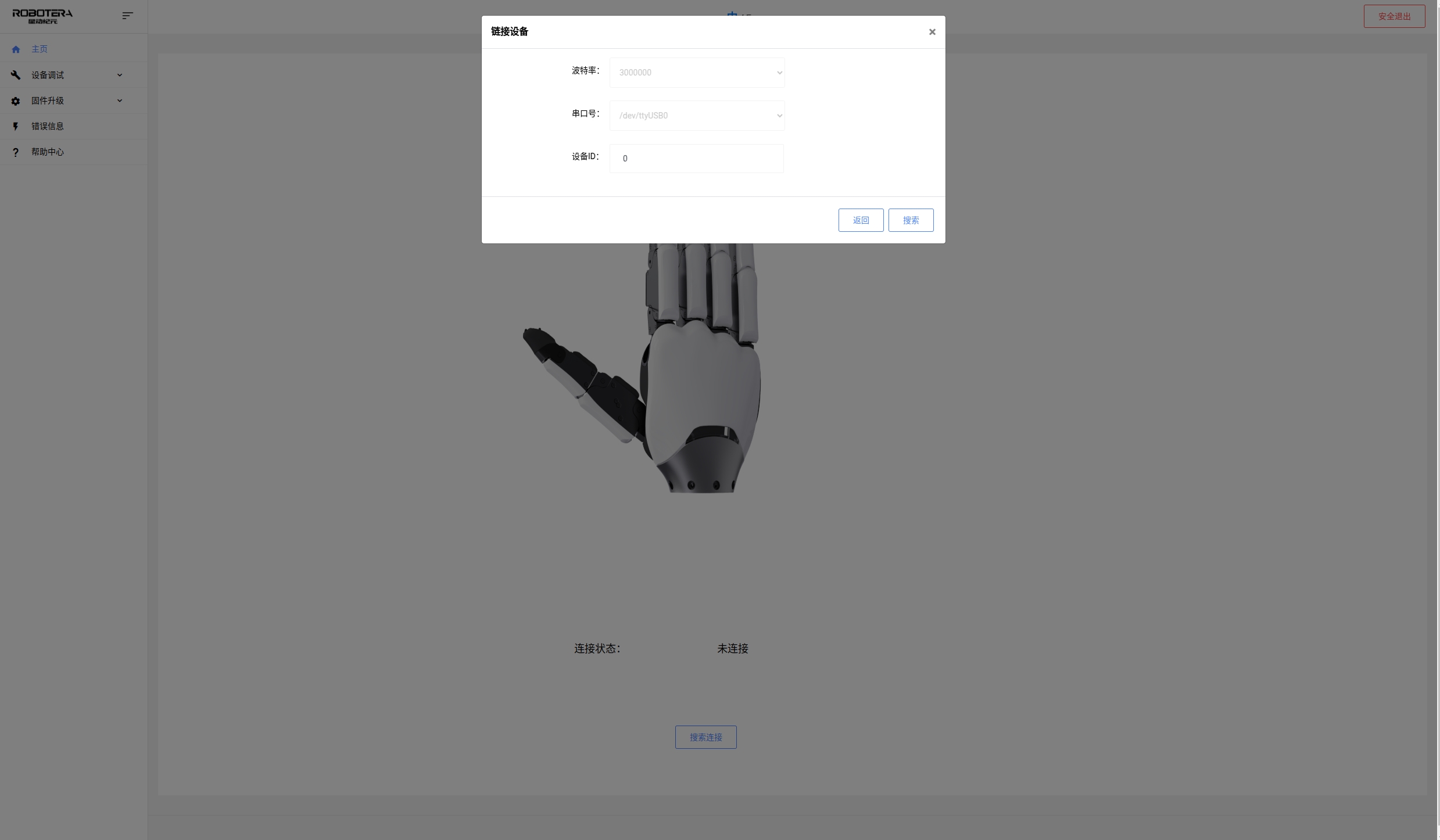
- Open XHAND 1 Pro from the Ubuntu applications menu. If an authentication dialog appears, follow the system prompt. In XHAND Studio, choose Search and Connect and select the protocol that matches the cable.
- The RS485 example uses baud rate
3000000, portUSB0, and device ID0. Enter your actual port and ID. For EtherCAT, select the connected network interface when prompted. The application opens the home page after it connects.
5.3 Monitor in 3D and control motion
- Home has controls in the upper-right corner to open the 3D view or disconnect the hand.
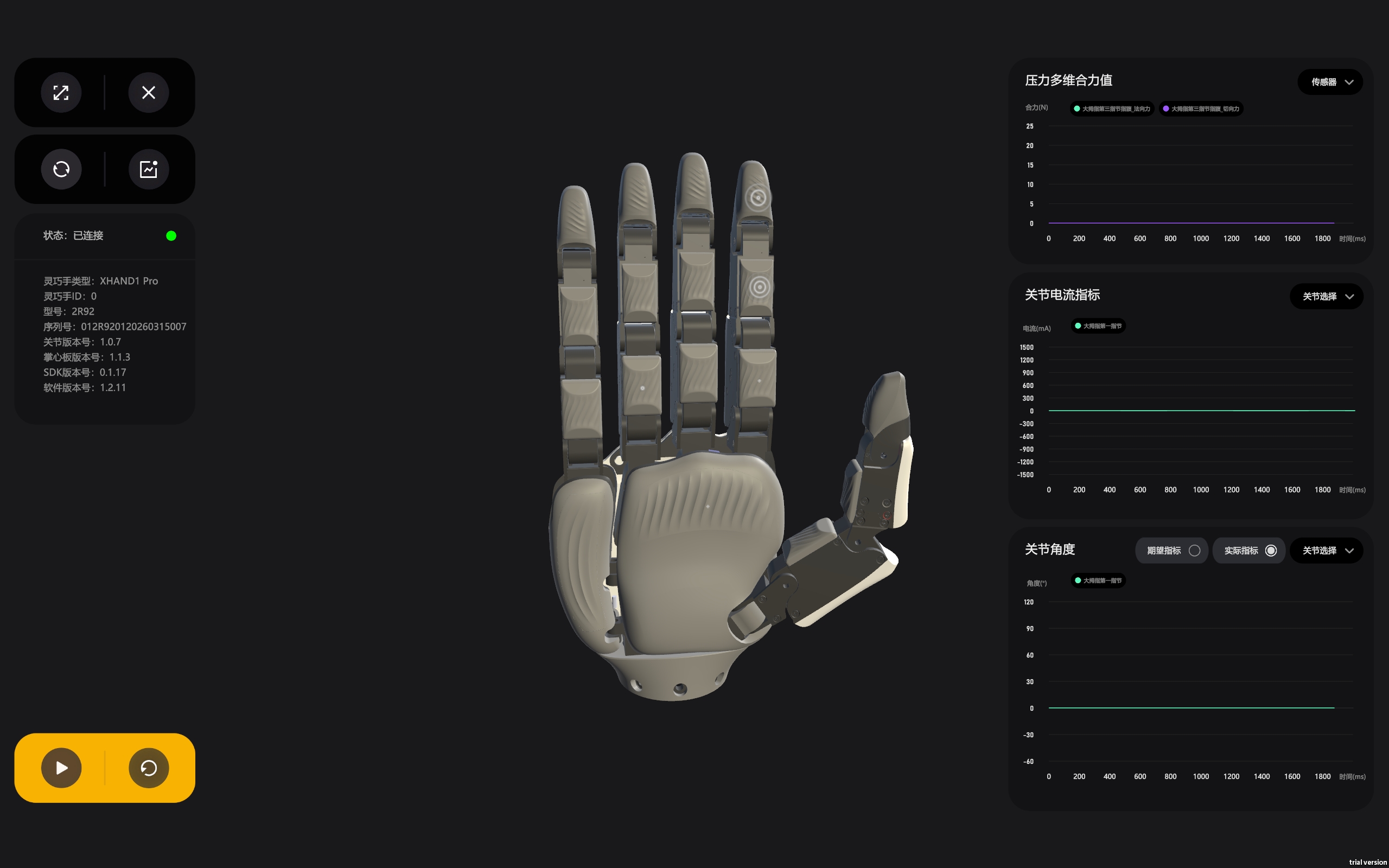
- 3D view shows the hand's current pose, resultant force directions, proximity and tactile feedback, pressure, joint current, and joint angles. You can loop preset gestures, enter full-screen mode, close the view, or refresh the displayed data and sensor readings.
- Motion Control lets you set joint angles, switch among modes such as MIT and zero torque, and play or edit saved motions. Thermal presets are Balanced, Standard, and Full power.
5.4 Calibrate the hand
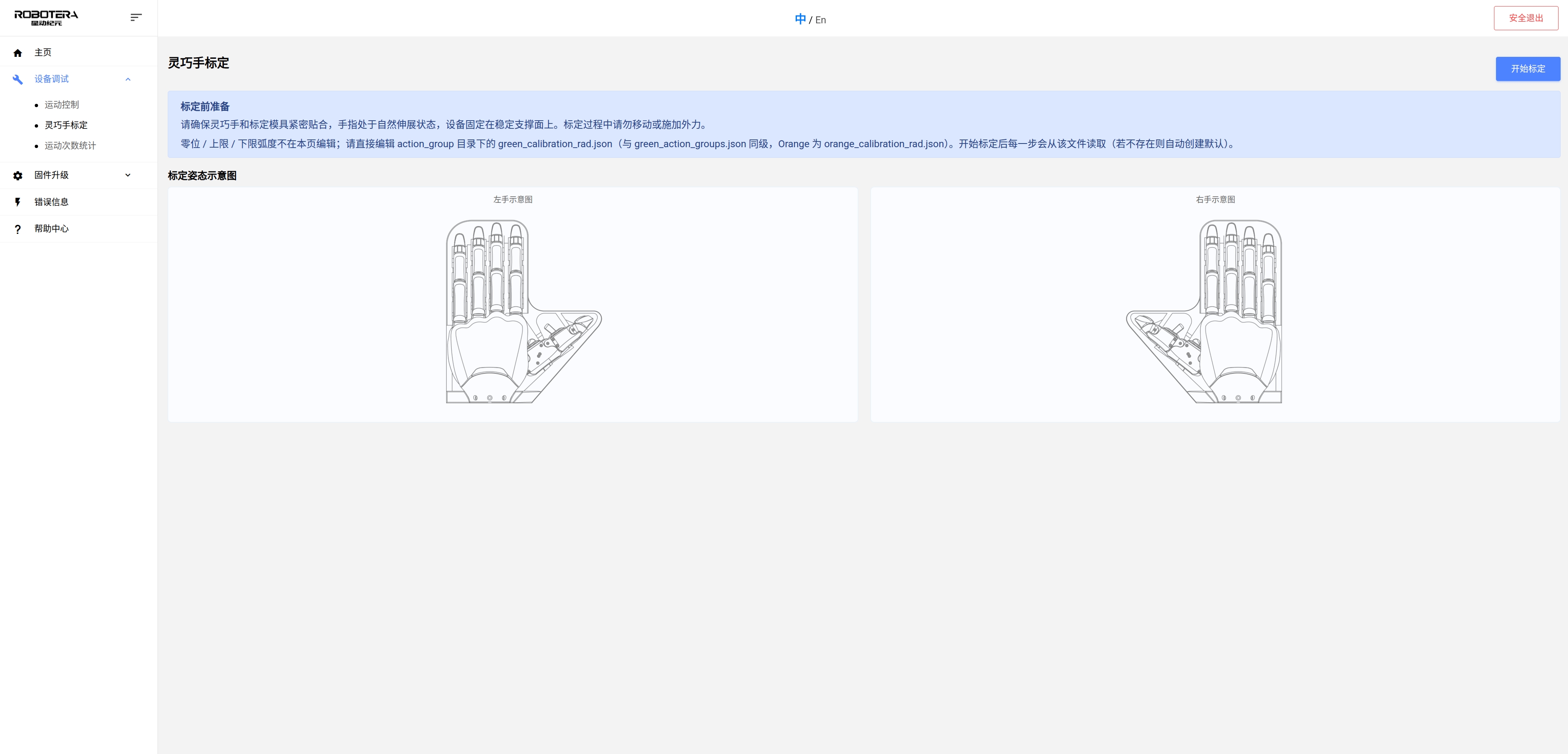
Open Hand Calibration and review the preparation instructions and reference pose before starting. Follow the on-screen steps to calibrate joint zero positions and ranges of motion. Clear the space around the joints and check the hand's pose against the instructions.
5.5 Update firmware and review error records
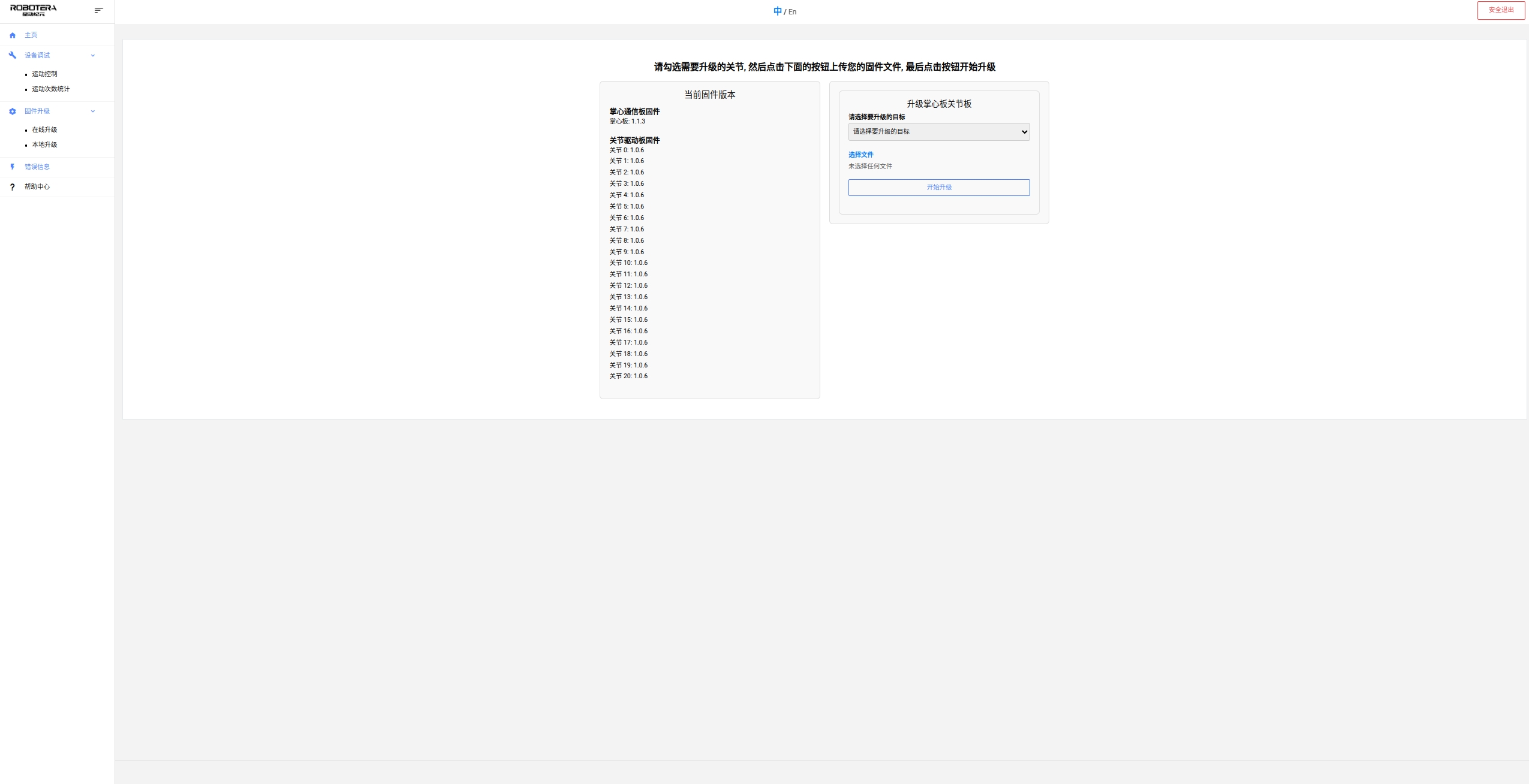
- Online Update. Compare the installed and available firmware versions for the palm communication board and joint driver boards 0–20. Follow the prompts when an update is available.
- Local Update. Check the installed version, select the target and its matching firmware file, and start the update. Keep the hand powered and connected throughout.
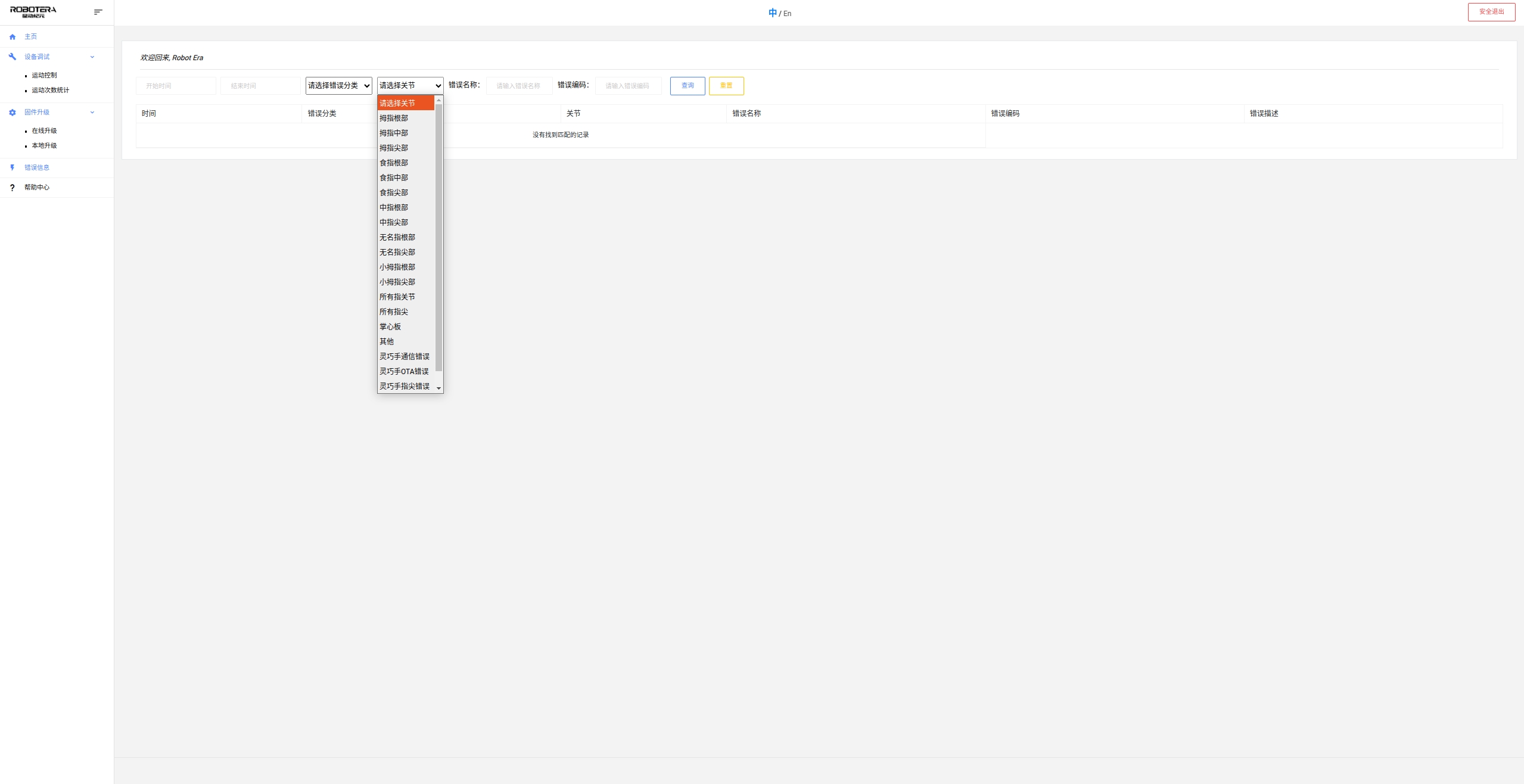
- Error Records. Filter by time, category, joint, error name, or code. Search shows matching results. Reset clears the filters. See Error codes for possible causes and corrective actions.
5.6 Help and support
The XHAND Studio Help Center contains product manuals, FAQs, and contact details. For technical support, email support@robotera.com.
6. Python SDK
6.1 Environment setup
Place the Python script, .whl package, and SDK .deb package in the same working directory.
Install the Python package:
pip install ./hand_controller-0.1.49-cp310-cp310-linux_x86_64.whlTo reinstall the Python package, run the following command.
pip install --force-reinstall ./hand_controller-0.1.49-cp310-cp310-linux_x86_64.whlInstall the SDK package:
sudo dpkg -i hand_sdk_0.1.49_ubuntu22.04_jammy_amd64.debDisplay script help:
python3 xhand1pro_test.py -h6.2 Serial device setup
List serial devices:
ls /dev/ttyUSB*
ls /dev/ttyACM*
To grant temporary read and write permissions, replace the example device path with your serial device path.
sudo chmod 666 /dev/ttyUSB0
sudo chmod 666 /dev/ttyACM0
6.3 Script arguments
| Argument | Description | Example |
|---|---|---|
-d | Serial device or EtherCAT interface | -d /dev/ttyACM0, -d enp3s0 |
-f | Function name | -f get_pos |
--hand-id | Hand ID | --hand-id 0 |
-j | Joint ID or OTA target ID | -j 0, -j 128 |
-s | Sensor ID | -s 7 |
-b | OTA firmware path | -b firmware.bin |
-t | Hand type | -t green |
6.4 Serial commands
Basic information:
python3 xhand1pro_test.py -d /dev/ttyACM0 -f get_version --hand-id 0
python3 xhand1pro_test.py -d /dev/ttyACM0 -f hand_type --hand-id 0
python3 xhand1pro_test.py -d /dev/ttyACM0 -f get_sn --hand-id 0
Calibration and homing:
python3 xhand1pro_test.py -d /dev/ttyACM0 -f calib --hand-id 0
python3 xhand1pro_test.py -d /dev/ttyACM0 -f zero --hand-id 0
Read joint positions and sensor data.
python3 xhand1pro_test.py -d /dev/ttyACM0 -f get_pos --hand-id 0
python3 xhand1pro_test.py -d /dev/ttyACM0 -f get_sensor --hand-id 0
Motion tests:
python3 xhand1pro_test.py -d /dev/ttyACM0 -f hz_test --hand-id 0
python3 xhand1pro_test.py -d /dev/ttyACM0 -f step --hand-id 0
python3 xhand1pro_test.py -d /dev/ttyACM0 -f cycle --hand-id 0
python3 xhand1pro_test.py -d /dev/ttyACM0 -f play_pos --hand-id 0
python3 xhand1pro_test.py -d /dev/ttyACM0 -f side_swing --hand-id 0
python3 xhand1pro_test.py -d /dev/ttyACM0 -f clamp --hand-id 0
Sensor operations:
# Interactive sensor zeroing
python3 xhand1pro_test.py -d /dev/ttyACM0 -f sensor_clear --hand-id 0

# Zero sensor 7
python3 xhand1pro_test.py -d /dev/ttyACM0 -f sensor_clear -s 7 --hand-id 0

# Zero all sensors
python3 xhand1pro_test.py -d /dev/ttyACM0 -f sensor_clear_all --hand-id 0

# Sensor consistency test
python3 xhand1pro_test.py -d /dev/ttyACM0 -f sensor_consistency --hand-id 0
6.5 EtherCAT commands
These EtherCAT examples usually require root privileges. Replace enp3s0 with the name of your network interface.
Install the EtherCAT Python package:
sudo pip install ./hand_controller-0.1.53-cp310-cp310-linux_x86_64.whl
sudo pip install --force-reinstall ./hand_controller-0.1.53-cp310-cp310-linux_x86_64.whl
Install the EtherCAT SDK package:
sudo dpkg -i hand_sdk_0.1.53_ubuntu22.04_jammy_amd64.debDisplay help and list interfaces:
sudo python3 xhand1pro_test.py -h
ip link
Rename an interface if required:
sudo ip link set oldname name newnameBasic information:
sudo python3 xhand1pro_test.py -d enp3s0 -f hand_type --hand-id 0
sudo python3 xhand1pro_test.py -d enp3s0 -f get_sn --hand-id 0
Calibration, homing, and state reads:
sudo python3 xhand1pro_test.py -d enp3s0 -f calib --hand-id 0
sudo python3 xhand1pro_test.py -d enp3s0 -f zero --hand-id 0
sudo python3 xhand1pro_test.py -d enp3s0 -f get_pos --hand-id 0
sudo python3 xhand1pro_test.py -d enp3s0 -f get_sensor --hand-id 0
Motion tests:
sudo python3 xhand1pro_test.py -d enp3s0 -f play_pos --hand-id 0
sudo python3 xhand1pro_test.py -d enp3s0 -f side_swing --hand-id 0
sudo python3 xhand1pro_test.py -d enp3s0 -f cycle --hand-id 0
Sensor operations:
sudo python3 xhand1pro_test.py -d enp3s0 -f sensor_clear -s 1 --hand-id 0
sudo python3 xhand1pro_test.py -d enp3s0 -t green -f sensor_consistency --hand-id 0
6.6 Hand ID configuration
# Set the hand ID to 30
sudo python3 xhand1pro_test.py -d enp3s0 -f set_hand_id -j 30 --hand-id 0

# Read the current hand ID
sudo python3 xhand1pro_test.py -d enp3s0 -f get_hand_id --hand-id 0

# List all connected hand IDs
sudo python3 xhand1pro_test.py -d enp3s0 -f list_hand_ids --hand-id 0
6.7 OTA update
Serial communication-board update:
python3 xhand1pro_test.py -d /dev/ttyACM0 -f ota -b /home/user/Downloads/commboard_green_undf_undf_v1.1.1_20260209160606.bin -j 128 --hand-id 0EtherCAT communication-board update:
sudo python3 xhand1pro_test.py -d enp3s0 -f ota -b commboard_green_undf_undf_v1.1.5_20260323152529.bin -j 128 --hand-id 0EtherCAT joint-board update:
sudo python3 xhand1pro_test.py -d enp3s0 -f ota -b jointboard_green_undf_undf_v1.0.8_20260327011034.bin -j 0 --hand-id 0For a joint-board update, replace -j 0 with the target joint ID. Do not disconnect power or communication during an OTA update.
6.8 Joint Kp and Kd configuration
Set the joint's Kp and Kd values in the JSON configuration file. Check the SDK package for the file path, field names, and supported ranges. Back up the file and verify the joint ID before editing.
7. C++ SDK
7.1 Environment setup
The SDK runs on Ubuntu and requires the following dependencies:
sudo apt install libspdlog-dev libboost-all-dev libfmt-dev libssl-dev
sudo dpkg -i hand_sdk_0.1.49_ubuntu22.04_jammy_amd64.deb
7.2 Serial example
auto serial_comm = std::make_shared<SerialCommunication>("/dev/ttyUSB0", 3000000, 1000);
if (serial_comm->open() != ErrorCode::SUCCESS) {
    LOG_ERROR("Failed to open serial communication");
    return;
}

GREEN_HAND::GreenHand hand(0, serial_comm);

std::string version;
auto version_code = hand.get_software_version(version);
LOG_INFO("Version: {} code: {}", version, static_cast<int>(version_code));

int joint_id = 6;
float target_pos = 0.0f;
auto cmd_code = hand.set_joint_cmd(
    joint_id,
    GREEN_HAND::JointCommand_User{100, 0, 0, target_pos, 350, 3, 0, 0, 0, 0}
);

auto joint_data = hand.get_joint_state(joint_id);
float current_pos = *(float32 *)&joint_data.position;
LOG_INFO("write pos: {}, current pos: {}, code: {}", target_pos, current_pos, static_cast<int>(cmd_code));
7.3 EtherCAT example
auto ec_comm = std::make_shared<EtherCatCommunication>("eth0");
if (ec_comm->open() != ErrorCode::SUCCESS) {
    LOG_ERROR("Failed to open EtherCAT communication");
    return;
}

GREEN_HAND::GreenHand hand(0, ec_comm);

std::string version;
auto version_code = hand.get_software_version(version);
LOG_INFO("Version: {} code: {}", version, static_cast<int>(version_code));

int joint_id = 6;
float target_pos = 0.0f;
auto cmd_code = hand.set_joint_cmd(
    joint_id,
    GREEN_HAND::JointCommand_User{100, 0, 0, target_pos, 350, 3, 0, 0, 0, 0}
);

auto joint_data = hand.get_joint_state(joint_id);
float current_pos = *(float32 *)&joint_data.position;
LOG_INFO("write pos: {}, current pos: {}, code: {}", target_pos, current_pos, static_cast<int>(cmd_code));
7.4 BaseHand API
BaseHand provides a common interface for sending and receiving frames, accessing registers, controlling and reading joints, reading sensors, calibrating, and listing devices.
Constructor:
explicit BaseHand(uint8_t device_id, std::shared_ptr<CommunicationBase> comm);| API | Description | Return |
|---|---|---|
open() | Open the connection | ErrorCode |
close() | Close the connection | ErrorCode |
send(device_id, data, len) | Send raw binary data | ErrorCode |
receive(device_id, data, len) | Receive raw binary data | Number of bytes received |
flush() | Flush pending communication data | void |
enumerate_devices() | List available devices | List of device names |
comm must not be null. Constructing the object does not automatically open the connection.
7.5 EtherCatCommunication API
Constructor:
EtherCatCommunication(const std::string if_name);| API | Description |
|---|---|
open() | Initialize the master, scan for slaves, and start the PDO and error-monitoring threads |
close() | Stop threads and release the EtherCAT master |
send() | Write SDO data to a slave |
receive() | Read SDO data from a slave |
pdo_read() | Read PDO input data from the IO map |
pdo_write() | Write PDO output data to the IO map |
flush() | Empty implementation in EtherCAT mode |
slave_number() | Return the detected slave count |
set_sdo_callback() | Register the PDO/SDO callback |
enumerate_devices() | List network interfaces connected to target slaves |
Key declarations:
ErrorCode open() override;
ErrorCode close() override;
ErrorCode send(uint8_t device_id, const uint8_t *data, int len) override;
size_t receive(uint8_t device_id, uint8_t *data, int len) override;
size_t pdo_read(uint8_t device_id, uint8_t *data, size_t len) override;
ErrorCode pdo_write(uint8_t device_id, uint8_t *data, size_t len) override;
void flush() override {}
int slave_number();
void set_sdo_callback(const PDO_CallBack &func);
static std::vector<std::string> enumerate_devices();
Common return codes:
| Code | Meaning |
|---|---|
SUCCESS | The operation succeeded. |
DEVICE_NOT_INIT | Initialization failed or no slave was detected. |
OPEN_DEVICE_FAILED | The device was already open. |
ERROR_COMMUNICATION | The device is closed. |
INVALID_DEVICE_ID | Invalid device or parameter. |
ERROR_COMMUNICATION_BUSY | Invalid device or parameter, or the communication interface is busy. |
7.6 GreenHand API
GreenHand wraps BaseHand for XHAND 1 Pro applications. It sends joint commands, reads joint and tactile sensor data, converts encoded values to application units, and supports EtherCAT PDOs.
GreenHand(uint8_t device_id, std::shared_ptr<CommunicationBase> comm);
ErrorCode flush_downlink_data();
ErrorCode set_joint_cmd(int joint_id, const JointCommand_User& joint_data);
ErrorCode set_joint_cmd(const std::vector<JointCommand_User>& joint_data_list);
JointState_User get_joint_state_user(int joint_id, ErrorCode &error_code, bool force_flush = false);
std::vector<JointState_User> get_joint_state_user(ErrorCode &error_code, bool force_flush = false);
Sensor get_sensor_state(int sensor_id, bool force_flush = false);
std::vector<Sensor> get_sensor_state(bool force_flush = false);
Sensor_User get_sensor_state_user(int sensor_id, bool force_flush = false);
std::vector<Sensor_User> get_sensor_state_user(bool force_flush = false);
Sensor_2 get_sensor_state2(int sensor_id, bool force_flush = false);
Sensor_2_User get_sensor_state2_user(int sensor_id, bool force_flush = false);
Behavior notes:
set_joint_cmd()validates the joint ID, encodes values from application units, writes them to the downlink buffer, and sends the command.- In EtherCAT mode, PDO data is updated continuously and manual flushing is not required.
- In serial/CAN mode,
flush_downlink_data()sends the complete command frame and refreshes uplink data. force_flush=truerefreshes data from the device before reading its state.- Raw accessors return protocol structures. Accessors with the
_usersuffix return decoded values in application units. - Sensor ID 30 has 13 tactile channels and uses
Sensor_2/Sensor_2_User. - Data buffers are protected by read/write locks.
- The EtherCAT PDO cycle is 1 ms.
7.7 Data structures
The SDK packs these communication structures with one-byte alignment.
#pragma pack(push, 1)
// struct definitions
#pragma pack(pop)
Constants:
| Constant | Meaning | XHAND 1 Pro value |
|---|---|---|
JOINT_NUM | Number of joints | 21 |
SENSOR_NUM | Number of regular tactile sensors | 17 |
SENSOR_NUM2 | Number of special palm sensors | 1, ID 30 |
The SDK maps application values to protocol values as follows.
| Parameter | Unit | User range | Protocol type | Protocol range |
|---|---|---|---|---|
kp | Proportional gain | 0-2000 | uint16_t | 0-65535 |
kd | Derivative gain | 0-200 | uint16_t | 0-65535 |
position | rad | -pi to pi | int16_t | -32768 to 32767 |
speed | rad/s | -20 to 20 | int16_t | -32768 to 32767 |
torque | N·m | -5 to 5 | int16_t | -32768 to 32767 |
Inputs outside these ranges are clamped before encoding.
JointCommand_User
typedef struct {
    uint8_t mode;
    uint8_t res0;
    float kp;
    float kd;
    float position;
    float speed;
    float torque;
} JointCommand_User;| Field | Meaning |
|---|---|
mode | Control mode. Common values: 1 velocity, 3 three-loop position, 4 MIT, 9 force-free/transition |
res0 | Reserved; normally 0 |
kp | Proportional gain, 0-2000 |
kd | Derivative gain, 0-200 |
position | Target position in rad, -pi to pi |
speed | Target/feed-forward speed in rad/s, -20 to 20 |
torque | Feed-forward torque in N·m, -5 to 5 |
JointCommand
typedef struct {
    uint8_t mode;
    uint8_t res0;
    uint16_t kp;
    uint16_t kd;
    int16_t position;
    int16_t speed;
    int16_t torque;
} JointCommand;
This is the compact protocol-level representation produced from JointCommand_User.
JointState_User
typedef struct {
    float position;
    float speed;
    float torque;
    uint32_t error_code;
    float temperature;
    uint8_t default0;
} JointState_User;| Field | Meaning |
|---|---|
position | Current joint position in rad |
speed | Current joint speed in rad/s |
torque | Current joint torque in N·m |
error_code | SDK long error code; 0 means no error |
temperature | Joint-board temperature in degrees Celsius |
default0 | Reserved |
JointState
typedef struct {
    int16_t position;
    int16_t speed;
    int16_t torque;
    uint16_t error_code;
    int8_t temperature;
    uint8_t default0;
} JointState;
This is the compact device-level state. The SDK maps the short hardware error code to its long error-code representation.
Sensor and Sensor_User
Regular tactile sensors use IDs 1-3, 5-7, 9-11, 13-15, 17-19, 31, and 32.
typedef struct {
    uint8_t sensor_id;
    uint8_t error_code;
    uint32_t channelData[11];
    uint32_t first_ydds_nf;
    uint32_t first_ydds_tf;
    uint16_t first_ydds_tfDir;
    uint32_t second_ydds_nf;
    uint32_t second_ydds_tf;
    uint16_t second_ydds_tfDir;
    uint32_t sProxData;
} Sensor;

typedef struct {
    uint8_t sensor_id;
    uint32_t error_code;
    uint32_t channelData[11];
    uint32_t first_ydds_nf;
    uint32_t first_ydds_tf;
    uint16_t first_ydds_tfDir;
    uint32_t second_ydds_nf;
    uint32_t second_ydds_tf;
    uint16_t second_ydds_tfDir;
    uint32_t sProxData;
} Sensor_User;
channelData[11] contains 11 raw tactile channels. The first_* and second_* fields contain normal-force, tangential-force, and tangential-direction data. sProxData contains proximity data.
Sensor_2 and Sensor_2_User
Sensor ID 30 is the special palm sensor. Its EtherCAT data is split across two PDO slots and reassembled by flush_pdo().
typedef struct {
    uint8_t sensor_id;
    uint8_t error_code;
    uint32_t channelData[13];
    uint32_t first_ydds_nf;
    uint32_t first_ydds_tf;
    uint16_t first_ydds_tfDir;
    uint32_t second_ydds_nf;
    uint32_t second_ydds_tf;
    uint16_t second_ydds_tfDir;
    uint32_t sProxData[2];
} Sensor_2;

typedef struct {
    uint8_t sensor_id;
    uint32_t error_code;
    uint32_t channelData[13];
    uint32_t first_ydds_nf;
    uint32_t first_ydds_tf;
    uint16_t first_ydds_tfDir;
    uint32_t second_ydds_nf;
    uint32_t second_ydds_tf;
    uint16_t second_ydds_tfDir;
    uint32_t sProxData[2];
} Sensor_2_User;
Uplink and Downlink Buffers
typedef struct {
    JointCommand joint_cmds[JOINT_NUM];
} DownLink_DataType;

typedef struct {
    JointState joint_states[JOINT_NUM];
    Sensor sensors[SENSOR_NUM];
    Sensor_2 sensor_30[SENSOR_NUM2];
    uint8_t commboard_temprature;
    uint8_t commboard_errorcode;
} UpLink_DataType;
joint_cmds and joint_states are indexed by joint ID. sensors holds regular tactile sensor records. sensor_30[0] holds the record for palm sensor ID 30.
Regular sensor ID mapping:
| Sensor ID | Array index |
|---|---|
| 1 | 0 |
| 2 | 1 |
| 3 | 2 |
| 5 | 3 |
| 6 | 4 |
| 7 | 5 |
| 9 | 6 |
| 10 | 7 |
| 11 | 8 |
| 13 | 9 |
| 14 | 10 |
| 15 | 11 |
| 17 | 12 |
| 18 | 13 |
| 19 | 14 |
| 31 | 15 |
| 32 | 16 |
8. ROS 2 SDK
These commands use ROS 2 Humble. Before using another ROS 2 distribution, check that your SDK release supports it.
Default example values:
- ROS 2 release:
humble - Hand ID:
0 - Serial device:
/dev/ttyUSB0 - Package:
hand_control_ros2
8.1 Build and launch
source /opt/ros/humble/setup.bash
colcon build --packages-select hand_control_ros2
source setup.sh
ros2 launch hand_control_ros2 hand_control.launch.py
Run source setup.sh from the directory containing the SDK environment script to load the workspace.
8.2 USB device setup
ls /dev/ttyUSB*
ls /dev/ttyACM*
sudo chmod 666 /dev/ttyUSB0
sudo chmod 666 /dev/ttyACM0
8.3 Implemented BaseHand callbacks
| Callback | Function |
|---|---|
handleHandReset | Reset the hand |
handleSaveHandParam | Save hand parameters |
handleGetGreenJointState | Read joint state |
handleCalibrationStart | Start calibration |
handleSetJointMechanicalLimit | Set mechanical joint limits |
handleWriteJointStart | Write mechanical joint limits |
handleGetJointActionsNum | Read joint action count |
handleGetJointSportTick | Read joint motion count |
handleGetJointSportTransformTick | Read joint transform count |
handleListHandIds | List hand IDs |
handleGetSensorState | Read all sensors or a single sensor |
handleGetGreenSensor2 | Read the special XHAND 1 Pro sensor |
8.4 ROS 2 services
Inspect services and interfaces:
ros2 service list
ros2 service type /hand_control/get_green_joint_state
ros2 interface show hand_control_ros2/srv/GetGreenJointState
Calibration:
ros2 service call /hand_control/calibration_start hand_control_ros2/srv/CalibrationStart "{hand_id: 0}"
ros2 service call /hand_control/set_joint_mechanical_limit hand_control_ros2/srv/SetJointMechanicalLimit "{hand_id: 0, limits: [2.0, 2.0, 2.0, 2.0, 2.0, 2.0]}"
ros2 service call /hand_control/write_joint_start hand_control_ros2/srv/WriteJointStart "{hand_id: 0}"
Read device information and joint state.
ros2 service call /hand_control/get_joint_sport_tick hand_control_ros2/srv/GetJointSportTick "{hand_id: 0, joint_id: 1}"
ros2 service call /hand_control/get_joint_sport_transform_tick hand_control_ros2/srv/GetJointSportTransformTick "{hand_id: 0, joint_id: 1}"
ros2 service call /hand_control/list_hand_ids hand_control_ros2/srv/ListHandIds "{}"
ros2 service call /hand_control/get_green_joint_state hand_control_ros2/srv/GetGreenJointState "{hand_id: 0, joint_id: -1, force_flush: true}"
ros2 service call /hand_control/get_green_joint_state hand_control_ros2/srv/GetGreenJointState "{hand_id: 0, joint_id: 6, force_flush: true}"
ros2 service call /hand_control/get_software_version hand_control_ros2/srv/GetSoftwareVersion "{hand_id: 0, device_id: 10}"
Sensor services:
ros2 service call /hand_control/get_sensor_state hand_control_ros2/srv/GetSensorState "{hand_id: 0, sensor_id: -1, force_flush: true}"
ros2 service call /hand_control/get_sensor_state hand_control_ros2/srv/GetSensorState "{hand_id: 0, sensor_id: 1, force_flush: true}"
ros2 service call /hand_control/get_green_sensor2 hand_control_ros2/srv/GetGreenSensor2 "{hand_id: 0, sensor_id: 30, force_flush: true}"
ros2 service call /hand_control/clear_sensor_specific hand_control_ros2/srv/ClearSensorSpecific "{hand_id: 0, sensor_id: 2}"
ros2 service call /hand_control/clear_all_sensors hand_control_ros2/srv/ClearAllSensors "{hand_id: 0}"
Single-joint control:
ros2 service call /hand_control/set_single_joint_cmd hand_control_ros2/srv/SetSingleJointCmd "{hand_type: 'green', hand_id: 0, joint_id: 6, position: 0.0, kp: 12.0, kd: 0.1, speed: 0.0, torque: 0.0, mode: 4}"| Field | Description |
|---|---|
hand_type | Hand type, green in the example |
hand_id | Hand ID |
joint_id | Joint ID |
position | Target position |
kp | Proportional gain |
kd | Damping/derivative gain |
speed | Target speed |
torque | Target torque |
mode | Control mode |
8.5 Read joint state
Read joint state through the service. The current release no longer publishes the /hand_control/hand_state topic.
# Read all joint states
ros2 service call /hand_control/get_green_joint_state hand_control_ros2/srv/GetGreenJointState "{hand_id: 0, joint_id: -1, force_flush: true}"

# Read one joint state
ros2 service call /hand_control/get_green_joint_state hand_control_ros2/srv/GetGreenJointState "{hand_id: 0, joint_id: 6, force_flush: true}"
8.6 Runtime notes
- In each new terminal, source the ROS 2 environment and then run
source setup.sh. - Launch the node before calling services.
- See Hand addresses, Joint IDs, and Tactile sensor IDs for valid IDs.
- Clear the area around the hand before calibrating, homing, or moving the joints.
8.7 Tactile sensor topic
/green_hand_sensor publishes hand sensor data.
| Interface | Type | Description | Message type |
|---|---|---|---|
/green_hand_sensor | ROS 2 topic | Publishes hand sensor data | xbot_common_interfaces::msg::XhandGreenSensorArray |
xbot_common_interfaces::msg::XhandGreenSensorArray Fields
| Field | Type | Description |
|---|---|---|
header | TimingHeader | Standard message header, including timestamp and frame_id. |
hand_type | string[] | Hand type. |
XhandGreenSensor[] | XhandGreenSensor[] | Array of hand sensor data. |
xbot_common_interfaces::msg::XhandGreenSensor Fields
| Field | Type | Description | Unit |
|---|---|---|---|
sensor_id | uint8 | Sensor ID | — |
error_code | uint8 | Error code | — |
channel_data | uint32[] | Channel data | Unitless |
first_ydds_nf | uint32 | First YDDS unfiltered data | 0.001 N |
first_ydds_tf | uint32 | First YDDS filtered data | 0.001 N |
first_ydds_tfdir | uint16 | First YDDS filtered direction data | Degrees |
second_ydds_nf | uint32 | Second YDDS unfiltered data | 0.001 N |
second_ydds_tf | uint32 | Second YDDS filtered data | 0.001 N |
second_ydds_tfdir | uint16 | Second YDDS filtered direction data | Degrees |
sprox_data | uint32[] | Sprox data array | Unitless |
The 18 sensor IDs are 1, 2, 3, 5, 6, 7, 9, 10, 11, 13, 14, 15, 17, 18, 19, 30, 31, and 32.
| Sensor type | channel_data length | sprox_data length |
|---|---|---|
| Special sensor ID 30 | 13 | 2 |
| All other sensors | 11 | 1 |
9. Low-level communication protocols
The SDK builds and parses the low-level frames. Use this section when integrating directly with the device or diagnosing the connection.
9.1 Transport settings and addressing
| Interface | Settings |
|---|---|
| RS485 | 8 data bits, no parity, 1 stop bit. The baud rate is configurable and defaults to 3 Mbps. Half-duplex request and response frames include a CRC16 checksum |
| CAN FD | CAN FD support is pending. The protocol defines an 11-bit standard identifier equal to the hand ID, fixed 1 Mbps arbitration, and a configurable data rate of 5 Mbps by default. Each CAN FD frame carries up to 64 bytes. Reassemble fragmented protocol frames before checking CRC16 |
| EtherCAT | The master communicates with the hand slave through PDOs and SDOs. See EtherCAT PDOs and SDOs |
The default hand ID is 0. Valid IDs range from 0 to 125. The palm communication board address is hand ID | 0x80 (for example, 0x03 becomes 0x83). The host address is 0xFE, and the broadcast address is 0xFF. See Hardware IDs for joint and sensor IDs.
9.2 Common frames and commands
Fields appear on the wire in the order shown below. Multi-byte fields use little-endian encoding. CRC16 covers all bytes from the start of the header through the end of the payload.
| Field | Bytes | Value |
|---|---|---|
| Header | 2 | 0x55 0xAA, in that order |
| Source address | 1 | Sender ID |
| Destination address | 1 | Receiver ID |
| Command | 1 | See below |
| Payload length | 2 | Low byte first, counting payload bytes only |
| Payload | N | Command-specific data |
| CRC16 | 2 | Low byte first |
| Command | Request payload | Response payload |
|---|---|---|
0x15 Read registers | Start address (2 bytes) + read length (2 bytes) | Start address (2 bytes) + register data |
0x16 Write registers | Start address (2 bytes) + data | 2-byte status. 0x0010 indicates success and 0x0000 indicates failure |
0x02 Real-time control | 21 joint targets, 12 bytes each | 21 joint states, 18 tactile states, and communication board temperature and error code |
0x00 Error report | — | 2-byte error code |
Check the command byte for write-register responses against the firmware or SDK you are using.
Real-time joint commands and feedback
Each outgoing joint target contains the mode (uint8_t), a reserved byte, Kp and Kd (each uint16_t), and position, speed, and feed-forward torque (each int16_t), in that order. The listed modes are velocity 1, current 2, three-loop position 3, MIT 4, and unpowered transition mode 9. Enter mode 9 before switching between control modes.
| Value | Mapping |
|---|---|
| Kp / Kd | 0–2000 / 0–200, each mapped to 0–65535 |
| Position | −π to π rad encoded as a signed 16-bit integer |
| Speed | −20 to 20 rad/s mapped to −32768 through 32767 |
| Torque | −5 to 5 N·m encoded as a signed 16-bit integer |
Each returned joint record occupies 10 bytes. It contains position, speed, and torque (each int16_t), an error code (uint16_t), temperature in degrees Celsius (int8_t), and a reserved byte. When parsing real-time responses, validate the payload against the frame length field and the definition for your firmware or SDK.
A standard tactile record occupies 70 bytes. It contains a sensor ID, an error code, 11 uint32_t channel values, two force/direction groups, and one uint32_t proximity value. Each force/direction group contains a uint32_t normal force, a uint32_t tangential force, and a uint16_t direction, in that order. Sensor 30 occupies 82 bytes and has 13 channel values and two proximity values. The communication board temperature and error code each occupy one byte at the end of the response payload.
9.3 EtherCAT PDOs and SDOs
| Device property | Value |
|---|---|
| Device Name | EV_HAND_GREEN_00x |
| Vendor Name | Beijing Xingdong Jiyuan Corporation |
| Vendor ID | 0x10EA |
| Product Code | 0x000000291 |
| Revision No | 0x00000001 |
Each 1 ms PDO cycle exchanges data for three joints. Polling all 21 joints takes 7 ms, for a full-hand update rate of about 143 Hz. Fields use two-byte alignment.
- RxPDO
0x7001(master → slave). Three groups use suffixes_a,_b, and_c. Each group contains joint ID (uint16_t), mode (uint8_t, three-loop position3or MIT4), a reserved byte, Kp, Kd, target position, speed, and torque, in that order. See Real-time joint commands for gain and speed scaling. PDO position and torque map to −32768 through 32767. - TxPDO
0x6001(slave → master). It starts with three joint records matching the outgoing joint IDs. Each record begins with auint16_tjoint ID, followed by the feedback fields. Next are three sensor slots (_I,_II,_III), followed by communication board temperature and error code. Sensor 30 uses two slots. The first carries the first 11 channels and the first proximity value. The second carries the remaining two channels and the second proximity value.
PDO mapping diagrams
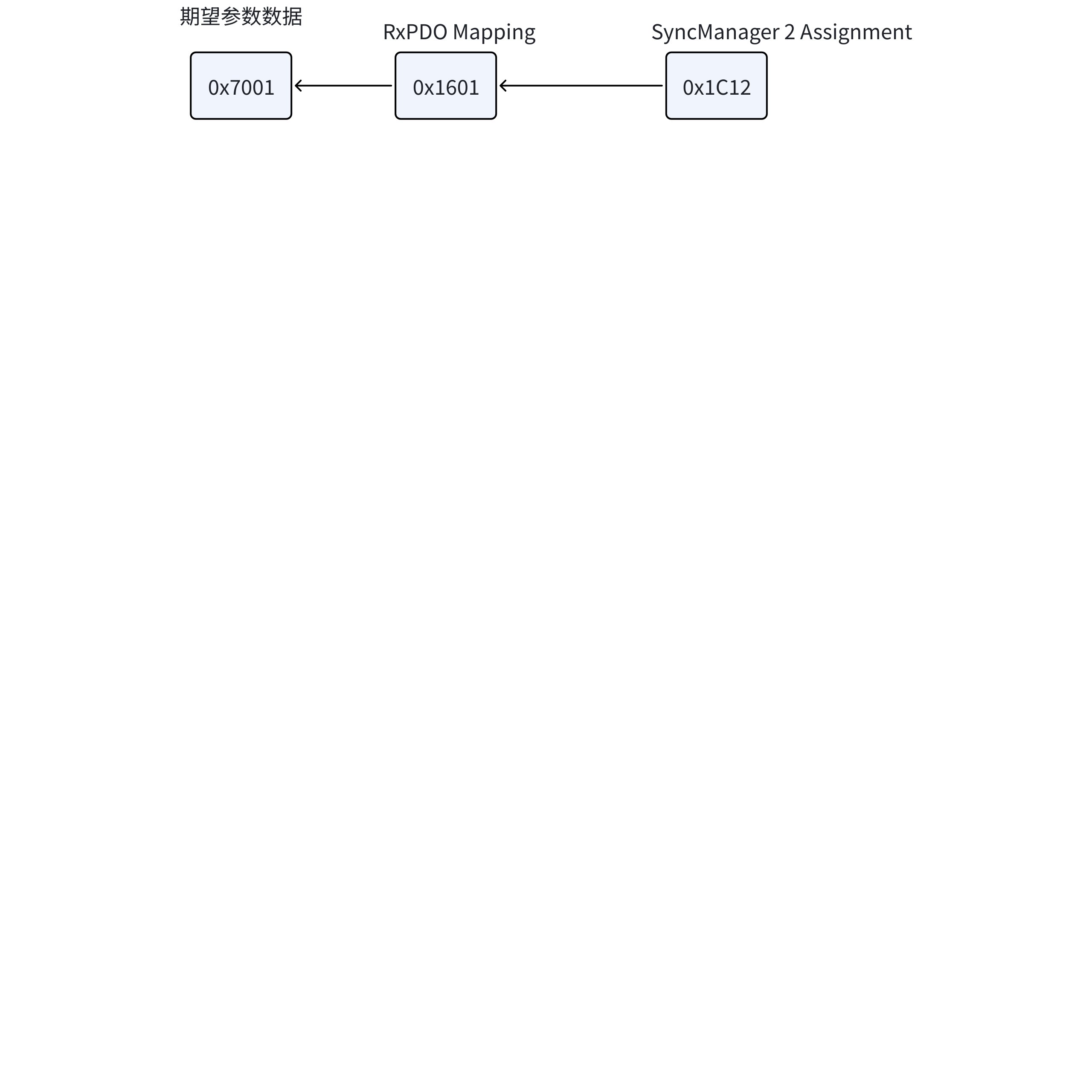
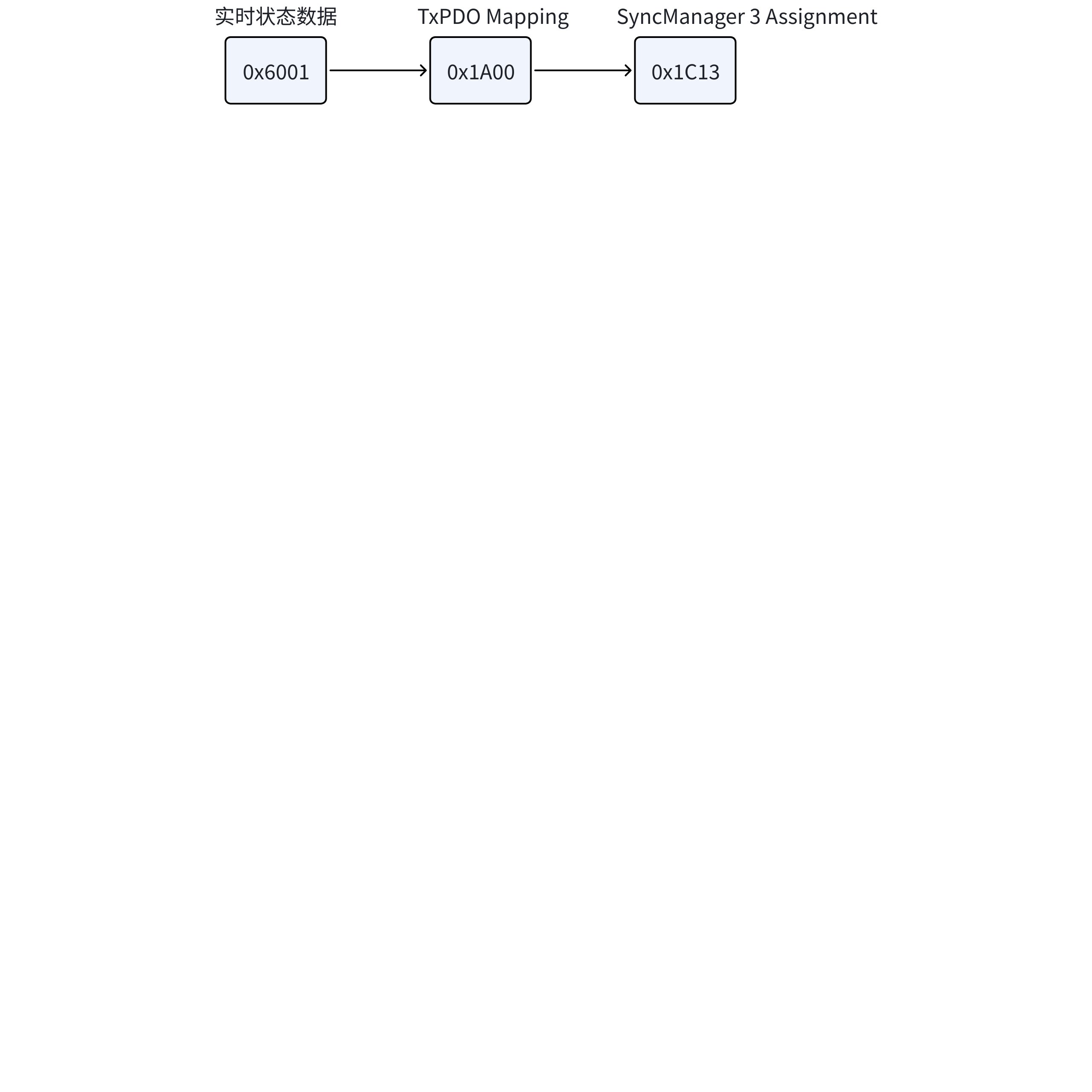
The SDO object is 0x8001. Subindex 0x01 reads 256 bytes. Subindex 0x02 writes 4096 + 128 bytes. SDO data uses the common frame format.
9.4 Error codes
| Board | Code | Name | Meaning and action |
|---|---|---|---|
| Communication board | 300 | ERROR_ID | Destination ID mismatch. Check the destination address. |
| Communication board | 301 | ERROR_CMD | Unknown command. Check the command byte. |
| Communication board | 302 | ERROR_COMMUNICATION | Invalid frame or checksum. Check the header and protocol fields. |
| Communication board | 303 | ERROR_DATA_LEN | Check the payload length, especially the joint target data. |
| Communication board | 306 | ERROR_BOOT_CMD | Check whether a non-update command was sent in boot mode. |
| Communication board | 307 | ERROR_CRC_ERROR | Check the request CRC bytes. |
| Joint board | 107 | ERROR_COMMUNICATION | The communication board detected a disconnect. Check joint-board power, indicators, and wiring. |
| Joint board | 113 | AXIS_ERROR_FOC_DURATION | FOC computation timed out. Contact technical support. |
| Joint board | 114 | AXIS_ERROR_OVER_VOLT | Drive overvoltage. Check the supply and contact technical support. |
| Joint board | 115 | AXIS_ERROR_UNDER_VOLT | Drive undervoltage. Check the supply and contact technical support. |
| Joint board | 103 | AXIS_ERROR_MOTOR_OVER_TEMP | Drive overtemperature. Stop motion. Power off if the temperature remains too high. |
| Joint board | 116 | AXIS_ERROR_ENC_ERROR | Check the motor and joint encoder connections to the joint board. |
| Joint board | 117 | AXIS_ERROR_STATE_MACHINE | Software state machine fault. Contact technical support. |
| Joint board | 118 | AXIS_ERROR_STALL_ERROR | Check whether the module is jammed. |
| Joint board | 119 | AXIS_ERROR_DRV_ERROR | Check the drive-chip indicator and contact technical support. |
| Joint board | 101 | AXIS_ERROR_LOAD_PARAM_ERR | Check whether the required parameters have been flashed. |
| Fingertip sensor board | 220 | ERROR_FINGER_DISCONNECT | This error occurs if the sensor remains disconnected for about 5 seconds during communication. Check the sensor harness and terminals. |
9.5 Registers
| Address | Length · type · access | Description |
|---|---|---|
1000 | 1 B · char · R | Hand side. L or l indicates left. R or r indicates right. |
1001–1064 | 64 B · char[] · R | Serial number string. |
1065–1068 | 4 B · uint32_t · R | Communication board version. Bits 31–24 give the major version, 23–16 the minor version, and 15–0 the release. |
1069–1200 | 132 B · uint32_t[] · R | Joint-board versions by ID, 4 bytes each. Missing IDs are zero-filled. |
1201–1240 | 40 B · uint32_t[] · R | Fingertip tactile adapter versions from thumb to little finger, 4 bytes each. |
1241–1300 | 60 B · R | Communication board name. |
1301–1360 | 60 B · R | Reserved. |
1361–1480 | 120 B · uint32_t[] · R | Joint motion counts by ID. |
1481–1600 | 120 B · uint32_t[] · R | Joint motion direction-change counts by ID. |
3000 | 1 B · uint8_t · R/W | Hand ID. Default 0, range 0–125. |
3001 | 1 B · uint8_t · R/W | RS485 baud rate. 0 selects 3 Mbps. |
3002 | 1 B · uint8_t · R/W | CAN FD data rate. 0 selects 5 Mbps. Arbitration is fixed at 1 Mbps. |
3003 | 1 B · uint8_t · R/W | CAN mode. 0 selects CAN FD. |
3004–3029 | uint8_t[] · R/W | Reserved. |
3030 | 1 B · uint8_t · R/W | Write 1 to save 3000–3029 to flash. Resets automatically on completion. |
3031 | 1 B · uint8_t · R/W | Quiet mode. 1 suspends inter-board communication and control, 0 resumes them. |
3032–3037 | 6 B · char[] · R/W | Write the string 123456 to clear the counters in 1361–1600. Resets automatically on completion. |
3038 | 1 B · char · R/W | Calibration code, optional. |
3039 | 1 B · uint8_t · R/W | Calibration step, optional. |
3040–3159 | 120 B · float[] · R/W | Joint angles for zero calibration, 4 bytes each, ordered by ID. |
3160–3279 | 120 B · float[] · R/W | Upper joint position limits by ID. |
3280–3399 | 120 B · float[] · R/W | Lower joint position limits by ID. |
3400 | 1 B · uint8_t · R/W | Write 1 after setting the calibration parameters to start zeroing. Wait 500 ms before reading the results. |
3401–3430 | 30 B · uint8_t[] · R/W | Zero-calibration results. 0 indicates success, 1 an angle out of range, and 2 an ADC value out of range. |
3431–3432 | 2 B · uint16_t · R/W | Preset motion repeat count. 0 repeats indefinitely. |
3433–3434 | 2 B · uint16_t · R/W | Preset motion interpolation time. Default 1,000 ms. |
3435 | 1 B · uint8_t · R/W | Preset motion control. 1 starts, 0 stops. |
3436–3437 | 1 B each · uint8_t · R/W | Write the target sensor ID to 3436, then write 1 to 3437 to start zeroing. Wait at least 100 ms between operations on different sensors or at least 1 s between operations on the same sensor. |
3438–3439 | uint8_t · R/W | Set the joint ID, then write 1 to start zero-position learning. Wait at least 100 ms between joints. |
3440–3442 | uint8_t · R/W | Encoder parameters BCT, ETY, and ETX. |
3443 | 1 B · uint8_t · R/W | Register for writing encoder parameters. |
3444–3449 | 6 B | Reserved. |
3450–3569 | 120 B · float[] · R/W | Mechanical joint limits, 4 bytes each, ordered by ID. |
3570 | 1 B · uint8_t · R/W | Register for writing mechanical limits. Resets automatically on completion. |
3571–3610 | 40 B · uint8_t[] · R | Sensor data type. 0 raw, 1 filtered, 2 baseline, 3 differential (default). |
3611–3613 | uint8_t · R/W | Set the sensor ID and data type, then write 1 to apply. |
Before changing encoder parameters or mechanical limits, verify the write addresses, trigger registers, and parameter ranges for your firmware or SDK.
9.6 CRC16 reference
Start CRC16 at 0 and include all bytes from the header through the end of the payload. See the common frame format for the frame fields.
static const uint16_t crc16tab[256]= {
    0x0000,0x1021,0x2042,0x3063,0x4084,0x50a5,0x60c6,0x70e7,
    0x8108,0x9129,0xa14a,0xb16b,0xc18c,0xd1ad,0xe1ce,0xf1ef,
    0x1231,0x0210,0x3273,0x2252,0x52b5,0x4294,0x72f7,0x62d6,
    0x9339,0x8318,0xb37b,0xa35a,0xd3bd,0xc39c,0xf3ff,0xe3de,
    0x2462,0x3443,0x0420,0x1401,0x64e6,0x74c7,0x44a4,0x5485,
    0xa56a,0xb54b,0x8528,0x9509,0xe5ee,0xf5cf,0xc5ac,0xd58d,
    0x3653,0x2672,0x1611,0x0630,0x76d7,0x66f6,0x5695,0x46b4,
    0xb75b,0xa77a,0x9719,0x8738,0xf7df,0xe7fe,0xd79d,0xc7bc,
    0x48c4,0x58e5,0x6886,0x78a7,0x0840,0x1861,0x2802,0x3823,
    0xc9cc,0xd9ed,0xe98e,0xf9af,0x8948,0x9969,0xa90a,0xb92b,
    0x5af5,0x4ad4,0x7ab7,0x6a96,0x1a71,0x0a50,0x3a33,0x2a12,
    0xdbfd,0xcbdc,0xfbbf,0xeb9e,0x9b79,0x8b58,0xbb3b,0xab1a,
    0x6ca6,0x7c87,0x4ce4,0x5cc5,0x2c22,0x3c03,0x0c60,0x1c41,
    0xedae,0xfd8f,0xcdec,0xddcd,0xad2a,0xbd0b,0x8d68,0x9d49,
    0x7e97,0x6eb6,0x5ed5,0x4ef4,0x3e13,0x2e32,0x1e51,0x0e70,
    0xff9f,0xefbe,0xdfdd,0xcffc,0xbf1b,0xaf3a,0x9f59,0x8f78,
    0x9188,0x81a9,0xb1ca,0xa1eb,0xd10c,0xc12d,0xf14e,0xe16f,
    0x1080,0x00a1,0x30c2,0x20e3,0x5004,0x4025,0x7046,0x6067,
    0x83b9,0x9398,0xa3fb,0xb3da,0xc33d,0xd31c,0xe37f,0xf35e,
    0x02b1,0x1290,0x22f3,0x32d2,0x4235,0x5214,0x6277,0x7256,
    0xb5ea,0xa5cb,0x95a8,0x8589,0xf56e,0xe54f,0xd52c,0xc50d,
    0x34e2,0x24c3,0x14a0,0x0481,0x7466,0x6447,0x5424,0x4405,
    0xa7db,0xb7fa,0x8799,0x97b8,0xe75f,0xf77e,0xc71d,0xd73c,
    0x26d3,0x36f2,0x0691,0x16b0,0x6657,0x7676,0x4615,0x5634,
    0xd94c,0xc96d,0xf90e,0xe92f,0x99c8,0x89e9,0xb98a,0xa9ab,
    0x5844,0x4865,0x7806,0x6827,0x18c0,0x08e1,0x3882,0x28a3,
    0xcb7d,0xdb5c,0xeb3f,0xfb1e,0x8bf9,0x9bd8,0xabbb,0xbb9a,
    0x4a75,0x5a54,0x6a37,0x7a16,0x0af1,0x1ad0,0x2ab3,0x3a92,
    0xfd2e,0xed0f,0xdd6c,0xcd4d,0xbdaa,0xad8b,0x9de8,0x8dc9,
    0x7c26,0x6c07,0x5c64,0x4c45,0x3ca2,0x2c83,0x1ce0,0x0cc1,
    0xef1f,0xff3e,0xcf5d,0xdf7c,0xaf9b,0xbfba,0x8fd9,0x9ff8,
    0x6e17,0x7e36,0x4e55,0x5e74,0x2e93,0x3eb2,0x0ed1,0x1ef0
};

uint16_t crc16(const char *buf, int len) {
    int counter;
    uint16_t crc = 0;
    for (counter = 0; counter < len; counter++)
            crc = (crc<<8) ^ crc16tab[((crc>>8) ^ *buf++)&0x00FF];
    return crc;
}
© Beijing Xingdong Jiyuan Technology Co., Ltd.